Since the advent of fiber optics and the popularization of the Internet box, mastering access to your Livebox has become an essential skill to optimize your home network. In 2025, as the demand for fast and secure connections skyrockets, especially with the multiplication of connected devices and widespread remote work, knowing how to navigate your Livebox interface is more than just an asset: it’s a necessity. Contrary to common belief, accessing this interface is not limited to typing an IP address into a browser; it is a rich environment that allows you to tailor your network to your specific needs, ensure the security of your data, and improve the quality of your Internet connection. Yet, many still confuse the address 192.168.1.1 with 192.168.l.l, which causes frustration and misunderstanding, even among the most experienced computer users.
This complete guide accompanies you step by step to overcome these obstacles, offering proven tips, advice tailored to each Livebox model (from Livebox 2 to Livebox 7, Play, S, and Pro) and troubleshooting solutions in case of blockage. Far beyond a simple tutorial, it offers a detailed dive into advanced management of your Wi-Fi network, secure configuration of your box, control of connected devices, and optimization of your Internet experience at home. This article is addressed both to those installing their Livebox for the first time and to experienced users wishing to explore all the possibilities offered by their Orange Internet box. Unlock the full potential of your connection with this indispensable guide!
The essential basics for accessing your Livebox interface via 192.168.1.1
Understanding how to access your Livebox interface is the first essential step to effectively managing your home network. The most common mistake is confusing the correct IP address, 192.168.1.1, with an incorrect address containing lowercase “L”s (192.168.l.l), which systematically blocks access. This IP address is the default local gateway used by Orange for configuring all its Liveboxes, from 2 to 7, including the Play, S, and Pro models.
Before attempting the connection, it is crucial to verify that your device (computer, tablet, or smartphone) is properly connected to the Wi-Fi network or via an Ethernet cable from your Livebox. A connection via VPN or an external tethering will not allow access to the interface. This step is sometimes neglected, causing much misunderstanding and support calls.
To access the interface: simply open a modern Internet browser (Chrome, Firefox, Edge, Safari) and enter in the address bar either http://192.168.1.1 or http://livebox/. The authentication page that appears then asks you for a username and password.
The default credentials to know
The default username is systematically “admin.” The password is written on a sticker affixed to the bottom of the Livebox. This eight-character Wi-Fi security key, often in uppercase for the Livebox 2, also serves as the initial administration password. For the latest models, your Livebox screen can also display this code, avoiding the need to bend over to read under the box. If you have changed these credentials afterward, be sure to remember the new password, otherwise a box reset will be necessary.
On the Livebox Play, a personalized password is required from the first connection, with a minimum of eight characters including uppercase, lowercase, and numbers. This evolution strengthens security but makes access a bit more complicated for the distracted user.
The simplicity of this access protocol allows any Orange subscriber to quickly administer their Internet connection, whether it’s to troubleshoot their Wi-Fi network, monitor their traffic, or configure new features, while ensuring minimal protection against unauthorized access. Management via this interface remains the key to mastering the entire home network and anticipating technical problems before they become critical.
Why and when should you absolutely access your Livebox interface?
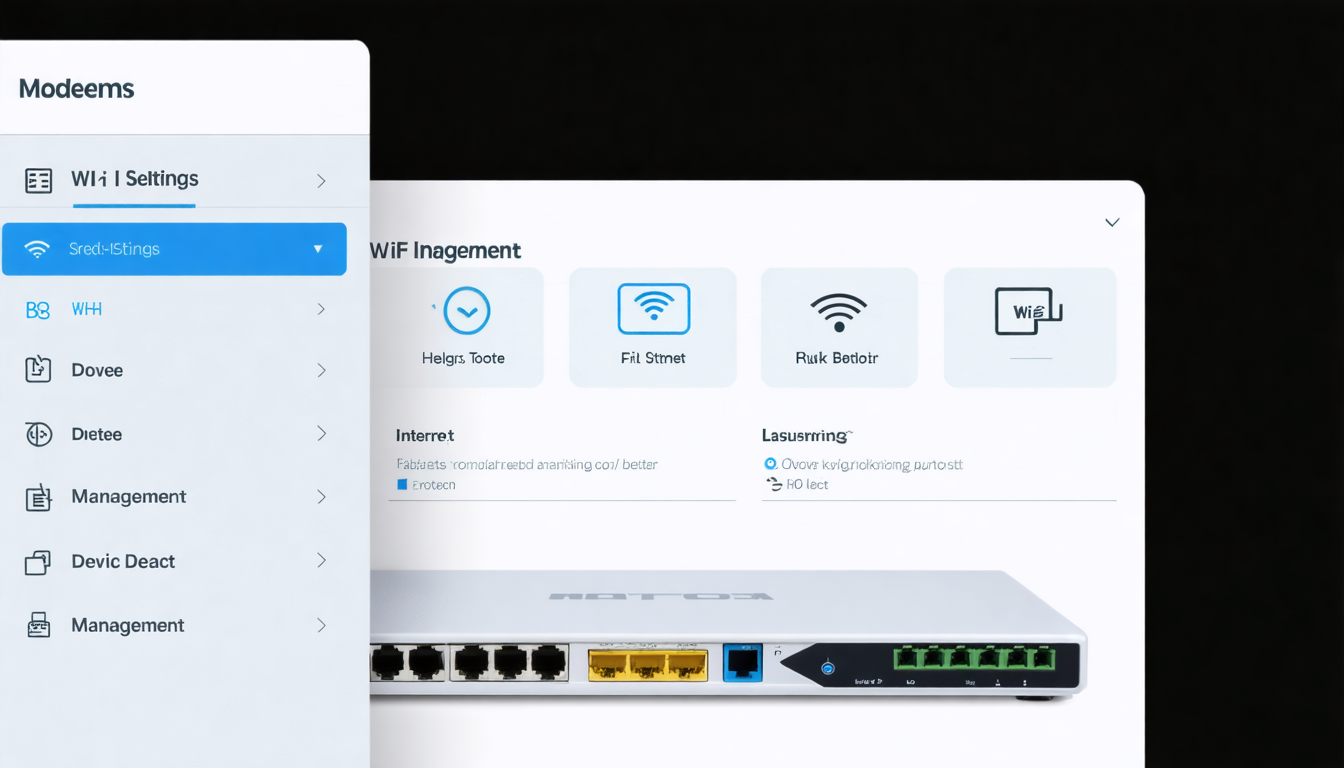
Many people are unaware that the configuration interface of their Livebox is a real toolbox to supervise and optimize their home Internet network. Far beyond Wi-Fi management, this interface offers in-depth control over various technical aspects that directly impact your online experience. Here are some major reasons justifying a regular visit to your Livebox interface.
Optimize the security of your Wi-Fi network
Wi-Fi configuration is one of the most used functions. Changing the Wi-Fi password regularly helps secure your network against unwanted access. Creating a guest network allows you to share Internet with your visitors without giving them access to your internal resources like your NAS or printers. Moreover, the MAC address filtering feature gives you the possibility to allow or block specific devices, a valuable tool to limit the number of users and protect your data.
View and manage connected devices
Thanks to the interface, you can see in real time all equipment connected to your Livebox: smartphones, computers, consoles, connected objects, and even unwanted visitors. This feature empowers you to identify unknown or suspicious devices that could slow down your connection or represent a potential threat. The ability to block a device with one click is a formidable tool to keep control over your network.
Set time slots and manage parental controls
For families, the Livebox offers advanced parental control tools. It is possible to define time slots during which the Wi-Fi will be cut off for certain devices, limiting Internet access outside school hours or bedtime. This framework can be essential to establish a healthy and secure Internet usage for children, especially in a context where digital is omnipresent in their lives.
Run tests and troubleshoot your Internet
When your Internet connection shows signs of weakness, the Livebox interface offers valuable diagnostic features. An integrated speed test allows measuring the real performance of your line, while remote rebooting of the box can automatically solve some problems without physical intervention. You can also access detailed information about your fiber optic or ADSL status, which facilitates communication with technical support in case of persistent failure.
Other practical uses
Beyond network settings, the interface allows you to manage your fixed line: consult call history, set call filtering, or even make your phone ring to find it. Options to control your CPL boxes and launch network diagnostics complement this picture, offering unified and accessible management for all subscribers.
Compatible Livebox models and their access particularities in 2025
Over the years, Orange has developed several versions of its famous Livebox, each incorporating slightly different features and interfaces. In 2025, access compatibility to the interface via 192.168.1.1 is extended to almost all existing Liveboxes, but some specifics deserve to be clarified to optimize your use.
| Livebox model | Access method | Default credentials | Particularities |
|---|---|---|---|
| Livebox 2 | 192.168.1.1 or http://livebox/ | admin / key under the box (in uppercase) | Password display on screen possible |
| Livebox Play | 192.168.1.1 or http://livebox/ | admin / personalized password from first login | Strong password required, mandatory creation |
| Livebox 4, 5, 6, 7 | 192.168.1.1 or http://livebox/ | admin / key under the box | Improved interface with advanced management |
| Livebox S | 192.168.1.1 only | admin / key under the box | Ultra-compact version, same access method |
| Livebox Pro V4 | 192.168.1.1 or http://livebox.home/ | admin / key under the box | Professional options, alternative access |
This diversity sometimes requires some adjustments in the Livebox installation procedure and in the configuration of your Internet box. Once the right method is identified, everything becomes much easier to manage.
Common mistakes when connecting to the Livebox interface and how to avoid them
Even knowing the IP address and credentials, several common errors often hinder access to your Livebox configuration. Here is an exhaustive list of pitfalls to avoid as well as appropriate solutions for each situation.
- Address error: Typing “192.168.l.l” instead of “192.168.1.1.” You must enter digits instead of letters.
- Inappropriate network connection: Being connected on 4G or via VPN blocks access to the interface. Make sure you are on the Livebox Wi-Fi or Ethernet network.
- Browser caches and extensions: Sometimes settings or extensions cause conflicts. Testing another browser or private browsing can fix the problem.
- Incorrect password: Check the password on the sticker under the box, without spaces or casing errors.
- Box not powered on or malfunctioning: Restart the Livebox and wait a few minutes before trying again.
- Unstable local network: Try reconnecting your device or testing with another device.
- Interface not accessible: Try the address http://livebox/ as an alternative to the classic IP.
As a last resort, if despite all these precautions you still cannot connect, a complete reset of your Livebox may be considered. This procedure will restore settings to zero, including personalized configurations, and allow a “clean” access with default credentials. Be careful, this option must be used with caution.
Use the Ma Livebox app for simplified access and mobile management
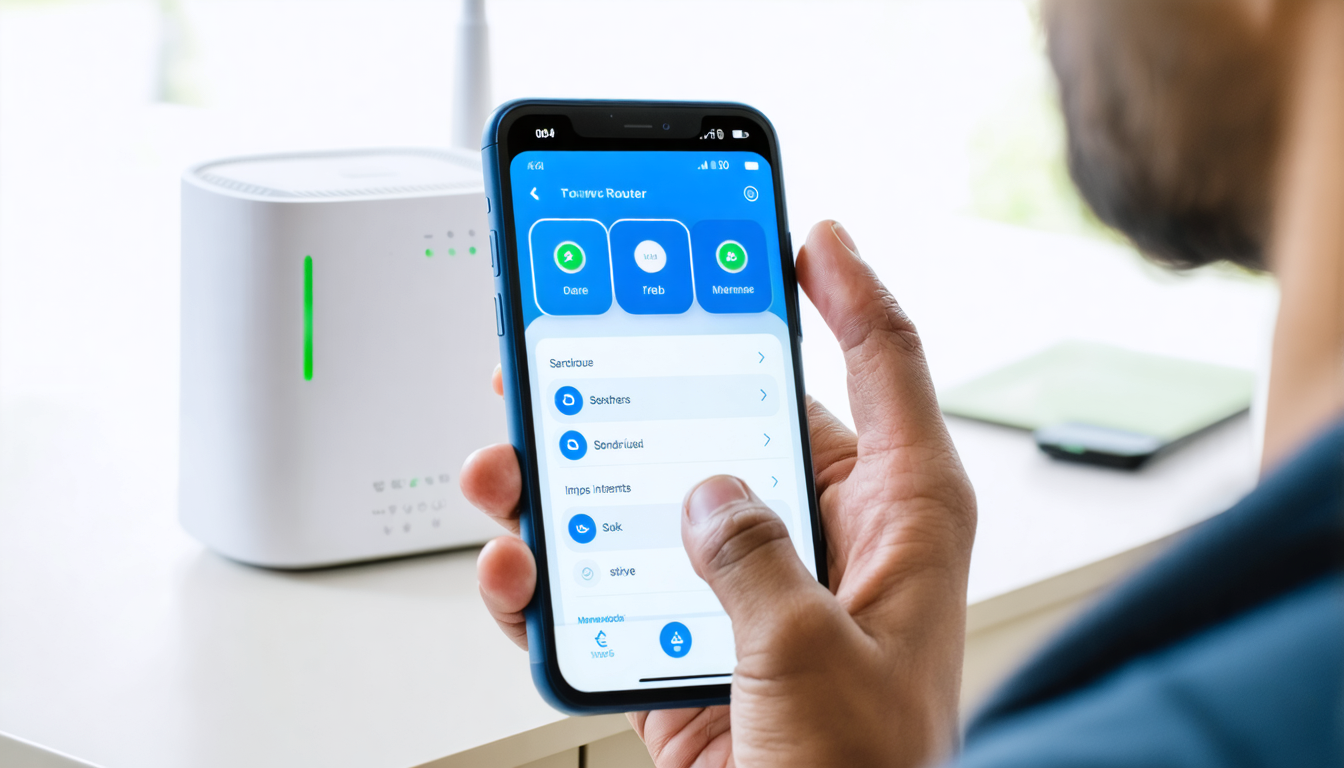
The advent of mobile applications has transformed the way users interact with their Internet box. Orange has offered the Ma Livebox app for several years, available on Android and iOS, providing simplified access to management and troubleshooting of your Livebox directly from your smartphone.
This application allows you to:
- Easily change Wi-Fi settings, such as the password or network name
- View the list of connected devices and block those not recognized
- Restart the Livebox remotely without getting up
- Perform quick speed tests to evaluate the quality of your Internet connection
- Access the help center and automated diagnostics for simplified troubleshooting
The app is particularly appreciated by users who want to avoid the complexities of web interfaces on computers. It makes Livebox access more intuitive, especially for those less skilled in IT.
In 2025, with the rise of fiber optics and the multiplication of connected devices, mobile management of your box becomes a major asset to keep an eye on the performance and security of your home network, anywhere and anytime.
The advantages of customizing your Internet box configuration for an optimized experience
We are in an era where simply installing a Livebox is no longer enough to guarantee an optimal connection. Adapting and customizing your Internet box configuration can radically transform your daily use. In a modern household, where fiber optics simultaneously powers multiple devices streaming 4K, video conferences, and online gaming, every setting counts.
Traffic prioritization and QoS (Quality of Service) management
An advanced feature of some recent Liveboxes allows controlling the bandwidth allocated to each device or each type of traffic. Thanks to QoS, you can prioritize important streams like video calls or gaming to avoid latency, at the expense of background downloads. This guarantees a smooth and pleasant experience for all users of your network.
Extended Wi-Fi zone and signal optimization
Fine-tuning the Livebox also allows adjusting Wi-Fi channels to minimize interference with other nearby networks. Configuring the transmission power or enabling the 5 GHz band can significantly improve the quality and range of the home Wi-Fi network. Moreover, integration with repeaters or CPL boxes can be managed via the interface for homogeneous coverage in every room.
Setting up segmented networks
If you own sensitive IoT equipment or a home automation box, creating a guest Wi-Fi network or a dedicated VLAN via box configuration is an effective measure to isolate these devices and enhance overall security. This prevents vulnerabilities in connected objects from compromising your computer or personal data.
Concrete examples
A family with gaming teenagers and remote working parents could, for example, assign high priority to the gaming console and professional computers, while limiting the bandwidth available for non-urgent children’s video streaming. This avoids slowdowns and maintains optimal quality during critical needs.
Another user who had suffered several unwanted intrusions configured the Livebox interface’s MAC address whitelist, automatically removing any unknown device from the network. Such advanced options remain within a few clicks thanks to a user-friendly and accessible interface.
Practical tips for effective Internet troubleshooting directly via the Livebox interface
Internet connection problems often mean wasted time and frustration for users, but the Livebox plays a key role in diagnosis and troubleshooting. The management interface integrates several tools to facilitate fast issue resolution.
Remote reboot and reset
In many cases, a simple reboot of the Livebox is enough to restore an optimal connection. The Livebox interface and Ma Livebox app offer the possibility to perform this reboot remotely without having to physically access the box. This is a valuable time saver, especially for less tech-savvy users.
Built-in speed tests
Before calling Orange support, you can perform a speed test directly from the interface, which allows you to verify the real quality of your Internet connection at the time of the problem. These measurements help distinguish a local configuration issue from a malfunction related to the line or the service provider.
Access to logs and advanced diagnostics
The Livebox interface keeps a history of network events and allows launching in-depth diagnostics. This information is valuable for understanding the origin of a cut or disturbance, especially in case of instability on the fiber optic network. It also serves technicians during professional interventions.
Additional tips & tricks
- Remember to check that your Livebox firmware is up to date via the interface to benefit from the latest fixes and optimizations.
- To improve Wi-Fi range, avoid placing the box near thick walls or electrical devices generating interference.
- Ensure DNS settings are properly configured; sometimes changing them to public DNS improves access speed to some sites.
New possibilities for Livebox integration in a connected home network in 2025
Beyond simple Internet connection, the Livebox now stands as the heart of a sophisticated connected ecosystem. In 2025, this Internet box is compatible with a wide range of smart devices and facilitates centralized management of your home network.
Integration with voice assistants and home automation
The Livebox can be controlled via interfaces compatible with voice assistants like Google Assistant or Alexa. This integration offers voice control of certain functions, such as enabling or disabling guest Wi-Fi, or managing time slots for access blocking, thus simplifying the user experience.
Enhanced security around fiber optics and internal networks
The constant increase in cyber threats pushes Orange to strengthen the security of its Liveboxes, particularly on fiber optic traffic. Automatic updates, integrated firewalls, and advanced filtering options complement the basic protections to prevent intrusions and secure the internal network against targeted attacks.
Multi-device connection and bandwidth management
With the development of smartphones, tablets, and connected devices of all kinds, the 2025 Livebox offers sophisticated tools to efficiently distribute bandwidth between these different devices. Integrated artificial intelligence anticipates usage to automatically allocate priorities and resources, thus guaranteeing a high level of performance without constant manual handling.
In summary, the Livebox has become an indispensable device for managing a modern, secure home network perfectly adapted to current demands, especially with fiber optics. Mastering your Livebox access is a major step towards a better digital quality of life at home.