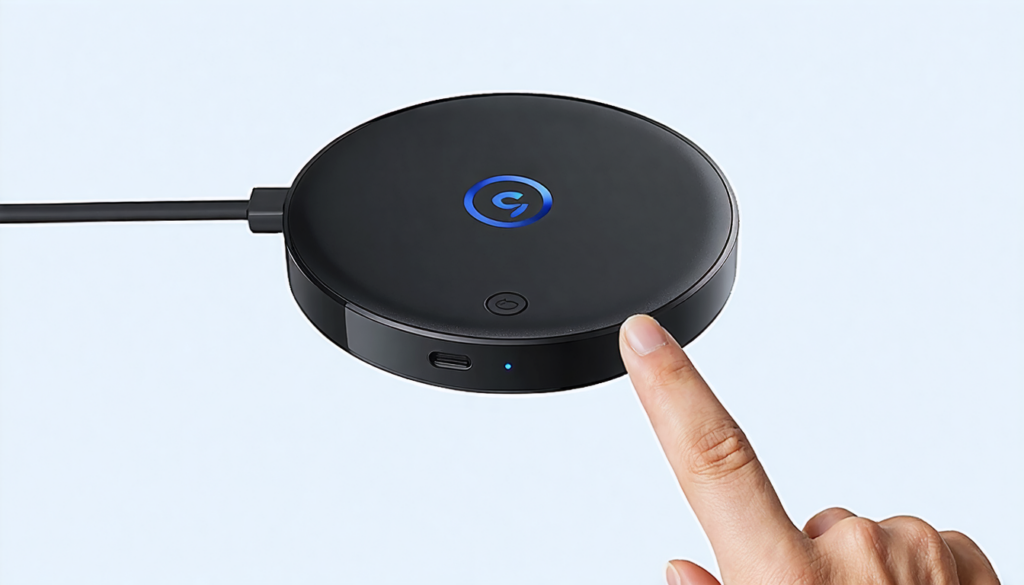
In 2026, streaming has become the preferred way to consume multimedia content, and Chromecast has established itself as one of the simplest and most efficient solutions to turn any television into a connected entertainment hub. But behind this apparent simplicity, the optimal setup of your Chromecast on Wi-Fi holds some essential tips, especially with the variety of current networks and the multiple Google features that enhance the user experience. Whether you are an enthusiastic novice or an experienced user, this comprehensive guide will walk you through step by step to master your Chromecast, explore its hidden features, and optimize your network connection to enjoy smooth and uninterrupted streaming.
From the initial connection to discovering advanced options like voice control and screen casting, to effective troubleshooting solutions, you will find here all the necessary advice to master your Chromecast at your fingertips. Forget the frustrations related to poor Wi-Fi connection or tedious setup: we will provide clear methods, precise explanations, and tested tricks to make your connected television the heart of your digital home experience.
The fundamental steps to connect and start your Chromecast in 2026
The first contact with your Chromecast is crucial to ensure a smooth startup. This small device, usually discreetly placed behind your television, is a technological concentrate designed to offer an exceptional wireless streaming experience. First of all, you need to prepare your setup to guarantee a quick and efficient configuration.
Physical connection of the Chromecast: start by inserting the device into the HDMI port of your television. This type of connection ensures the transmission of both sound and image in high definition. Be careful to choose an accessible HDMI port so as not to obstruct the installation of other equipment. The Chromecast is powered via a supplied USB cable, to be plugged either into a USB port of the television or via a power adapter. In the latter case, you benefit from a more stable power supply, which is important to avoid interruptions during long streaming sessions.
Moreover, certain models such as the Chromecast Ultra or newer ones allow an Ethernet connection via a specific adapter, an interesting option for those who prioritize network connection stability over Wi-Fi only.
Once your device is connected, turn on your television and select the HDMI source corresponding to your Chromecast. A Google welcome screen or a QR code should appear on the screen, indicating that the startup is effective. This visual step is essential as it confirms that your television and Chromecast are communicating properly.
Install the Google Home app for initial setup
The next crucial step is to install the Google Home app on your smartphone or tablet. Compatible with iOS and Android, this app is the control center for your Chromecast and many other connected Google devices. It guides the user through all stages of the setup and also allows you to adjust the settings after installation.
Make sure your mobile device is connected to the same Wi-Fi network that you want to connect your Chromecast to. Otherwise, the app will not be able to locate the device. Once the app is open, it automatically detects a new device and offers to start the setup. Just follow the on-screen instructions, which are generally very clear: name your Chromecast, choose the room where it will be used to simplify voice control, then select the Wi-Fi network to use.
The simplicity of this step should not hide its importance, as a good Wi-Fi connection is the key to a streaming experience that is smooth and interruption-free.
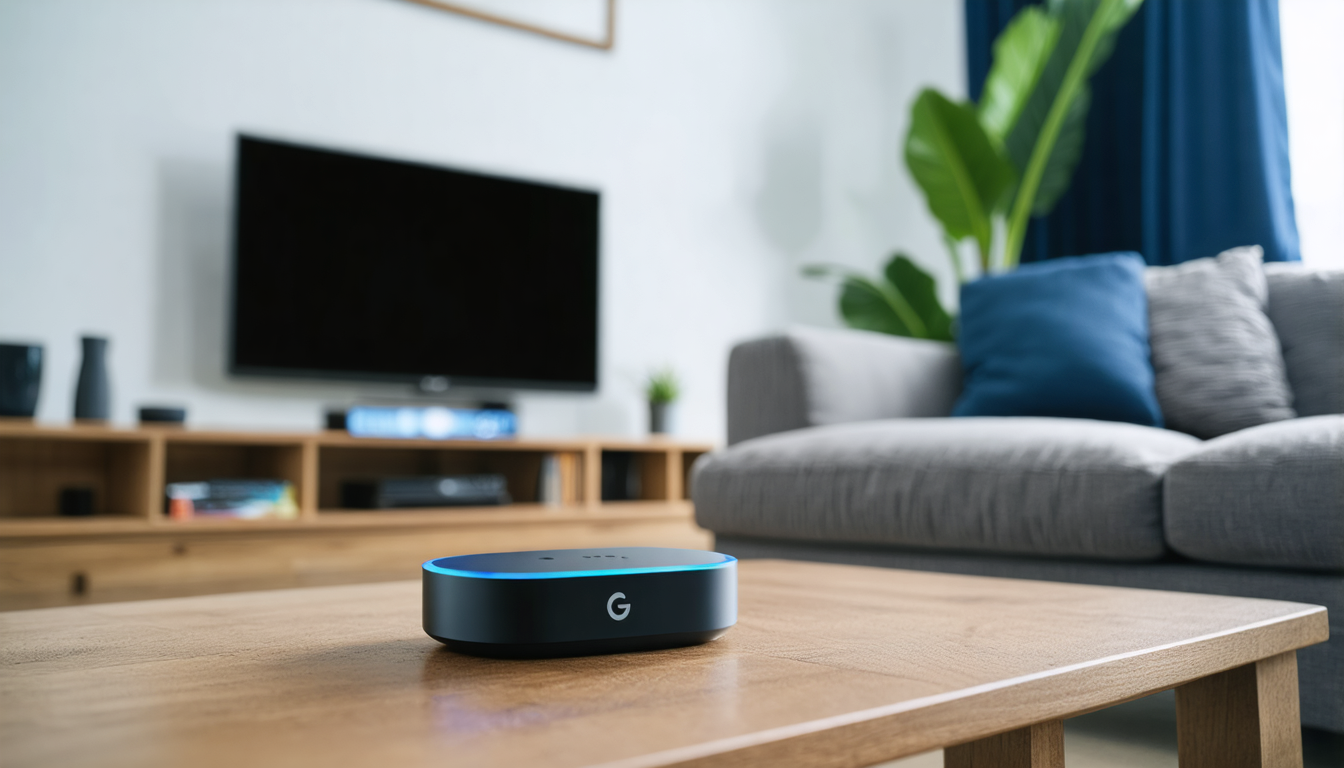
How to efficiently connect Chromecast to your home Wi-Fi network
In 2026, Wi-Fi networks have become increasingly sophisticated, featuring among other things the coexistence of 2.4 GHz and 5 GHz bands, as well as the massive arrival of Wi-Fi 6E in households. For your Chromecast, understanding and choosing the right band is a key element of the setup to guarantee a stable and high-performing network connection.
Choosing between 2.4 GHz and 5 GHz bands: the 2.4 GHz band offers greater range but a lower speed and is more susceptible to interference, whereas the 5 GHz band provides a faster rate but shorter range. If your router supports both bands, prioritize 5 GHz for HD or 4K streaming, especially if your Chromecast is close to the router.
The Google Home app will guide you to enter the correct Wi-Fi password and test the connection. In case of error, double-check the spelling of the password and make sure there are no specific restrictions on the router:
- MAC filtering enabled: some routers block unknown devices, remember to authorize the Chromecast.
- Guest network: some Chromecast features are impossible without a direct connection to the main network.
Another good point to check is compatibility with security protocols: WPA2 or WPA3 are generally recommended for good protection without losing performance.
Using the Google Home app for reliable network configuration
The network selection process in the app is intuitive. After detecting the Chromecast, it displays available networks and invites you to choose your home one. After entering credentials, the connection is usually established within a few seconds. This simplicity is what makes Google strong in its user approach.
To enhance the experience, Google has integrated network diagnostic options into its app that can help locate signal or interference problems. For example, in case of regular interruptions, it is advised to bring the router or Chromecast closer or prefer an Ethernet cable via adapter for an unbreakable connection, notably for compatible models.
You are then ready to stream all your favorite content with optimal connectivity and sufficient bandwidth for high-resolution videos, game streaming, or latency-free mirroring.
Key Google features to discover with Chromecast in 2026
Beyond simple video streaming, Chromecast features have been significantly enriched, offering a true connected hub to your television. Google has integrated smart options into its ecosystem that leverage the power of cloud and artificial intelligence to simplify and personalize your experience.
Voice control with Google Assistant: thanks to the built-in microphone of your smartphone, you can control your Chromecast by voice. Ask it to start a series on Netflix, display your photos, or even control playback (pause, forward, etc.) without moving from your couch. This feature is especially appreciated for its hands-free aspect.
Screen casting: it allows you to mirror the screen of your phone, tablet, or computer onto the television. Useful for professional presentations, mobile games, or simply to share a website or application with the whole family.
Guest mode is another asset: your friends can stream content to your Chromecast without having to connect to the same Wi-Fi network, thanks to secure Bluetooth communication. Useful during parties or meetings, this feature expands sharing and interaction possibilities.
Finally, automatic updates via the network protect your Chromecast and regularly add new functions, ensuring an always up-to-date experience without extra effort on your part.
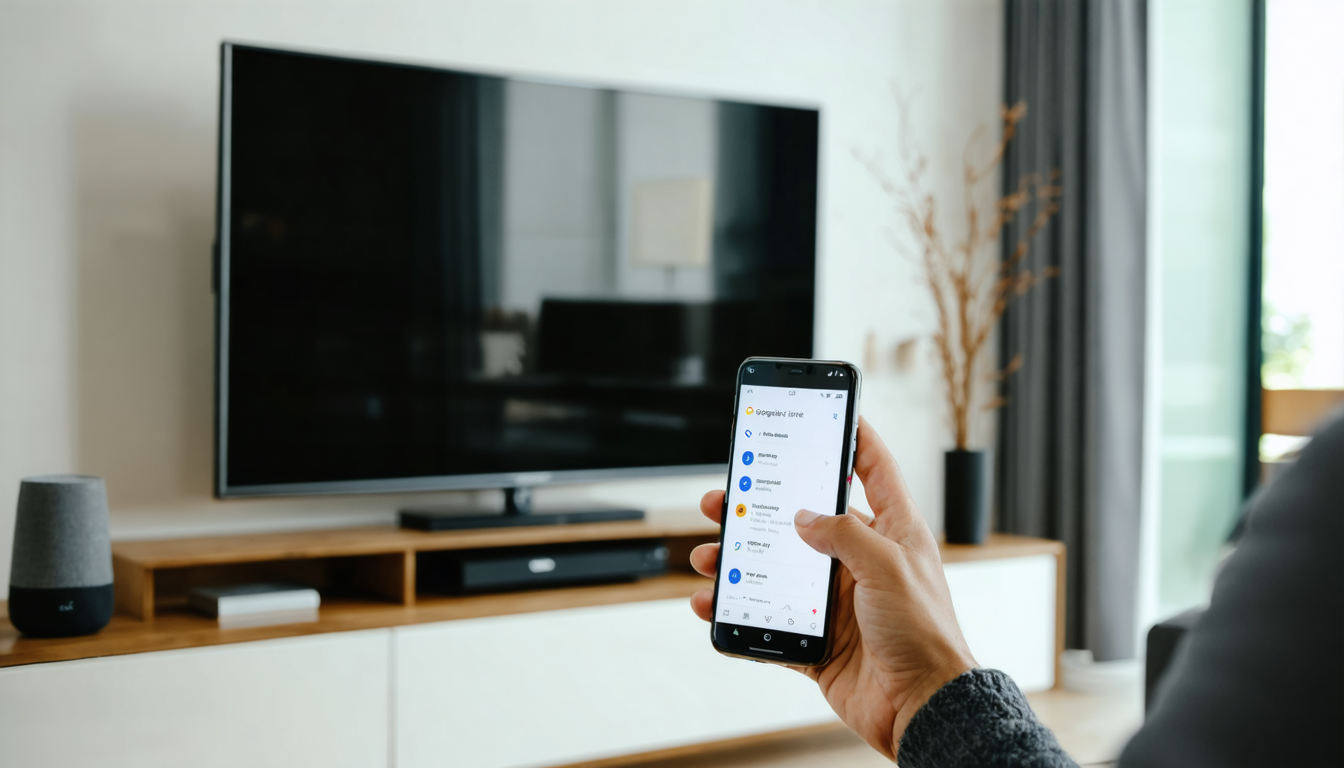
Practical tips to optimize your Chromecast network connection
A high-performance Wi-Fi network is essential to fully enjoy your Chromecast without frustration. Here are some practical tips to avoid common problems and ensure a stable connection on a daily basis.
Optimal positioning of the internet box: avoid placing your box in a closed corner or far from the Chromecast. Ideally, there should be a direct line or few obstacles (walls, furniture) between them. Metal and certain materials can strongly weaken the Wi-Fi signal.
Do not overload your network: in 2026, connected households often use multiple devices simultaneously (smartphones, tablets, consoles, etc.). A quality and well-configured router (Quality of Service QoS, Wi-Fi channel selection) will allow you to prioritize traffic to your Chromecast to ensure optimal smoothness.
If your Chromecast has an Ethernet port, use a wired connection to eliminate any Wi-Fi-related issues. It is an often-overlooked but very effective option for heavy high-definition streams and 4K streaming.
Finally, remember to regularly restart your box and Chromecast to reset any network conflicts or saturations, a simple yet highly effective trick.
| Tip | Effect | Recommended for |
|---|---|---|
| Close and open placement of the box | Improved Wi-Fi signal | All users |
| Use of the 5 GHz band | Faster speed, fewer interferences | HD/4K streaming |
| Ethernet connection via adapter | Maximum stability | Demanding users |
| Regular restart of equipment | Network reset, bug resolution | Users experiencing interruptions |
Different Chromecast connection options: Wi-Fi, Ethernet, or mobile hotspot
Although mostly used on Wi-Fi, Chromecast adapts to several connection modes to meet various needs and network environments. Understanding these alternatives is crucial to get the most out of this device in 2026.
Classic Wi-Fi remains the most widespread and simple method. It offers mobility and ease of use appreciated by users, especially with the stability of current home networks. However, it can sometimes suffer from interference and bandwidth fluctuations.
Ethernet connection, available on some models via an official Google adapter, guarantees exemplary stability. This option is recommended for users seeking very high-quality streaming or in environments where Wi-Fi is congested or unstable.
Mobile hotspot is an interesting alternative when traveling or in temporary locations. Your smartphone then acts as a Wi-Fi router and connects the Chromecast to the internet via the mobile network. This method quickly consumes mobile data, so it should be used with caution, but it is very convenient for occasional use outside the home.
Finally, the guest mode mentioned earlier remains a complementary solution where the main home Wi-Fi connection is not accessible to visitors, while allowing them to cast content to your TV.
Quick troubleshooting: easily solve Chromecast connection issues
Like any connected device, Chromecast can encounter connection problems that spoil the user experience. Don’t panic: several simple methods can be used to get your setup back on track in a few minutes.
- Restart devices: turn off then turn on your Chromecast and your internet box. This basic but often effective step solves most temporary network issues.
- Reset Chromecast: if the problem persists, perform a factory reset. This erases all network configurations and requires a new startup procedure via the Google Home app.
- Check for updates: make sure your Chromecast and Google Home app are up to date. Outdated versions can encounter bugs or incompatibilities.
- Check for interference: move away other electronic devices that may disrupt the Wi-Fi signal, such as microwaves or cordless phones.
- Test other devices: try casting from another smartphone or computer to identify if the problem comes from the source.
These simple actions are often enough to regain a robust connection and smooth streaming. Also consider consulting specialized forums and Google support in case of more technical doubts.
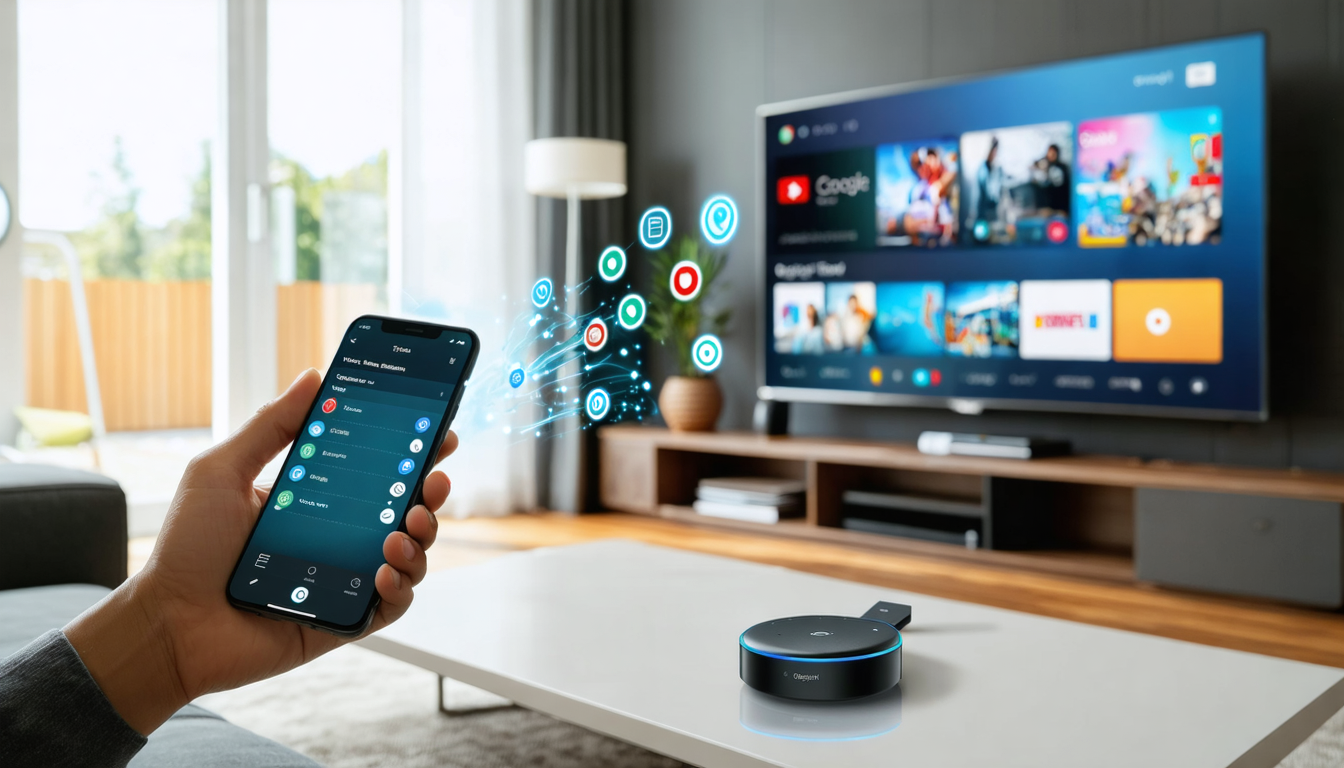
Fully leveraging advanced Chromecast features to enrich your TV experience
Beyond classic streaming, Chromecast in 2026 offers a range of advanced features that transform it into a true hub of connected activities on your television.
Multi-session and user profiles: now, you can create multiple Chromecast profiles so each family member has their preferences, playlists, and personalized recommendations. An option that facilitates sharing while respecting individual tastes.
Multi-room streaming: synchronize multiple Chromecasts in different rooms for a unified sound or visual experience. For example, start a movie in the living room and continue streaming in the bedroom without interruption.
Games and interactivity: screen casting opens the door to multiplayer games and interactive apps that benefit from the large screen. Combined with the Google Home app, you can control these features effortlessly, turning your living room into a friendly gaming room.
Voice control remains a must-have, especially for people with reduced mobility or simply for hands-free use. Since 2026, integration with other connected home devices has increased, making Chromecast a central element of your digital ecosystem.
Investing some time to discover these advanced uses will allow you to go from a simple viewer to a true actor in your digital universe.