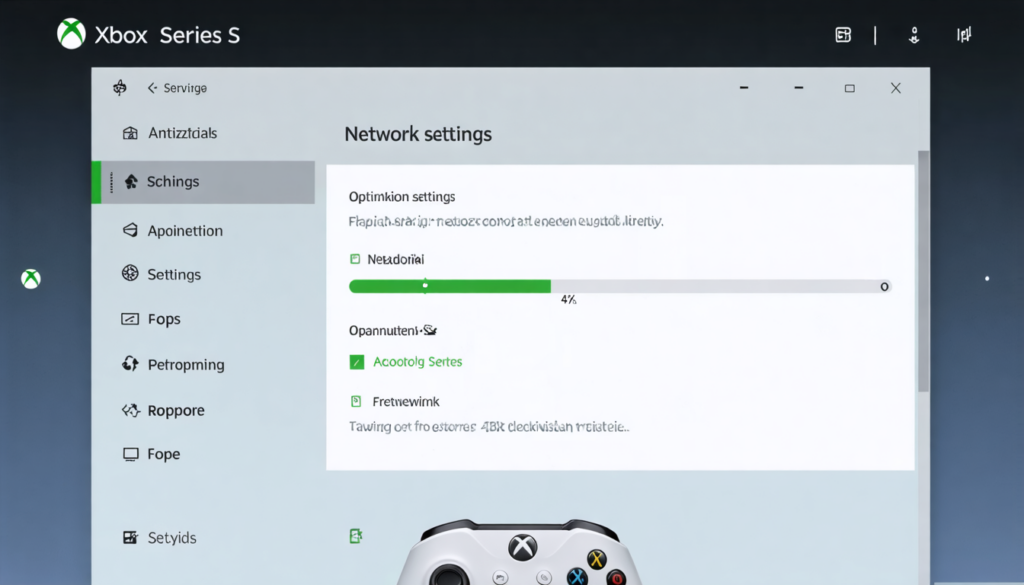
In the ever denser gaming universe of 2026, the Xbox Series X and Xbox Series S stand out as flagship consoles, offering players impressive graphical and technical experiences. Yet, despite these remarkable performances, a recurring challenge persists: the slowness of video game downloads. Whether it’s about getting a new title via Xbox Game Pass or updating your favorite games, the speed at which you download these contents directly influences your playtime and overall satisfaction. Fortunately, there are effective solutions, sometimes little known, to instantly boost these downloads without needing to invest in a much more expensive internet subscription or change your network hardware. These Xbox tips combine both smart network optimization and precise adjustments at the console level itself. This comprehensive guide takes you through these techniques to turn your fast connection into a true download accelerator, and fully optimize the internet speed of your Xbox Series X|S.
The digital revolution now demands from discerning gamers fluid and fast access to dematerialized content. Therefore, mastering the network optimization options and the settings available on your console is essential. In this article, we will explore practical methods to never again suffer a 1% progress bar while wavering between patience and frustration. Well suited to multiplayer enthusiasts as well as solo campaign lovers, these tips guarantee optimal console performance and impressive download speed. Get ready to discover the secrets to transform your Xbox experience and fully leverage the potential of your internet connection and your hardware, allowing you to regain control over the time spent waiting for your games. Through a succession of tips, illustrated examples, analyses, and tutorials, you will learn how to unlock the hidden power of your Xbox Series X|S, while avoiding untimely interruptions or network saturation.
Understanding speed limits on Xbox Series X|S and their impact on downloads
When you start a download on the Xbox Series X or Series S, you naturally expect the speed to match the quality of your internet connection. However, very often, performance does not meet expectations. This situation can be explained by several factors related both to the console and the network. First, internal limitations in the download management system can throttle the effective speed. For example, priority given to other console network services, like streaming or multiplayer sessions, can reduce the bandwidth allocated to downloads. Next, management of Xbox servers, especially during peak traffic times, plays a crucial role: downloads may be slowed due to server congestion.
Additionally, the quality of the internet connection between your home and Microsoft servers directly affects performance. A connection with high ping or packet loss will cause frequent interruptions, making instantaneous downloading impossible. Moreover, Wi-Fi technology, often favored for its flexibility, can also be a source of instability and speed decrease compared to a wired Ethernet connection. The console sometimes automatically prioritizes Wi-Fi connections depending on signal quality, which may not be optimal.
Network optimization then becomes a necessity. Understanding the internal mechanisms that regulate the speed limit allows you to target the most effective adjustments. For example, temporarily disabling non-essential services during a download while gaming can clean up bandwidth. Similarly, anticipating periods of low server traffic on Xbox is a strategy that helps maximize your effective internet speed.
Finally, managing multiple downloads also affects performance. On the Xbox Series X|S, it is possible that several games or updates are downloading simultaneously, thus sharing bandwidth. Prioritizing one download at a time often guarantees better speed. This fine management significantly impacts the experience because a single focused download will benefit from a more stable connection, avoiding the hazards caused by fragmented internet speed.
In summary, download speed on Xbox Series X|S is not solely dependent on the theoretical speed of your internet connection. Several factors work behind the scenes, ranging from internal console settings to network and environmental conditions. Hence the crucial importance of a global approach combining network optimization and mastery of the console’s functions themselves to efficiently boost downloads.

Essential settings on Xbox to optimize internet speed and downloads
Going through the settings of your Xbox Series X or S is an essential step to unleash download speed. The console offers key options which are often unknown or overlooked, allowing you to enjoy a fast and stable connection. It all starts with checking the connection used. It is preferred to establish a wired Ethernet connection rather than Wi-Fi. This simple action reduces interference, rare dropouts, and increases the available bandwidth.
In the network settings, it is possible to run an integrated speed test that displays the real quality of your connection with data on latency, download, and upload speeds. If the test reveals issues, restarting your internet box or router can spontaneously improve performance. This restart, although often underestimated, is an effective Xbox tip to refresh and stabilize connections.
Another relevant setting is temporarily disabling automatic streaming on the Xbox during downloads to free up bandwidth. This prevents apps like Netflix, YouTube, or Mixer from unnecessarily consuming vital internet speed, thus slowing down game downloads. Moreover, in advanced options, it is advised to disable the “Download in background” option to avoid other processes slowing the arrival of new files.
You can also activate the “Prioritize downloads” function which, when available, gives network priority to the game currently downloading over other apps or updates. This feature is very useful when you’re eager to start a new adventure without waiting for hours.
Finally, make sure your console is always updated with the latest version of the Xbox operating system. Microsoft regularly releases updates improving network connection management and download stability. Ignoring these updates can expose you to unexplained slowdowns, whereas the fix is often already available.
In summary, managing internal settings effectively greatly favors internet speed and thus the quality of downloads on Xbox Series X|S. Here is a list of key actions to take:
- Use a wired Ethernet connection rather than Wi-Fi.
- Run a speed test via network settings.
- Regularly restart your internet box before downloads.
- Disable streaming and background updates during downloads.
- Enable download priority to maximize bandwidth.
- Keep the console updated with the latest system versions.
Adopting these simple and quick actions significantly optimizes the user experience and promotes instant game downloads.

Advanced network optimization: how to amplify your Xbox Series X|S internet speed
For players wishing to go further, advanced network optimization can dramatically transform download performance. This approach involves modifying certain elements of your home network infrastructure, but the gain is worth it. A crucial point is the configuration of the router or internet box. In 2026, most households now have Wi-Fi 6E, offering increased bandwidth and improved stability compared to previous generations. Connecting your Xbox Series X or S to a Wi-Fi 6E network significantly reduces data loss and increases effective speed.
Experienced players also use manual network port settings. By enabling UPnP (Universal Plug and Play) on your router, long considered a standard, you allow the console to automatically open the necessary ports for fast exchanges with Xbox servers. However, when this system fails, a strict NAT (Network Address Translation) appears, preventing some fast downloads and causing noticeable slowdowns. Manually configuring the ports corrects this situation and guarantees an optimal connection.
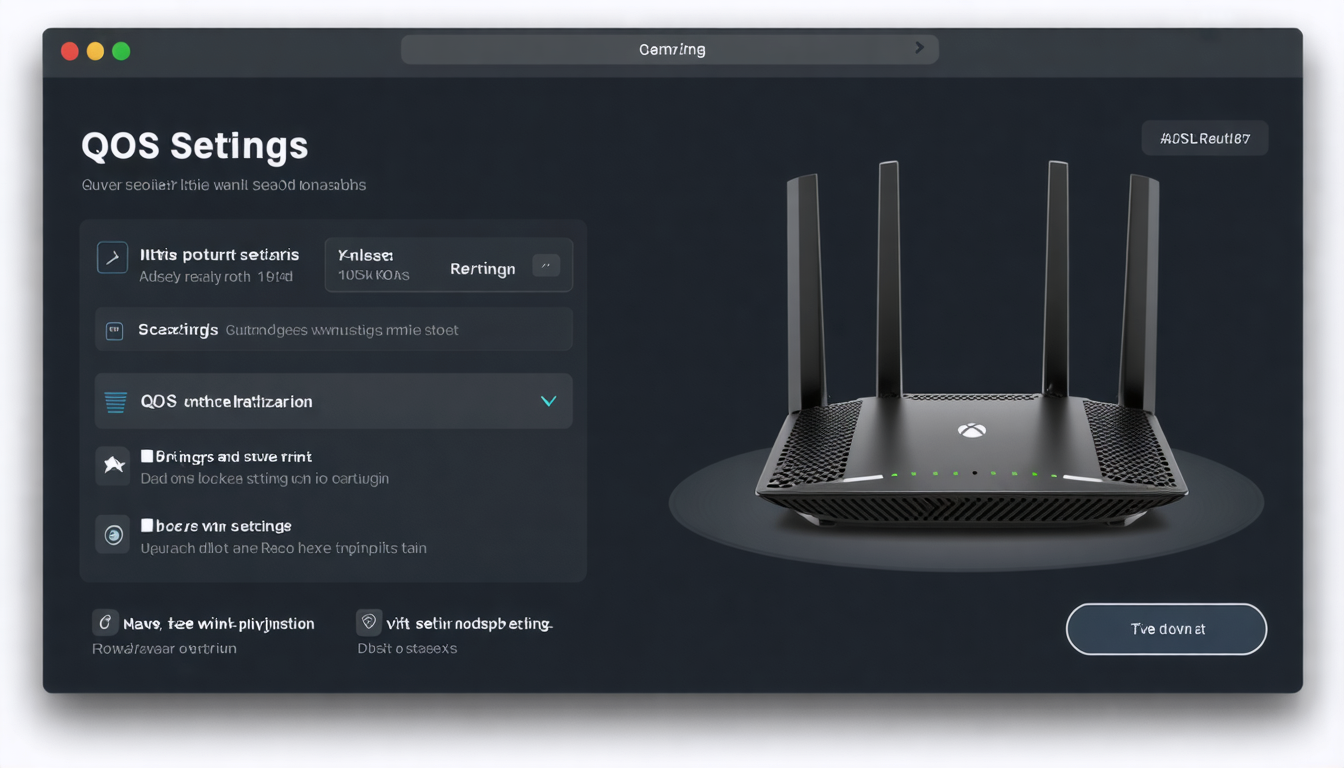
On the other hand, it is advisable to isolate your Xbox from other connected devices when launching a heavy download. By creating a specific VLAN (Virtual Local Area Network) or limiting bandwidth allocated to other devices via Quality of Service (QoS), you allocate more resources to the console. This method can prevent saturations on heavily used home networks, for example in large families or shared digital housing.
Finally, for very advanced setups, using a 5G modem with a suitable plan can offer speeds equivalent to or greater than classic fixed connections. This possibility, although costly, allows boosting downloads in areas where fiber optic is unavailable. Xbox Series X or S consoles then benefit from a fast connection even when mobile or in poorly covered housing.
To illustrate the differences, here is a comparative table of main network optimizations and their expected effects on internet speed:
| Optimization Technique | Ease of Implementation | Average Download Speed Gain | Impact on Stability |
|---|---|---|---|
| Switching from classic Wi-Fi to Wi-Fi 6E | Medium | +30% to +50% | Significant improvement |
| Manual port forwarding on router | Difficult | +15% to +25% | More stable |
| Network isolation via VLAN or QoS | Advanced | +20% to +40% | Excellent |
| Use of dedicated 5G modem | Costly and complex | Variable depending on coverage | Good to very good |
These different methods, from simple Wi-Fi upgrade to creating custom networks, show that there is always room to boost downloads and optimize internet speed on Xbox Series X|S. The investment in time or resources depends on the player’s priorities but results can be spectacular.
Example of successful optimization by an amateur player
Samuel, a passionate video gamer based in Lyon, undertook network optimization for his Xbox Series X after growing tired of slow downloads. He started by replacing his old Wi-Fi 5 router with a recent Wi-Fi 6E model. He then manually configured port forwarding on his box and set QoS to limit internet use by his family during gameplay.
Within a few weeks, Samuel noticed his downloads accelerated by up to 40% faster. The stability of his online games also improved, drastically reducing disconnections caused by network issues. This experience perfectly illustrates that network optimization, even for a beginner, is accessible and beneficial.
Using Xbox tips for instant download of your video games
Microsoft has included, through updates of the Xbox Series X and S, several essential features to facilitate instant game downloads. These sometimes hidden or little-publicized Xbox tips further optimize the use of your fast connection and speed up transfer rates.
Among them, the “Smart Prioritization” function automatically allocates more resources to ongoing downloads while temporarily reducing other non-priority network activities. This function combines well with disabling sleep mode, which can sometimes suspend certain active processes.
Additionally, using the “Game Mode” active on the console during downloads delays interruptions and ensures maximum CPU functioning for network processing. For those downloading from Xbox Game Pass, favoring download in “Pause-Resume” mode is an effective Xbox tip. It relaunches the connection to the server more aggressively, often solving slowdowns linked to temporary transfer freezes.
Another tip is to avoid starting too many downloads simultaneously. The built-in feature listing active downloads on the Xbox allows suspending less important ones to speed up the one that matters most. This fine management multiplies the chances of achieving an instant download on Series X|S.
Finally, know that PC management applications such as Xbox Companion App sometimes allow starting and monitoring downloads remotely, offering the possibility to launch a download in the middle of the night, a period conducive to increased internet speed and less server congestion.
This range of Xbox tips proves to be a formidable arsenal for all players wishing to maximize their console performance and get the best out of their current internet connection. Here is a summary of the best tips to use:
- Activate smart prioritization of downloads.
- Disable sleep mode during downloads.
- Use game mode to improve network management.
- Favor the pause-resume function on Xbox Game Pass.
- Limit the number of simultaneous downloads.
- Control and launch downloads via Xbox Companion App.
Smart management of interruptions and traffic control for faster downloads
It often happens that external interruptions slow down downloads on Xbox Series X|S. A momentary connection drop, an automatic console update, or another device monopolizing the network can considerably delay the installation of your video games. Understanding and controlling this traffic is therefore crucial to enjoy maximum internet speed.
A simple method is to schedule downloads during less busy time slots. Late evening or very early morning, Xbox servers are less saturated, and your internet connection generally benefits from a wider bandwidth since fewer devices in your household use the network simultaneously. This straightforward tip often allows near-instantaneous downloading of large files.
Moreover, managing automatic updates by disabling unnecessary options at that precise time ensures that your Xbox does not launch multiple overlapping systems. You can configure your console to download only on command or during off periods.
Using smart routers with traffic management per application also lets you automatically prioritize traffic destined for the Xbox Series X|S. Advanced QoS technologies allocate bandwidth fairly to prevent other uses (video streaming, massive PC downloads) from harming the internet speed dedicated to your console.
Finally, keeping an eye on connected devices on the home network helps prevent unexpected saturations. If someone starts a smartphone update or a large download on another device, your Xbox could suffer a slowdown all the more annoying as you will be at the mercy of the family network.
To summarize, here are some good practices to manage interruptions and control traffic:
- Schedule downloads during off-peak hours.
- Disable automatic updates during these periods.
- Configure QoS on your router to prioritize Xbox.
- Monitor and limit excessive use of other devices.
- Regularly restart the console and box to dissipate network conflicts.
These techniques, applied rigorously, ensure optimal exploitation of internet speed and limit interruptions, thus guaranteeing an instant download as soon as you launch it.
Improving console performance to accelerate instant downloads
The internal performance of the Xbox Series X|S themselves play a key role in how fast your games download and install. A console whose system runs slowly or is cluttered with temporary files can be less efficient in managing flows. Thus, regularly cleaning your console is a recommended approach.
Xbox offers several tools for this. For example, you can manage storage by deleting old installations, games you no longer launch, or temporary files accumulated during previous downloads. Sufficient free space allows the console to allocate optimal resources for downloading and installing files.
Additionally, closing running apps that are not necessary reduces system load. When starting a download, closing other programs maximizes perceived internet speed and improves overall processor and memory performance.
Also, keep an eye on power saving settings. Xbox Series X and S have several modes, some prioritizing lower power consumption over raw power. Opting for a “Performance” mode during download sessions allows you to fully exploit the console power, more efficiently managing data transfer.
Finally, thorough preparation before launching large downloads results in quick startup and smooth installation. Organizing your console, foreseeing necessary space, and ordering prioritized downloads guarantees obtaining an instant download. Here is a table of key steps to boost console performance:
| Action | Goal | Impact on Download |
|---|---|---|
| Clean storage and delete old games | Free space for quick installation | Noticeable improvement |
| Close background applications | Free processor and memory | Clear acceleration |
| Use Performance mode | Optimize power and transfer | Increased speed |
| Plan prioritized downloads | Better queue management | Nearly instant download |
Useful third-party applications to boost downloads on Xbox Series X|S
While it is possible to significantly optimize via native settings and network optimization, some third-party applications can further enhance this gain. On PC, tools like TCP Optimizer or applications dedicated to network connection management improve stability and internet speed. Using a PC or tablet on the local network to analyze flows and remotely manage Xbox downloads presents a significant advantage.
Mobile apps compatible with Xbox also allow interrupting, restarting, or scheduling downloads even when the console is in standby. This proves extremely convenient to start at night, when internet speed is at its peak, guaranteeing instant download on waking up.
Moreover, specific software for home networks helps detect and fix packet loss or instability reported in 2026 by several internet service providers in France. These apps alert the user in case of performance drop and facilitate quick resolution before the problem permanently penalizes the Xbox Series X|S.
Of course, caution is necessary: not all tools are suited to Xbox and some require network expertise to avoid complicating configuration. However, for serious players eager to get the most out of their equipment, these software are an integral part of the necessary toolkit.
Here is a list of popular recommended applications and software:
- Xbox Companion App — remote management of downloads.
- TCP Optimizer — improvement of TCP/IP protocols.
- WiFi Analyzer — Wi-Fi monitoring and optimization.
- NetLimiter — network traffic control for prioritization.
- PingPlotter — advanced packet loss diagnostics.
Taking care of your internet connection to maintain optimal and lasting speed
More than a simple temporary boost, the durability of internet speed on your Xbox Series X|S relies on continuous maintenance of your connection. This involves certain good practices and rigorous monitoring of your home network infrastructure. First, it is advised to regularly check the speeds provided by your Internet Service Provider (ISP), by performing speed tests at different times of the day.
Modern boxes and routers often include alerts or automatic diagnostics. Fully exploiting these functions allows anticipating slowdowns and understanding their causes, whether aging hardware, poor Wi-Fi coverage, or an ISP-side problem. Don’t hesitate to contact your operator in case of a notable drop as a key step to guarantee the best quality of service.
The physical placement of the router is also crucial. In 2026, with households often equipped with several connected devices, positioning your router in a central, clear location significantly improves coverage and connection stability. Avoiding metallic obstacles, thick walls, or electronic device interferences nearby contributes to maintaining consistent performance.
Furthermore, do not underestimate the impact of a quality Ethernet cable. Using a Cat6 or higher cable guarantees data transmission without loss or interference, particularly important for the Xbox Series X aiming for ultimate performance.
Finally, it is recommended to maintain a routine of restarting network equipment weekly or at least monthly. This simple action resets the connection and dispels internal slowdowns and congestions, thus offering a fast and stable connection for every gaming session or download.
Here is a table summarizing these tips to maintain a high-performance internet connection:
| Recommended Action | Frequency | Benefits for Xbox Series X|S |
|---|---|---|
| Internet speed test | Weekly | Rapid problem identification |
| Restart box/router | Weekly or monthly | Increased connection stability |
| Optimize router placement | At installation and as needed | Better Wi-Fi coverage |
| Use Cat6 or higher Ethernet cable | Permanent | Optimal data transmission |