With the continuous explosion of streaming platforms, the need to easily access a wide range of content has never been stronger. Iron TV Pro, an essential app for fans of series, movies, and live TV channels, proves to be an ideal solution to transform your Amazon Fire Stick into a true entertainment hub. By following a complete and detailed guide, you will be able to effortlessly enjoy unlimited access to more than 120,000 channels and 250,000 titles from your couch. Whether you are a novice or an experienced user, this tutorial guides you step by step through the installation and configuration of Iron TV Pro, fully leveraging the capabilities of your Fire Stick and optimizing the quality of your streaming. Discover how to unlock your device, download the app smoothly, and adjust all settings for a personalized and content-rich experience.
It will also cover compatibility with different devices, as well as strategic elements to ensure smoothness and stability during high-definition media streaming. This complete guide reveals all the tips to easily navigate the vast library offered, with recommendations to optimize your internet connection and explore advanced features. Not only will you learn how to install Iron TV Pro, but you will also see how to take advantage of its many benefits to enjoy high-quality streaming tailored to your tastes and needs. For those who want to enrich their TV experience, this tutorial is a true practical compass to master every step of this strategic installation and fully enjoy your favorite content in 2026.
Essential preparation of your Amazon Fire Stick before installing Iron TV Pro
Before diving into downloading and configuring the Iron TV Pro app, it is crucial to prepare your Amazon Fire Stick to ensure a smooth installation. Indeed, the Fire Stick’s particularity lies in its closed environment, designed to secure the device but limiting access to apps that are not officially approved in its online store. To bypass this restriction, certain settings and preparations must be activated in the settings menu.
Enable developer options and the installation of third-party apps
The first step is to allow your Fire Stick to install external applications not available via the Amazon Appstore. This is done by activating developer mode, easily accessible via the menu:
- Go to the « Settings » of your Fire Stick.
- Select the « My Fire TV » section.
- Choose « About » and click several times (usually 7 times) on « Serial Number » or « Version » until a message indicates that you are in developer mode.
- Go back and open the « Developer Options » menu.
- Enable the « Apps from Unknown Sources » option to allow the installation of external APKs.
This step is essential because it unlocks access to APK files such as Iron TV Pro, which must be installed manually afterwards. This is a secure process as long as you download only applications from reliable sources, to avoid any security risks or malware.
Install the Downloader app, a key tool for installation
The Fire Stick does not have a full web browser, making direct access to APK download sites impossible. This is where the Downloader app comes in, which allows you to enter a specific URL to retrieve and install an APK file in seconds. For this:
- Go to the Amazon Appstore on your Fire Stick.
- Type « Downloader » in the search bar.
- Install the official app, often represented by an orange downward arrow icon.
- Launch Downloader and grant storage access if requested.
Downloader thus becomes your master key to easily transfer Iron TV Pro without going through the native Amazon store. This trick is common among users who want to expand their Fire Stick’s app range beyond imposed limitations.
Step-by-step downloading and installation of the Iron TV Pro app on Fire Stick
The actual installation of Iron TV Pro on your Fire Stick is a quick process, provided you follow the steps for downloading and configuring carefully. Here is how to proceed precisely.
Step 1: Enter the download URL in Downloader
After opening the Downloader app, you need to enter the specific web address providing the Iron TV Pro APK file. This URL sometimes changes depending on updates and versions, so it is recommended to always obtain the official link from reliable sources or the official Iron TV Pro site. This ensures you get a secure version, free from viruses or malicious modifications.
Once the address is entered, Downloader will start the download. The speed will, of course, depend on your internet connection (we will see later how to optimize this aspect).
Step 2: Install the APK file
After downloading, the app will automatically offer to install the APK. You will just need to confirm by clicking « Install ». Iron TV Pro then installs like any other app on your Fire Stick. Once the process is complete, you can open Iron TV Pro directly to start using it or return to the main menu to launch the app later.
Why not go through the Amazon Appstore?
One might wonder why not simply install Iron TV Pro via the official store. However, due to the rigidity of Amazon’s policies, many third-party apps like Iron TV Pro are not directly available. The sideload method with Downloader has therefore become essential for demanding users.
It is also a way to maintain complete control over the app, especially regarding configuration and regular updates, without waiting for validation by Amazon, which can take time.
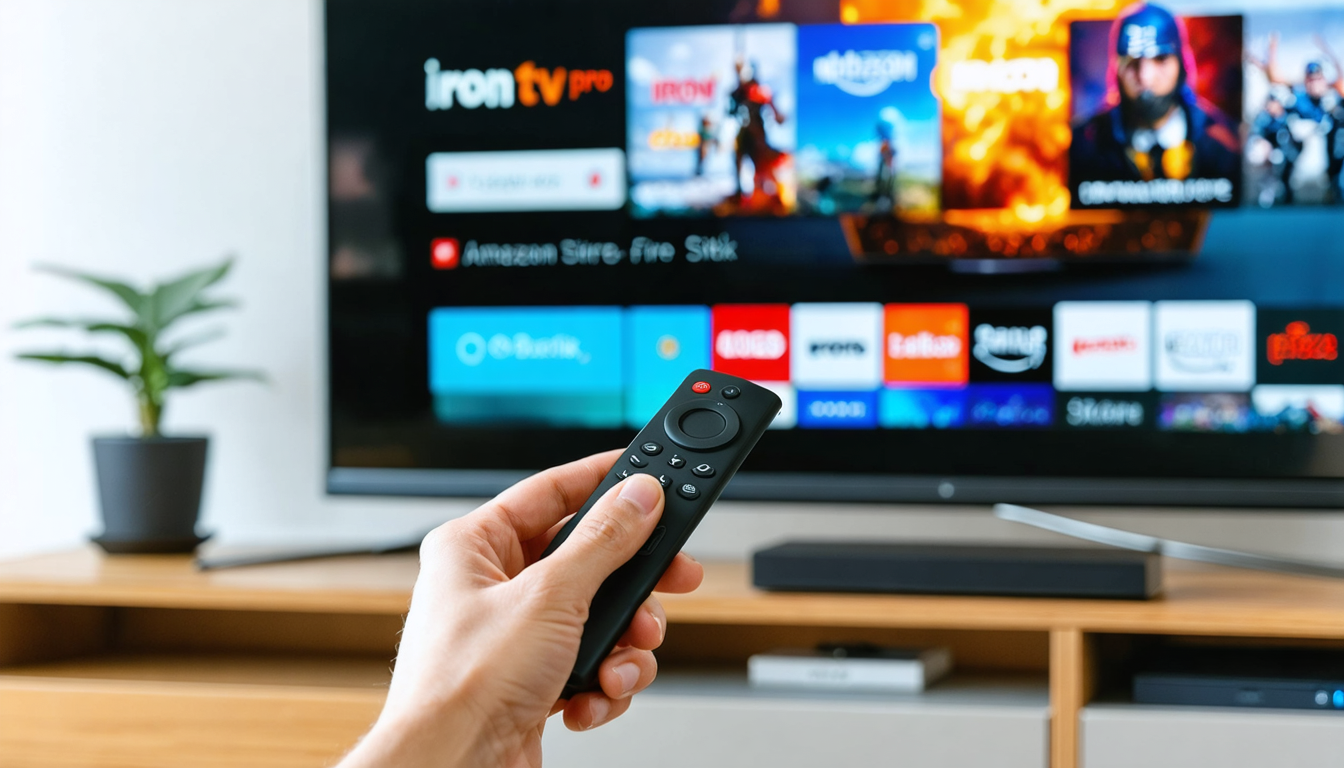
Detailed exploration of the key features of Iron TV Pro after installation
From the moment you open Iron TV Pro, you are immersed in a rich and intuitive interface designed to maximize your entertainment access. This app stands out due to the quantity and quality of the accessible content.
An unmatched library of live TV channels and on-demand content
Iron TV Pro offers one of the largest current streaming catalogs:
- More than 120,000 live TV channels, covering various genres such as sports, news, entertainment, documentaries, music, and much more.
- 250,000 movies and series available for on-demand viewing, with regular new releases and timeless classics.
- Support for high definition up to 4K UHD, even 8K for compatible devices, ensuring exceptional picture quality.
This massive library is a real asset for streaming enthusiasts wishing to find everything in a single app, without multiplying subscriptions.
Different subscriptions according to your needs
Iron TV Pro offers several flexible subscription plans that adapt to viewing frequency and budget:
- Monthly subscription starting from €19, affordable for such a comprehensive offer.
- Quarterly or annual offers allowing reduced rates and uninterrupted access.
- Free trials or demo versions are sometimes offered, allowing testing of features before commitment.
| Device type | Compatible with Iron TV Pro | Maximum supported quality |
|---|---|---|
| Smart TV (Android, Samsung, LG) | Yes | 4K UHD |
| Android TV Box | Yes | 4K UHD |
| Apple TV | Yes | 4K UHD |
| Amazon Fire Stick | Yes | 4K UHD, 8K compatible depending on model |
Flexibility is a major asset of Iron TV Pro, which supports you on all your screens by guaranteeing the best possible quality depending on the device.
Optimizing streaming quality and tips for an optimal experience with Iron TV Pro
Having an excellent app like Iron TV Pro is not enough, especially if your internet connection is not optimized. Streaming quality depends primarily on the stability and speed of your network. Here are some tips to fully enjoy HD or even ultra HD content.
How to improve your internet connection for streaming
High-quality streaming requires substantial bandwidth and minimal latency. To get the most out of Iron TV Pro on Fire Stick, you can:
- Prefer an Ethernet connection via an adapter if possible, to avoid interruptions caused by Wi-Fi.
- Use a 5 GHz Wi-Fi network rather than 2.4 GHz, which offers better speed and less interference.
- Regularly check your connection speed using online tools, with a recommended minimum of at least 15 Mbps for 4K.
- Avoid overloading the network during streaming (e.g., simultaneous downloads or multiple heavily connected devices).
The app offers several tools to facilitate your search for content:
- Clearly identified thematic categories for quick access to desired program types (movies, sports, series, etc.).
- Effective integrated search engine, allowing you to find your favorite shows, movies, or channels in a few clicks.
- Favorites and personalized lists to organize your preferred content and access it instantly.
Thanks to these options, you save time and navigate an intuitive interface that optimizes catalog discovery.
Multi-device compatibility of Iron TV Pro for entertainment without borders
Iron TV Pro is not only reserved for Fire Stick users. For those who have a varied ecosystem, the app adapts to all types of modern streaming hardware, facilitating continuity and flexible use.
Installation on Android TV Box and Smart TV
On Android TV Box, the installation process is very similar to that of the Fire Stick: just download the APK via a browser or an app like Downloader. The same goes for Android-equipped Smart TVs, where the procedure involves allowing unknown sources and then installing the app.
For brands like Samsung or LG using proprietary systems, it is sometimes necessary to go through the « web browser » function or a compatible alternative app store, but Iron TV Pro generally offers adapted versions.
Features on Apple TV
Apple TV offers a smooth but more restrictive experience. Iron TV Pro is often available via the Apple App Store or sideloaded via specific methods such as AltStore. Quality and compatibility remain high, but installation requires more preparation.
| Device | Installation method | Ease | Supported quality |
|---|---|---|---|
| Amazon Fire Stick | Downloader + APK sideload | Easy | 4K/8K UHD |
| Android TV Box | APK sideload / Play Store | Easy | 4K UHD |
| Android Smart TV | APK / Store | Medium | 4K UHD |
| Apple TV | App Store / Sideload | Difficult | 4K UHD |
This multi-device compatibility of Iron TV Pro illustrates its ambition to stay at the forefront of streaming in 2026, guaranteeing each user smooth access regardless of the hardware used.
Best practices to secure and update Iron TV Pro on your Fire Stick
Installing a powerful app like Iron TV Pro also involves ensuring its security and regular maintenance. Some practices are essential to guarantee a stable and protected experience.
Ensure downloading from a reliable source
The main risk in the world of third-party APKs is the infiltration of malicious files. To avoid this, always check the origin of the file to be downloaded, favor the official site or recognized partners. Never install a version found randomly on a forum or unknown site.
Regularly update Iron TV Pro
Iron TV Pro developers frequently release updates bringing new features, bug fixes, and performance improvements. These updates may require downloading and reinstalling via Downloader. Remember to regularly check notifications or the official site to stay on the latest version.
Tips to secure your Fire Stick
- Disable developer mode when you no longer need it to limit risks.
- Install a VPN compatible with Fire Stick to protect your activity and privacy while streaming.
- Never share your Iron TV Pro subscription credentials with third parties.
By following these recommendations, you ensure you can enjoy Iron TV Pro’s full offering with peace of mind while protecting your device and personal data.
Once Iron TV Pro is perfectly installed and operational, it’s time to discover the tips to customize its interface and configure streaming according to your preferences. The goal is to make each session pleasant, smooth, and intuitive.
Create user profiles and manage favorites
The app allows creating multiple profiles, ideal for family or multi-user use. Each profile retains its favorite lists, viewing history, and content preferences, greatly simplifying shared management of the app.
To add a program to favorites, simply click on the dedicated icon during playback or on the descriptive sheet, which then makes quick access easy without repetitive searching.
Quality settings and streaming preferences
Iron TV Pro offers advanced settings to adapt video quality to your bandwidth, by manually selecting the resolution or activating an automatic mode to adjust smoothness in real time. This is particularly useful to avoid interruptions when the connection is unstable.
Parental control and content management
For households with children, Iron TV Pro includes parental control functions, allowing restriction of access to specific content or channels based on age. Configuration is simply done via the settings menu, ensuring a secure experience for all family members.
- Create and manage multiple user profiles.
- Quickly add content to favorites for personalized access.
- Configure streaming quality according to internet connection.
- Activate parental control to secure family use.
- Use advanced search to quickly find programs.