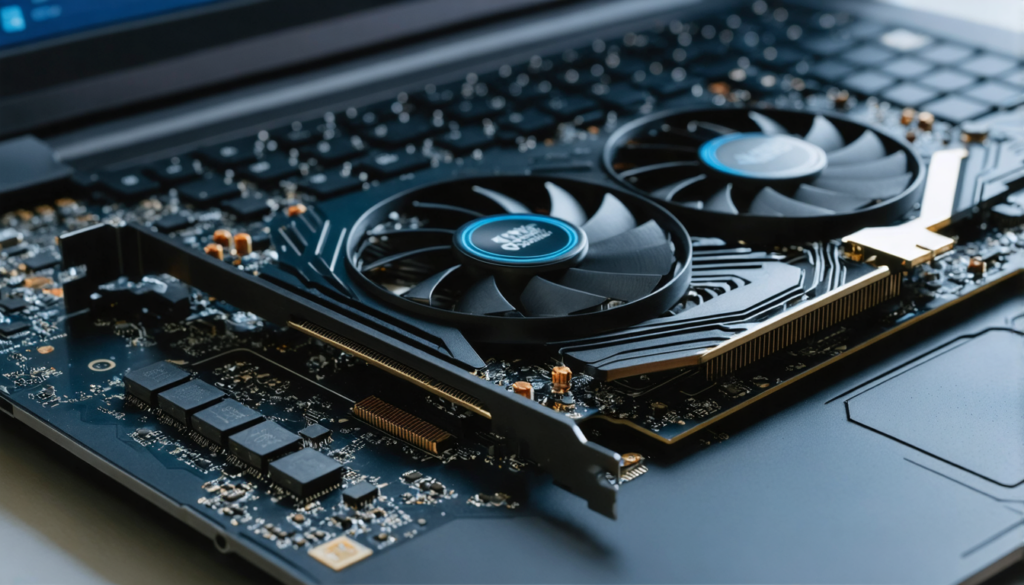
With the constant evolution of video games and graphic applications, many users want to increase the graphic power of their laptop. However, the recurring question is: can you change the graphics card of a laptop? The stakes are high, because the graphics card plays an absolutely central role in gaming performance, 3D rendering, and even in everyday visual comfort. This comprehensive guide is intended for all those who want to understand the options available to improve their machine. We will unravel the truth from the falsehoods, explore hardware constraints, discover tips and alternative solutions, and above all reveal the steps to follow to make the most of your equipment in 2025.
It is often said that laptops are closed, impenetrable machines where hardware upgrades are almost impossible. Yet today there are models and technologies that change the game. In this guide, we will also scrutinize graphics card compatibility, alternatives like eGPUs, and how to properly install a GPU to boost gaming performance. Ready to dive into the fascinating world of laptop upgrades?
- 1 Understanding the fundamental role of the graphics card in a laptop
- 2 Why most laptops do not allow easy graphics card replacement
- 3 Effective alternatives to boost graphic performance without changing the GPU card
- 4 Key steps for installing an external GPU on a laptop
- 5 Tips for choosing a laptop with the best integrated graphics card at purchase
- 6 How laptop cooling influences longevity and graphic performance
- 7 Hardware troubleshooting: recognizing signs of a failing graphics card
Understanding the fundamental role of the graphics card in a laptop
To fully grasp why the graphics card is at the heart of any discussion about changing a graphics card on a laptop, it is crucial to understand its main functions. The graphics card is the processor dedicated to displaying graphics, whether 2D or 3D. Without it, it is impossible to view user interfaces, high-definition videos, or enjoy advanced visual effects in modern video games.
In laptops, there are essentially two types of graphics cards:
- Integrated cards: these are merged with the central processor (CPU) and share system memory. This limits their performance but offers lower power consumption, ideal for office use.
- Dedicated graphics cards: these cards have their own video memory (VRAM) and directly handle complex graphic rendering. They are designed to support demanding tasks, especially in gaming, video editing, or 3D rendering.
Several criteria influence the quality of a graphics card:
| Criterion | Importance | Example of impact |
|---|---|---|
| Video memory capacity (VRAM) | Crucial | More VRAM allows loading high-resolution textures without slowdown. |
| GPU frequency | High | A higher frequency speeds up graphic calculations. |
| Connector compatibility | Essential | Ensures efficient connection with the screen and external peripherals. |
The GPU, or graphics processing unit, is not limited to rendering images. In 2025, it also plays a key role in embedded artificial intelligence, accelerating computations, and managing laptop thermal performance, thus contributing to hardware stability and longevity.
Why most laptops do not allow easy graphics card replacement
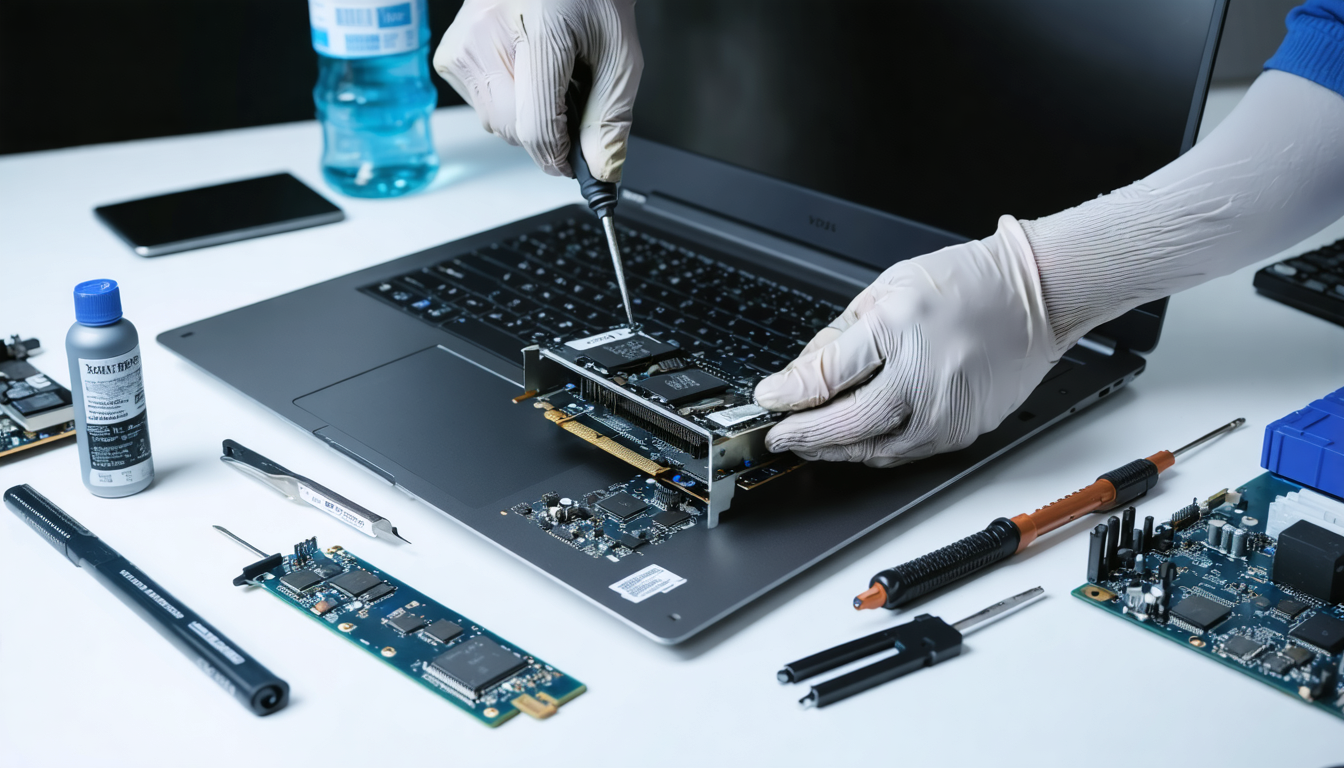
Unfortunately, the majority of current laptops impose a strict limit: the graphics card is directly soldered to the motherboard. This “monobloc” architecture saves space, improves thermal dissipation, and reduces production costs, but effectively makes changing or upgrading impossible without replacing the entire motherboard — a procedure that is not only expensive but also technically high-risk.
This comes down to several major constraints:
- Compact design: the slim design and millimeter-precise components leave little room for modular cards.
- Integrated thermal management: soldered graphics cards are directly integrated into the laptop’s specific cooling circuit, optimized for this exact hardware.
- Electronic compatibility: each motherboard is calibrated for a specific type of GPU, meaning replacements cannot be done blindly.
Exploring high-end gaming models, some manufacturers like Alienware, MSI, or Clevo offer laptops with removable GPUs via MXM modules (Mobile PCI Express Module). These interchangeable cards resemble desktop PC components but remain relatively rare and often costly to replace.
Here is a list of reasons why changing a laptop GPU is complex:
- Components are often soldered and impossible to isolate.
- High risk of damaging the motherboard during intervention.
- Replacement requires specific electronic tools and skills.
- Guarantees are immediately voided in case of unauthorized disassembly.
- Thermal performance depends on integrated cooling designed for a specific model.
Effective alternatives to boost graphic performance without changing the GPU card
If you cannot change your laptop’s graphics card, it is not the end of the world! Several alternative methods can significantly enhance your experience, whether for gaming, video editing, or simply intensive graphic use. Here is a detailed overview:
Using an eGPU – A powerful external solution
The eGPU, or external graphics card, is an enclosure that houses a powerful desktop graphics card and connects to your laptop via Thunderbolt 3, USB-C, or USB4 ports. This solution allows adding a dedicated GPU without touching the internal configuration of the PC.
The advantages are numerous:
- Compatibility with high-end cards: you can install recent GPUs like the Nvidia RTX 4090 or AMD RX 7900 XT.
- Improved power: boost your gaming performance without changing your laptop.
- Ease of installation: no need to dismantle the PC, the enclosure is enough.
Here is a summary of popular eGPUs and their characteristics:
| Model | GPU Compatibility | Connectivity | Approximate Price |
|---|---|---|---|
| Asus ROG XG Station 2 | Nvidia and AMD | Thunderbolt 3 | €600 |
| Razer Core X Chroma | GeForce RTX 40XX, AMD RX 7900 XT | Thunderbolt 3 | €500 |
| Gigabyte AORUS RTX Gaming Box | Integrated Nvidia RTX 3080 | Thunderbolt 3 | €1000 |
| MSI GUS 3 | Nvidia and AMD RTX 40XX | Thunderbolt 3 | €450 |
Be careful with your port’s compatibility and potentially limited performance due to bandwidth. But overall, this is the best option in 2025 to improve performance without changing your internal hardware.
Software optimization and driver updates
Another often overlooked route is regularly updating graphics drivers. Manufacturers like Nvidia and AMD frequently release new drivers that fix bugs, optimize performance on new games, and improve thermal management.
In parallel, adjusting graphic settings, such as reducing visual effects, adapting resolution, and applying moderate overclocking can help get the most out of your current setup, without major risk if you remain cautious.
Key steps for installing an external GPU on a laptop
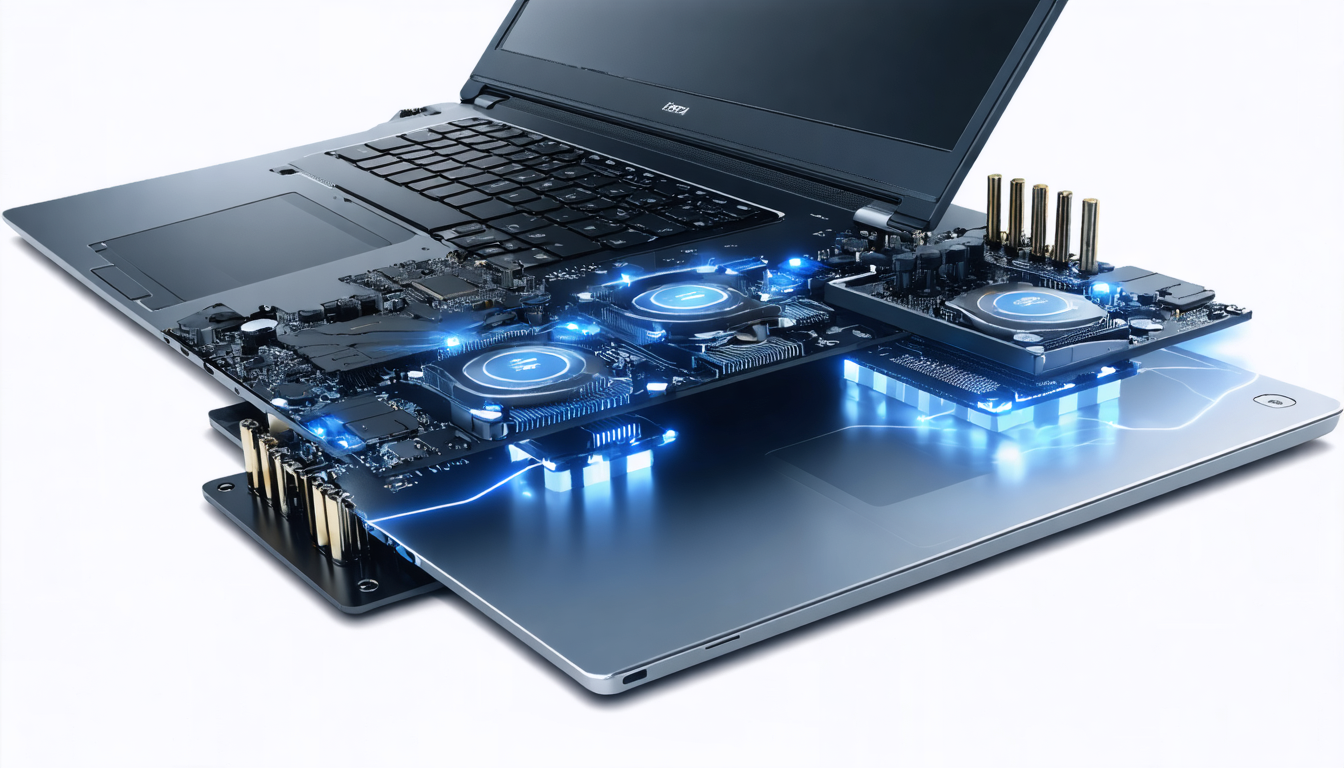
Installing an external GPU is often the best alternative to changing an internal graphics card on a laptop. Here are the steps to follow to safely perform this operation:
- Check compatibility: make sure your PC has a Thunderbolt 3 or USB-C port compatible with eGPU.
- Choose an eGPU enclosure: according to your budget and supported GPUs.
- Install the graphics card in the enclosure: take anti-moisture and anti-static precautions.
- Connect the enclosure to the PC: plug in the Thunderbolt or USB-C cable.
- Install GPU drivers: download official Nvidia or AMD drivers and update them.
- Configure graphic preferences: in the Nvidia, AMD, or Windows control panel to select the external GPU as primary.
- Test performance: run a benchmark or game to verify the card is recognized and operational.
These steps allow optimal gaming performance while retaining your PC’s portability, without the risk of internal hardware failure linked to disassembly.
Tips for choosing a laptop with the best integrated graphics card at purchase
If you anticipate the need for an excellent graphics card but don’t want to worry about future upgrades, the best option is to choose your machine carefully from the start. Today, choosing a laptop is also thinking about the future while considering the technical constraints mentioned.
Here are some essential points to consider:
- GPU power: Opt for powerful dedicated cards like Nvidia RTX 4060, 4070 or AMD Radeon RX 7800.
- Sufficient VRAM: Minimum 6 to 8 GB for lasting comfort on recent games.
- Effective cooling: The cooling system is crucial to avoid overheating that can limit in-game performance.
- Upgradeability: Check the possibility to upgrade RAM or SSD storage, even if the graphics card remains fixed.
- Intended use: Not all gaming laptops are equal; selecting a model suited to your preferred software or games is essential.
Choosing your laptop is a long-term investment. Taking the time to compare and read benchmark reviews will help you make the best choice.
How laptop cooling influences longevity and graphic performance
Cooling is often an underestimated component when talking about GPUs. On a laptop, the cooling system must be perfectly calibrated to absorb the heat released by the GPU and CPU during intense gaming or graphic work sessions.
Good thermal management not only improves performance by avoiding throttling (automatic frequency reduction to prevent overheating), but also extends the lifespan of components.
In practice, laptops use:
- Built-in fans: multiple synchronized fans efficiently evacuate heat.
- Heat pipes: transfer heat from the chips to exhaust areas.
- Thermal pastes: essential for ensuring good thermal conduction between components and heat sinks.
Experienced gamers often add external cooling solutions in the form of ventilated stands, especially in summer or during long sessions, to maintain stable temperatures and avoid performance drops.
Hardware troubleshooting: recognizing signs of a failing graphics card
Before thinking about changing or installing a new graphics card, identifying a hardware problem is a crucial step. Here are some common signs of a failing graphics card on a laptop:
- Artifacts on screen: spots, lines, or strange distortions during display.
- Black screen or no signal: at startup, the screen remains black despite powering on.
- Screen flickering or blinking: graphic instability indicating a potential problem.
- Performance drops: sudden and significant FPS drops in games or unusual slowdowns.
- Crashes or random reboots: frequent crashes related to graphic usage.
In case of doubt, a test with a benchmark or monitoring software like MSI Afterburner can help you precisely diagnose GPU health. Sometimes, a simple driver update or cleaning the cooling system is enough to fix the problem.