
In a world where technological fluidity has become a daily requirement, wireless connection stands out as the essential standard for computer peripherals. In 2025, the wireless mouse is recognized as an essential tool, combining comfort, ergonomics, and practicality to meet the needs of a multi-screen and multi-platform generation. Whether for professional, gaming, or domestic use, mastering the setup of a Bluetooth mouse or one using RF technology with a USB dongle becomes an indispensable skill.
This guide reviews the most effective methods to achieve a quick and stress-free installation, emphasizing the features offered by the latest generation wireless chip and rechargeable batteries that equip most recent models. Moreover, it focuses on optimization tips, troubleshooting common issues, while maintaining the core idea of extended compatibility and a mouse ergonomics designed for intensive and prolonged use.
Throughout these pages, users will discover how to configure their mouse on PC, Mac, tablet, or other compatible device, while benefiting from technical details related to the evolutions of wireless technology in 2025. An opportunity to go beyond simple handling to achieve mastery, with all the tips for an optimal user experience, whatever the computing environment.
- 1 Essential differences between Bluetooth mice and RF wireless mice for a smooth wireless connection
- 2 Detailed steps for a quick and successful installation of a wireless mouse on PC in 2025
- 3 Configure a wireless mouse on Mac and iPad devices with ease
- 4 Troubleshooting the most common problems during the wireless connection of your mouse
- 5 Advanced techniques to optimize your mouse’s wireless connection in 2025
- 6 The advantages of multi-platform compatibility and ergonomics in choosing your wireless mouse
- 7 Regular maintenance to extend the lifespan of your wireless mouse
Essential differences between Bluetooth mice and RF wireless mice for a smooth wireless connection
Understanding wireless connection technologies is fundamental to choosing and installing a mouse fit for your needs efficiently. In 2025, two major standards dominate: the Bluetooth mouse and the wireless mouse using radio frequency (RF) with a USB dongle.
The Bluetooth mouse directly uses the Bluetooth module integrated into your computer or tablet, which gives it an evident advantage in terms of ergonomics and portability. It requires no additional receiver, which reduces power consumption and simplifies USB port management, particularly valuable on modern machines tending to reduce the number of physical connectors.
This type of connection is excellent for use on multi-platform compatible devices, including Windows, macOS, iPadOS, and even some Linux systems. It is a preferred choice for mobile users seeking a balance between simplicity and battery life, notably thanks to the rechargeable battery now integrated into the majority of recent models.
Conversely, RF wireless mice require a USB dongle, which serves as a specific receiver. This technology remains very popular in the gaming field and among users demanding minimal latency and maximum connection stability. The 2.4 GHz radio frequency used often allows better resistance to interference in electromagnetically crowded environments.
Here is a table summarizing the main differences:
| Criterion | Bluetooth Mouse | RF Mouse with dongle |
|---|---|---|
| Installation | Direct wireless connection via Bluetooth | Plug-and-play via USB key |
| Compatibility | Multi-platform (PC, Mac, tablets) | Primarily PC and Mac |
| Latency | Variable, generally higher | Very low, ideal for gaming |
| Power consumption | Optimized with rechargeable battery | Standard batteries, sometimes rechargeable battery |
| USB port occupied | No | Yes |
In summary, the choice between a Bluetooth mouse and an RF mouse depends on your environment, performance expectations, and equipment. In a multi-use context in 2025, flexibility and multi-platform compatibility lean towards Bluetooth, while specific gaming use will almost always favor the stability offered by the RF connection.
Detailed steps for a quick and successful installation of a wireless mouse on PC in 2025
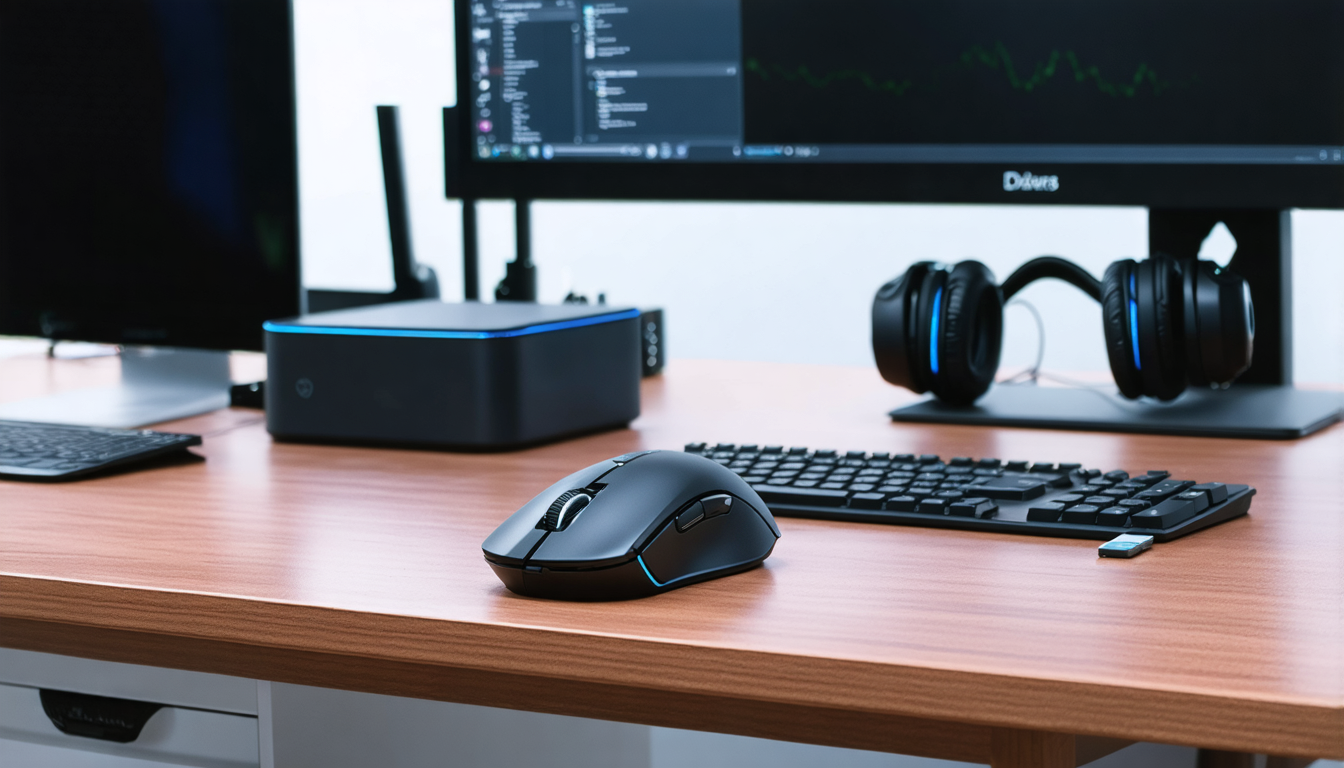
Whether you choose a Bluetooth mouse or an RF mouse equipped with a USB dongle, the configuration on PC is intuitive, but key steps ensure a smooth and lasting connection. Following a precise user guide greatly optimizes your experience while reducing frustrations during the first setup.
For an RF mouse with dongle, start by plugging the USB dongle into an available port. Any recent PC automatically recognizes the device, yet it is advisable to check in the device manager that the driver is properly installed. Turning on the mouse initiates pairing, usually facilitated by a “sync” button often discreetly located at the back of the device. When the mouse’s LED light becomes steady or stops blinking, the connection is established.
In the case of a Bluetooth mouse, first activate the Bluetooth function on your computer via system settings. Then, hold down the mouse’s pairing button until its indicator blinks, showing it is discoverable. In the PC’s Bluetooth settings, select your mouse from the list of available devices. Once paired, your mouse is ready to use without requiring an external dongle.
Here is a summary of the steps for each type:
- RF mouse with dongle:
- Plug the USB dongle into the PC
- Turn on the mouse
- Press the sync button
- Wait for automatic recognition
- Plug the USB dongle into the PC
- Turn on the mouse
- Press the sync button
- Wait for automatic recognition
- Bluetooth mouse:
- Activate Bluetooth on the PC
- Put the mouse into pairing mode
- Select the mouse from available devices
- Confirm the connection
- Activate Bluetooth on the PC
- Put the mouse into pairing mode
- Select the mouse from available devices
- Confirm the connection
To ensure an optimal experience, it is advised to monitor system and specific driver updates for your mouse. In 2025, most manufacturers offer automated tools for this maintenance, thus avoiding any functionality breaks or performance issues.
Configure a wireless mouse on Mac and iPad devices with ease
The growing popularity of Apple environments requires addressing the PC configuration in a broad sense, including MacOS and iPadOS. In 2025, recent iPad models as well as Macs include advanced functions facilitating direct connection of Bluetooth mice thanks to their enhanced multi-platform compatibility.
To connect a wireless mouse to a Mac, start by activating Bluetooth via the menu bar or system preferences. Then click “Add Device,” and put your mouse in discovery mode as previously described. After a few seconds, the device appears in the list. Select it and then click “Connect.” The macOS system then establishes a smooth and automatic link for future uses.
On iPad, the procedure is similar but depends on the version of iPadOS in use. Since iPadOS 13.4, native mouse support has greatly improved mouse ergonomics on tablets. Activate Bluetooth in settings, enable pairing mode on the mouse, and wait for it to appear in the “Other Devices” list. A simple click is enough to pair it. The iPad also supports button customization in accessibility options, a plus for advanced users or gamers.
This multi-platform configuration represents a major asset in 2025, ensuring a smooth transition between various environments and reinforcing the idea of a universal tool that the wireless mouse has become.
Troubleshooting the most common problems during the wireless connection of your mouse
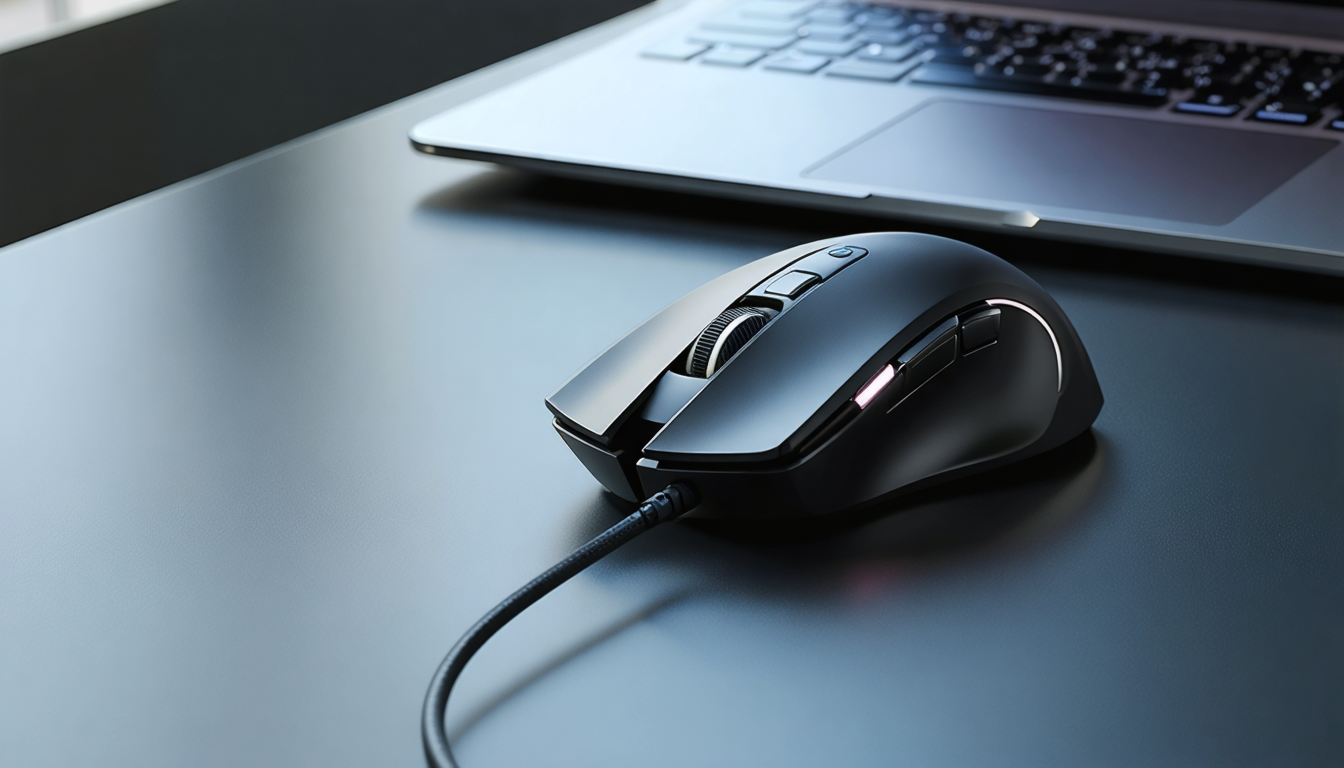
Sometimes the connection does not happen immediately, or disruptions occur that interfere with the proper use of a wireless mouse. In 2025, whether Bluetooth or RF models, several simple solutions help diagnose and resolve these inconveniences.
First of all, check the status of the rechargeable battery or batteries. Low power is often the cause of sporadic disconnections or lagging mouse performance. Most modern mice display the battery level via the operating system, which makes this check easier.
If detection fails, try a complete restart of the mouse and your computer. If the problem persists, consider uninstalling and reinstalling the drivers through the device manager (on PC) or forgetting the device in Bluetooth settings (on Mac and iPad), then retry the connection.
Interference also plays a key role. Keep all 2.4 GHz emitting devices (Wi-Fi, cordless phones, microwaves) away from your workspace, and avoid physical obstacles that can disrupt the signal between your mouse and its receiver or Bluetooth module.
Here is a list of common problems with their associated solutions:
- Mouse lagging or stuttering: clean the optical sensor, reduce sources of interference
- Intermittent connection: replace batteries or recharge the battery, bring the mouse closer to the receiver
- Mouse not detected: reinstall drivers, test another USB port
- Inadequate sensitivity settings: adjust in the mouse system settings
Advanced techniques to optimize your mouse’s wireless connection in 2025
The performance of a wireless mouse depends not only on the connection technology but also on the environment in which it operates. Optimizing the Bluetooth or RF link can significantly improve your user experience and extend your equipment’s lifespan.
Firstly, reducing interference is a key factor. Stop using several nearby wireless devices simultaneously, especially those operating on the same 2.4GHz frequency. In 2025, many mice include an advanced wireless chip capable of automatically switching between different bands to avoid this issue, but nothing replaces a clear and organized space.
Next, positioning the USB dongle in a strategic location is vital, especially for RF mice. Use a USB extender allowing you to move the receiver away from the tower or laptop poorly placed under a desk, often a source of interference. Place it high and oriented toward the workspace. This simple precaution improves signal stability and reduces the risk of interruptions.
Regarding maintenance, think about regularly cleaning the underside of your mouse, especially the optical sensor. A good quality mouse pad with a uniform surface also contributes to precision and comfort. Mouse ergonomics also translates into better handling, but a good work support is only effective if the device functions perfectly.
Finally, monitor energy management. Even with the best rechargeable battery, avoid your mouse running completely out of power during intensive use, notably gaming or professional presentations. Set reminders to recharge or change batteries depending on frequency and intensity of use.
When combined with quality equipment, these techniques guarantee a controlled connection in all usage contexts in 2025, ensuring both freedom of movement, comfort, and optimal responsiveness.
The advantages of multi-platform compatibility and ergonomics in choosing your wireless mouse
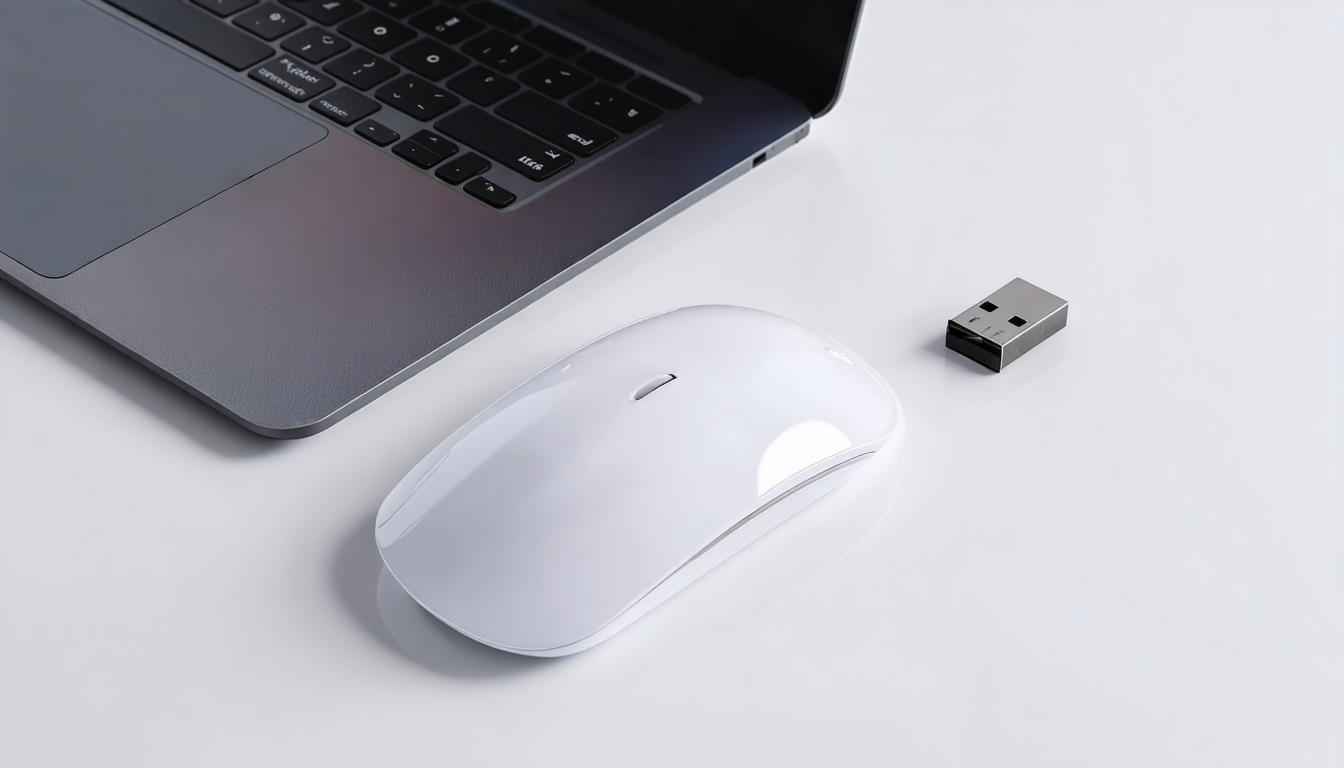
In 2025, choosing a wireless mouse is no longer limited to simply considering transmission technology. Multi-platform compatibility has become a major criterion, guaranteeing smooth use regardless of system or device: PC, Mac, tablet, or even smartphone. This flexibility responds to the diversity of modern computing environments.
Manufacturers now integrate wireless chips capable of easily switching between several devices, often via a simple button. This allows switching from a laptop to a tablet or desktop PC with ease, without constantly disconnecting and reconnecting. This multi-pairing fits into a logic of efficiency and simplicity, crucial for professionals and intensive users.
Moreover, mouse ergonomics is another fundamental aspect. A design that fits the natural shape of the hand, programmable buttons, materials adapted for comfort are all elements that minimize fatigue and improve precision. In 2025, this concern for ergonomics often comes with smart features such as software customization, adjustable at will.
Here is a list of ergonomics and compatibility criteria to prioritize:
- Design suited to size and grip type (palm grip, claw grip, fingertip)
- Presence of customizable buttons for macros
- Compatible with multiple operating systems (Windows, macOS, iPadOS, Linux)
- Multi-device capability with quick switching
- Rechargeable battery with long autonomy
- Non-slip surface for better grip
This dual focus on compatibility and ergonomics well illustrates the technological evolution of the wireless mouse, now designed as a natural extension of the user rather than just a simple computer accessory.
Regular maintenance to extend the lifespan of your wireless mouse
Paying attention to the routine care of your wireless mouse is a guarantee of longevity and consistent performance. In 2025, where electronic components are increasingly sophisticated, it is vital to adopt simple yet effective practices to prevent premature deterioration.
Firstly, battery management is essential. For models with batteries, it is recommended to replace them as soon as the level becomes critical. For those equipped with a rechargeable battery, do not wait until the mouse is completely drained before plugging it in. This rule preserves the chemical health of the battery and optimizes its charge cycle count.
Next, regular cleaning is indispensable. Dust, lint, and residues can clog the optical or mechanical sensor, leading to performance degradation. Use a slightly damp microfiber cloth to clean the exterior, and for the sensor, a simple burst of compressed air can be enough to remove particles safely.
Do not neglect the buttons and chassis either. Thorough cleaning prevents the internal mechanism from seizing or blocking over time, which could cause malfunctions.
Finally, regularly monitor software updates offered by the manufacturer. These not only improve functionalities but often fix minor bugs that could affect the stability of the wireless connection.
Following this regular maintenance plan guarantees a durable and pleasant use, extending the life of your peripheral while maintaining optimal performance.