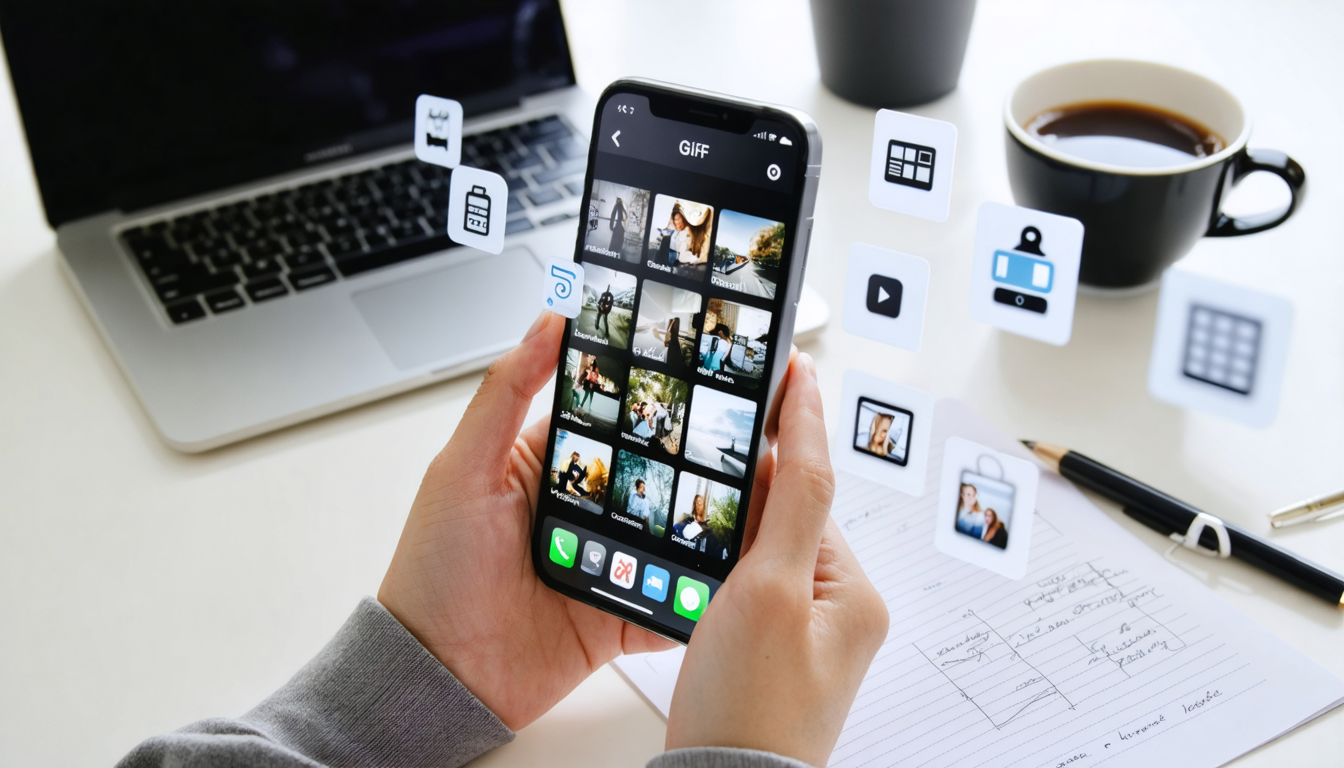
Animated GIFs have invaded our digital exchanges, turning simple images into small expressive animations capable of capturing attention in the blink of an eye. On iPhone, creating these animations has become accessible, fast, and varied thanks to a rich ecosystem combining native features, dedicated apps, and versatile tools. From the immediate conversion of your Live Photos to more elaborate edits, this comprehensive guide reveals all the methods to fully exploit your iPhone videos and iPhone photos. Whether it’s to enrich your conversations, animate your social networks, or give a boost to a presentation, mastering GIF creation on iPhone is an essential skill in 2025.
At a time when visual communication aims to be instant and impactful, turning your multimedia content into engaging image animations opens up a universe of creative expressions. You will learn how to take advantage of the Loop and Bounce effects within the Photos app, how to exploit the assets of GIF apps for a professional finish, and even how to use Apple’s Keynote for sophisticated animations. We will reveal essential tips to keep your GIFs short, punchy, and adapted to all the most popular GIF sharing formats. All this while integrating the flexibility of iOS Shortcuts to automate and streamline your video editing. Dive now into this fascinating universe, where every animated image becomes a vibrant message of emotion and style.
- 1 Using iPhone Live Photos for a quick conversion into animated GIFs
- 2 The best animated GIF apps to refine your GIF creation on iPhone
- 3 Keynote on iPhone: the surprising solution for professional GIF animations
- 4 Expert tips to optimize the creation and sharing of animated GIFs on iPhone
- 5 Converting an iPhone video into an animated GIF using built-in functions
- 6 Criteria to respect for an efficient and captivating GIF animation
- 7 Create, edit, and share an animated GIF on iPhone: a smooth and integrated process
Using iPhone Live Photos for a quick conversion into animated GIFs
Since the arrival of Live Photos on iPhone SE, 6S, and newer models, Apple has transformed photo capture into an animated experience. These shots record 1.5 seconds before and after the photo, thus offering a dynamic preview of a frozen moment. To create an animated GIF from a Live Photo, nothing is more intuitive thanks to the built-in features in the Photos app.
In your Live Photos album, select an animated image you like, then swipe up on the screen: this action reveals two essential effects. The first, called Loop, brings the animated image to life by repeating the clip infinitely, ideal for creating a continuous and smooth effect. The second, named Bounce, plays on forward and backward playback alternation, mimicking a boomerang effect that accentuates the dynamism of the scene.
Once you apply an effect, your animated GIF is automatically saved in the Animations album, a new library dedicated to this content. This quick process avoids having to install third-party applications, giving you instant access to an animation ready to be shared on social media, iMessage, or other platforms. For example, capturing the animation of a fluttering butterfly or a friend’s live smile becomes a real child’s play.
This native method perfectly illustrates the power and simplicity of iPhone tools. By preserving the original quality of captures, you get a sharp, smooth, and watermark-free GIF, a crucial factor for sharing professional or personal content without compromise. However, this approach remains limited to the use of Live Photos exclusively, meaning classic iPhone videos require other solutions.
To maximize the use of your Live Photo in GIF creation, you can also consider combining these effects with burst mode, capturing several successive images, perfect for selecting the ideal moment to animate. Thus, during your urban excursions or nature walks, your iPhone photos turn into small engaging animations, perfect for capturing attention in overloaded timelines.
The best animated GIF apps to refine your GIF creation on iPhone
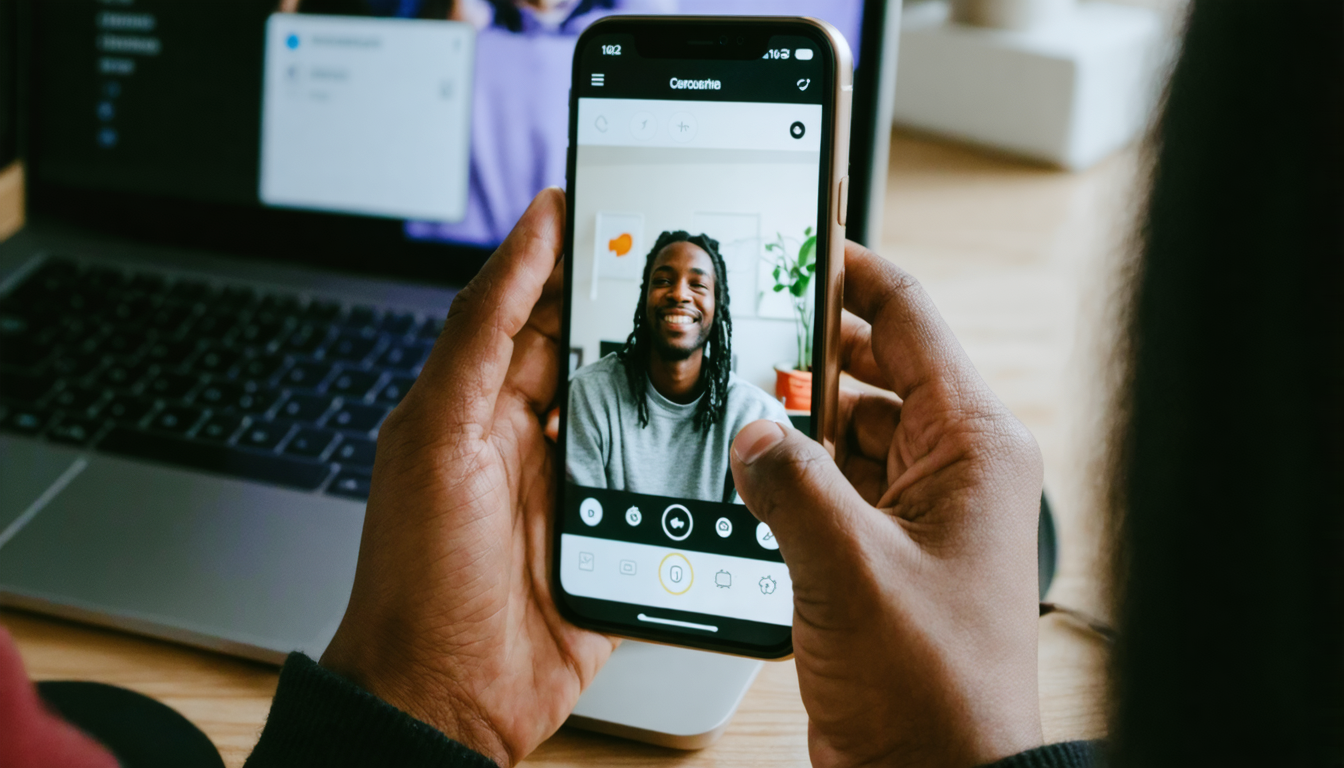
While the integrated Live Photos function offers undeniable time savings, it can prove limited when you want to enhance your animated GIF with advanced video editing options or mix different multimedia sources. The iOS ecosystem offers several major apps for creators seeking precise control and customized effects. Three names particularly stand out in 2025: Giphy Cam, ImgPlay, and PicsArt GIF Maker.
Giphy Cam is known for its simplicity and speed. This free app allows you to shoot directly in GIF mode, use a series of existing images, or launch a burst of five photos. Its main advantage lies in its collection of dynamic visual filters, always renewed, as well as in the possibility to add texts and stickers, making GIF creation fun and accessible to all. The 6.5-second limit imposes some brevity, but this often corresponds to the optimal format for animations on social networks.
ImgPlay
PicsArt GIF Maker completes this trio by offering an interface rich in features, including animated effects and masks allowing multiple layers to be superimposed. Its direct integration with Giphy facilitates the search and import of content, while its font library is a bonus for customizing your animation text. Although the setup may seem dense to newcomers, it is today a major reference for GIF editing on iPhone.
| Application | Price | Strengths | Limitations |
|---|---|---|---|
| Giphy Cam | Free | Unlimited filters, intuitive interface, fast creation | Duration limited to 6.5 seconds |
| ImgPlay | Free with in-app purchases | Precise control, professional filters, supports multiple formats | No media mixing |
| PicsArt GIF Maker | Free | Effects library, creative masks, numerous fonts | Sometimes a cluttered interface |
The major interest of these applications lies in the ability to perform fine and personalized GIF editing, essential for anyone wishing to go beyond basic animation. For example, when creating an animated GIF for a product launch or visual storytelling, adding explanatory texts and interactive stickers significantly boosts audience engagement. Several influencers use these tools daily to energize their stories and posts in 2025.
Keynote on iPhone: the surprising solution for professional GIF animations
Keynote, Apple’s presentation app, is far from being limited to classic professional use. In 2025, this app establishes itself as an unsuspected tool for creating complex animated GIFs, with an impressive editing level directly from your iPhone. Whether you are a content creator, teacher, or community manager, you are just steps away from animating your ideas with integration of sophisticated effects, smooth transitions, and advanced customization options.
The process is both accessible and powerful. You start by creating a Keynote presentation or opening an existing one, then you add animations on the different slides: movements, appearances, disappearances, rotations… Once satisfied, the export function allows you to choose an animated GIF output with a suitable resolution, ranging from low to very high definition (TG or XL). It is possible to precisely select the slides to include as well as the frame rate, offering full control over the duration and smoothness of the final image animation.
One of Keynote’s unique advantages lies in handling transparent backgrounds. This option frees your GIF from uniform color constraints, thus allowing more advanced edits or integrations of GIFs onto other media without annoying backgrounds. It’s a real plus for creations intended for varied supports, from websites to Instagram stories.
I personally used this method to create animated tutorials for my subscribers, explaining the configuration of computer components in a few seconds. Result? A spectacular improvement in understanding, thanks to a clear and dynamic animation without requiring complex software. As a bonus, the ability to share these GIFs directly via AirDrop, Messages, or social networks greatly facilitates dissemination.
These unexpected Keynote features challenge preconceived ideas and open up novel creative perspectives with an iPhone, once limited to simple photos and videos.
Expert tips to optimize the creation and sharing of animated GIFs on iPhone
Creativity is not always enough: for your animated GIFs to hit the mark, you must also pay attention to technical details that maximize their impact. Here are my tips drawn from many years of experience in GIF creation on iPhone, which should help you capture your audience’s attention and multiply GIF sharing.
- Favor a duration of 3 to 6 seconds: a perfect compromise between visual impact and attention retention. Too long, a GIF risks losing its quick and recognizable effect; too short, it doesn’t have time to establish itself.
- Capture in good lighting to avoid noise or blur, ensuring sharp and pleasant images.
- Take advantage of burst mode during fast actions to capture the perfect key moments to animate.
- Vary the playback speed to modulate the GIF’s energy and give it a unique personality; speeding up an awkward scene can become funny, slowing down a smooth action can sublime it.
- Add text judiciously, only if it guides or enriches understanding.
- Always export in GIF format for compatibility on all platforms.
These simple rules make, for example, all the difference between a GIF that will stick around for a few seconds and another that will be shared hundreds of times. Mastering duration and playback speed is often overlooked but transforms an ordinary animation into a viral and memorable image.
Moreover, to speed up GIF creation on iPhone, don’t hesitate to explore the Shortcuts app. thanks to automations like “Video to GIF,” particularly handy in 2025 for quickly converting multiple clips simultaneously. These tools save time, allow seamless modifications, and facilitate sharing on networks or instant messaging.
Converting an iPhone video into an animated GIF using built-in functions
Converting an iPhone video into an animated GIF is another essential aspect of GIF creation. While Live Photos already allow short animations, classic videos open a broader field, often necessary to capture longer sequences like a humorous excerpt, a sports segment, or a moment of emotion.
Several third-party apps, such as ImgPlay or Giphy Cam, offer direct conversion in a few clicks. But iOS 16/17 also proposes native tricks to quickly convert videos, notably through the Shortcuts tool mentioned earlier. This workflow converts a video directly into an animated GIF while offering control over size, duration, and frame rate to optimize quality without making the file too heavy.
For professional use, it is recommended to segment the video into a few targeted seconds before conversion to avoid files that are too heavy and difficult to share. For example, an Instagram clip or a precise post on Twitter benefits from a relatively short and well-framed GIF, thus maximizing impact without losing the subtlety of the moment.
A personal tip is to use slow-motion or sped-up video playback before conversion to obtain a unique effect in the final GIF. An action scene in a video game, slowed down, then takes on a surprisingly cinematic dimension, while a sped-up repetitive gesture becomes humorous and viral.
Criteria to respect for an efficient and captivating GIF animation
Beyond tools and apps, the quality of a GIF animation depends on several fundamental criteria that influence its reception and sharing.
Resolution is a crucial point. In 2025, iPhone Retina screens display images with incredible sharpness, and a low-resolution GIF loses all its strength. It is therefore advised to choose a resolution compatible with uses: neither too low to avoid a pixelated effect, nor too high to avoid making the file too heavy.
Smoothness mainly depends on the frame rate chosen at export. 15 to 20 frames per second remain a good balance to give a natural look, while a lower number can create a choppy or even unpleasant effect.
Compression must also be mastered. Over-compressed, the GIF loses quality and colors degrade; too light, it will be difficult to transmit easily. Use native tools or apps that intelligently handle this variable if possible.
Finally, choosing a short animation, between 3 and 6 seconds, fits mobile and social network attention habits, thus optimizing possible virality. Adding this simple rule to good framing and adequate lighting ensures a memorable and engaging GIF.
Creating an animated GIF on iPhone should not be a headache. By combining native features, relevant apps, and automation shortcuts, you have a complete ecosystem optimized for quickly producing and distributing your image animations.
Imagine the scenario of a gamer who just captured a remarkable scene during their session. They can, via Shortcuts, convert multiple video clips into animated GIFs, refine each visual with ImgPlay, and perfect their content with additions from Giphy Cam. Sharing is then done without delay thanks to options integrated in iOS, via AirDrop, iMessage, or social networks.
This fluidity, reinforced by iPhone’s ability to automatically save creations in dedicated albums like Animations or GIFs, facilitates both gallery management and the speed of dissemination to your community. It is a considerable advantage compared to more complex tools available on computers.
In 2025, GIF creation on iPhone has thus become a powerful lever to stimulate personal or professional creativity without investing in costly software. The time when this animation was the prerogative of technicians is now far behind us: today, it is within reach for everyone, anytime.