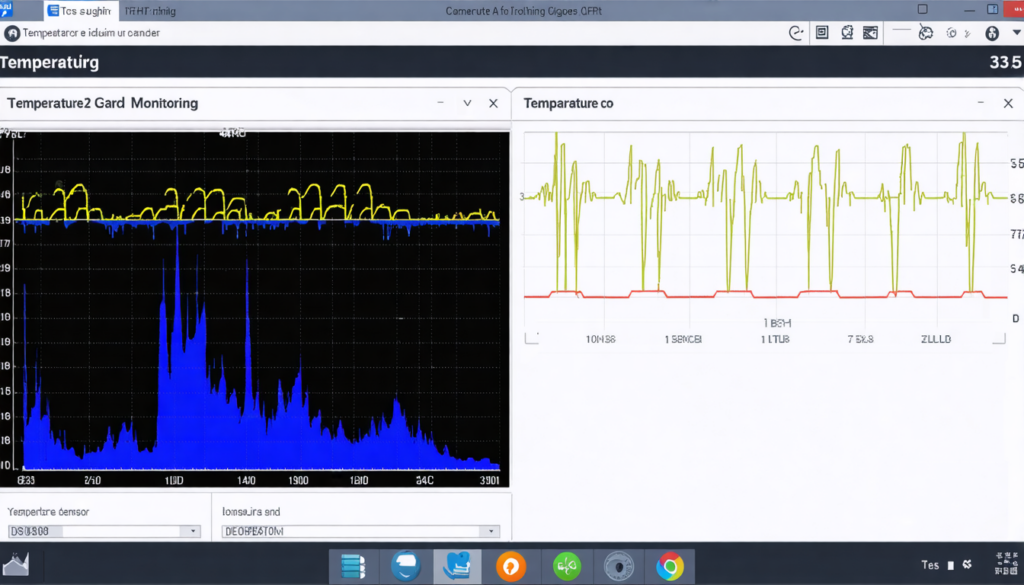
At a time when video games and software demanding in graphic resources are becoming increasingly challenging, the graphics card temperature represents a fundamental issue for the performance and longevity of your PC. Between intensive gaming sessions and complex rendering tasks, the GPU is pushed to its maximum, which causes an inevitable rise in heat. But what is the threshold that should not be exceeded to avoid graphics card overheating, without limiting its performance? And above all, how to effectively monitor this heat and apply relevant cooling tips to protect its components? Let’s dive together into this universe where thermal management and cooling optimization intertwine to offer a smooth and lasting experience.
Excessive heat is the sworn enemy of graphics cards: an uncontrollable temperature can damage circuits, reduce software stability, or even lead to hardware failure. However, some GPUs are designed to tolerate high temperatures, provided that the PC ventilation is adequate and the hardware maintenance is thorough. This comprehensive guide will provide you with concrete keys to understand the graphics card heat thresholds, adopt the best GPU overheating prevention practices, and use all the GPU cooling tips to get the best out of your hardware with complete peace of mind.
- 1 Graphics card temperature: understanding optimal thermal ranges for effective component protection
- 2 GPU temperature monitoring: essential tools to avoid harmful graphics card heat
- 3 GPU cooling tips: methods to keep your graphics card cool and performant
- 4 Hardware maintenance: keeping a healthy graphics card through periodic care
- 5 Intelligent fan control for mastered graphics card temperature
- 6 Extreme temperatures: when should you really worry about component protection?
- 7 Advanced cooling optimization: techniques and innovations to keep your GPU cool
- 8 Final tips for prolonged component protection of your graphics card
Graphics card temperature: understanding optimal thermal ranges for effective component protection
The ideal temperature of a graphics card is not a single number but a range that depends on the level of usage and type of GPU. Generally, during standard use (office work, web browsing), a graphics card should be between 30°C and 55°C. This ensures low heat, synonymous with stable operation and no stress on internal components.
Under load, especially in gaming or during intensive graphic work, the recommended range widens to 60°C to 85°C. This threshold allows the GPU to fully exploit its power without shortening its lifespan or risking overheating. An important point: aiming for an ideal temperature around 75°C to 80°C is often a good compromise between performance and safety. Beyond 85°C, the risks of reduced efficiency and hardware damage increase significantly.
Graphics card manufacturers sometimes indicate maximum tolerable limits, often around 90°C-95°C; some high-end cards can temporarily withstand spikes up to 100°C or more. But equipping your machine to regularly exceed this limit is like driving a car with an overheated engine: it causes premature wear, and the slightest failure in cooling could cause a sudden system shutdown or permanent damage.
Beyond the matter of temperatures themselves, it is essential to understand how heat circulates inside the PC. The PC ventilation must be sufficient to evacuate the generated heat; otherwise, it accumulates and causes the graphics card temperature to rise even faster, creating a harmful vicious cycle. The choice of components, their placement, and the configuration of your case thus play a fundamental role in this thermal management.
| Graphics card state | Recommended temperature |
|---|---|
| At rest (office, browsing) | 30°C – 55°C |
| In game or under heavy load | 60°C – 85°C |
| Optimal ideal temperature under load | 75°C – 80°C |
| Overheating threshold to avoid | Above 85°C |
Finally, note that GPU models vary in their heat resistance. For example, the AMD range is known to tolerate higher temperatures (up to 110°C for some models), while Nvidia cards prefer to stay a bit cooler, generally below 95°C. This distinction also influences ventilation settings and cooling optimization strategies.
GPU temperature monitoring: essential tools to avoid harmful graphics card heat
Knowing how to monitor your graphics card temperature is a key step for effective GPU overheating prevention. Several free or paid software in 2025 allow you to track this crucial data in real time, with intuitive interfaces and customizable alerts. Among the most popular are:
- MSI Afterburner: A highly appreciated software for its versatility, allowing not only to monitor the graphics card temperature but also to manually adjust fan speeds and overclock the GPU.
- GPU-Z: A lightweight tool that provides detailed information on the GPU model, its operating status, and of course its real-time temperature.
- HWMonitor: This software offers a comprehensive view of all the PC’s thermal components, useful for detecting indirect heat sources impacting the graphics card.
- AIDA64: A more advanced and professional solution, recommended for technicians and demanding enthusiasts, with complete reports and advanced alerts.
Using these programs is like having a real high-tech thermometer that spares you from unpleasant surprises during intensive sessions. Moreover, they help identify abnormal heat spikes that may reveal a problem in PC ventilation or a defective component.
It is also important to consider the ambient temperature, as each extra degree in the room directly impacts the graphics card temperature with an almost cumulative effect. Playing in a well-ventilated and temperature-controlled room is thus a critical factor to limit overall heat and optimize GPU cooling solutions.
GPU cooling tips: methods to keep your graphics card cool and performant
Faced with too high graphics card heat, several practical solutions exist to improve PC ventilation and guarantee sustainable cooling optimization. The first indispensable step is often regular hardware maintenance:
- System cleaning: Dust accumulated in vents, fans, and on the heat sink acts as a thermal insulator. This cooling barrier drastically reduces GPU cooling efficiency. Careful cleaning with a compressed air can significantly lowers temperatures.
- Reinstallation or replacement of thermal paste: About every two years, the thermal paste that serves as a conductor between the graphics processor and its heat sink dries out. Replacing it improves heat transfer and helps limit graphics card temperature.
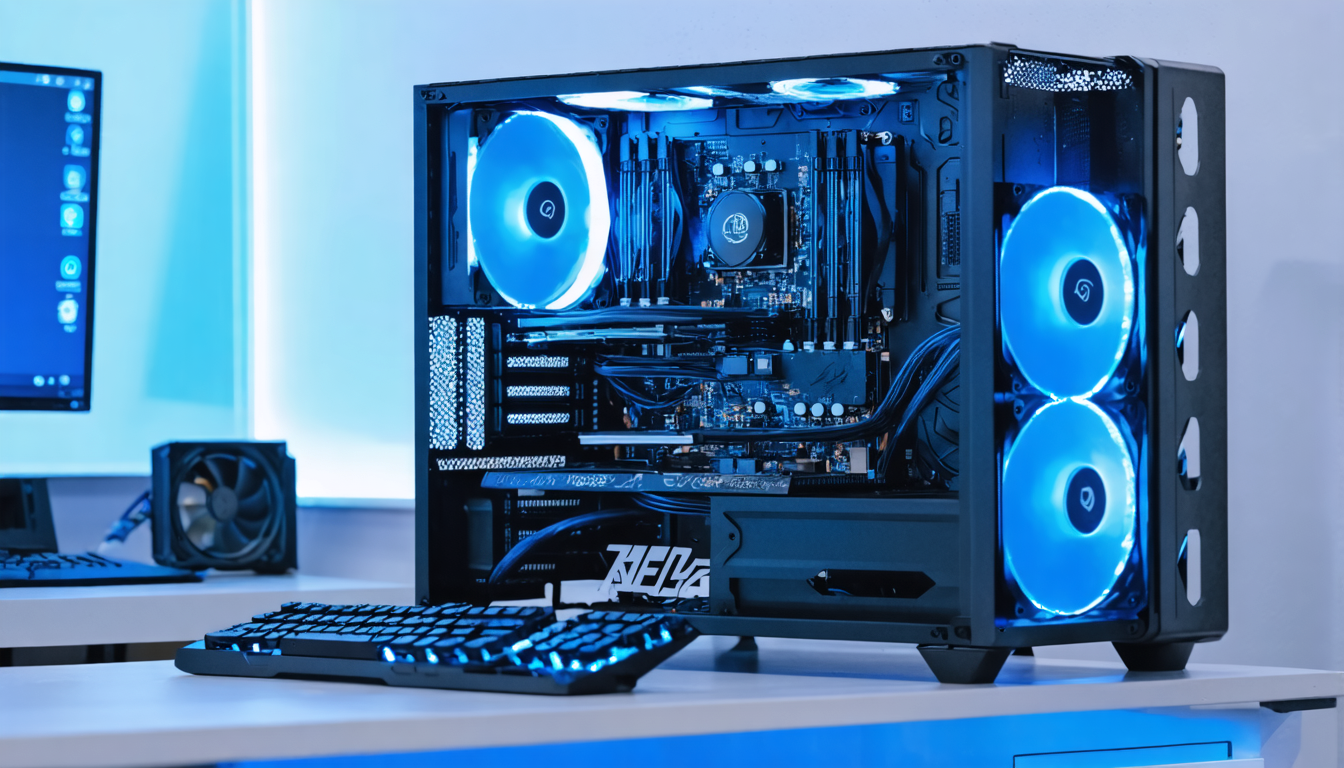
- Optimization of PC ventilation: Adding or repositioning fans in the case promotes a more direct and homogeneous airflow, evacuating heat more efficiently. Favor an air circuit that enters from the front and exits from the rear or top to avoid heat stagnating around the graphics card.
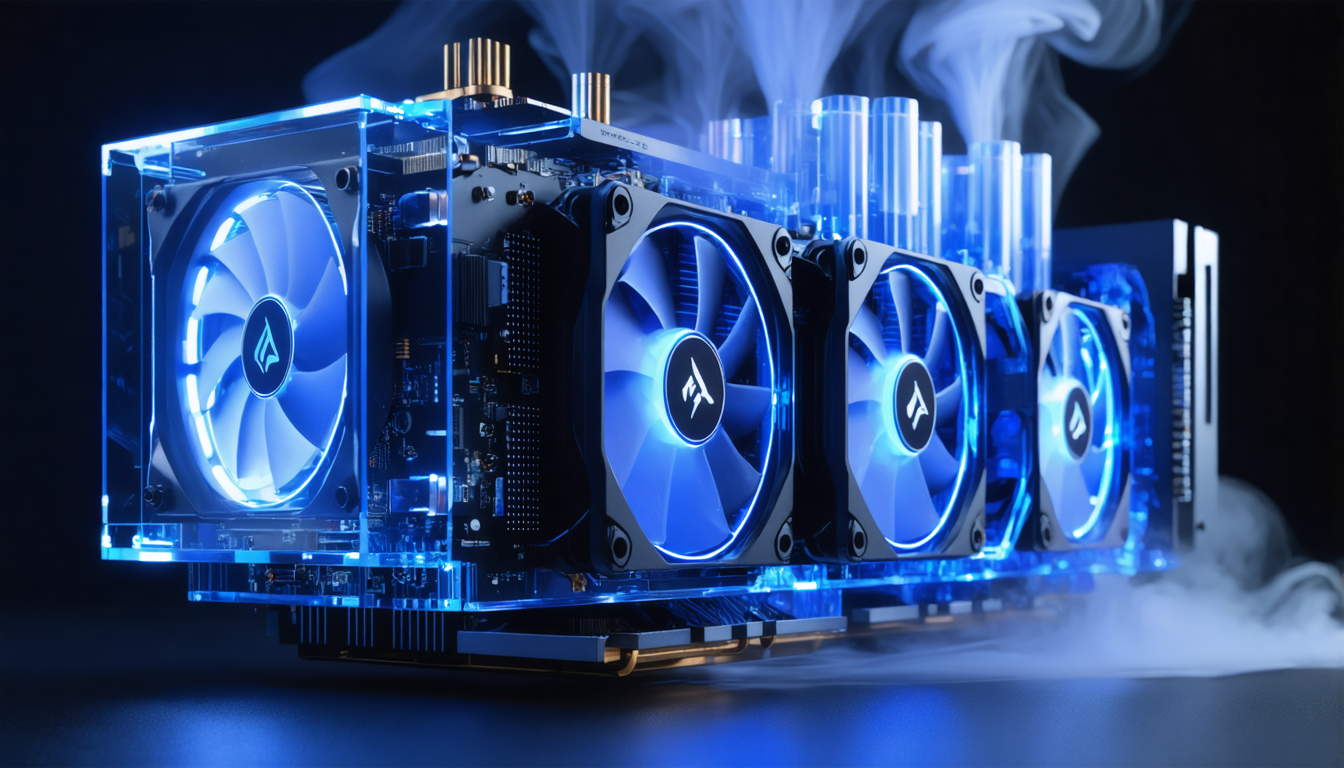
- Alternative liquid cooling: For demanding users and overclockers, installing a dedicated liquid cooling system (watercooling) for the GPU significantly lowers temperatures, with quiet and stable operation. This solution, although more costly, guarantees protection against chronic overheating.
Adopting these recommendations ensures optimal component protection. GPU overheating prevention thus becomes easier, and you avoid many inconveniences such as performance drops, crashes, or premature wear. Quality cooling is also a source of silence, as it prevents fans from running at full speed permanently, which generates noise.
Hardware maintenance: keeping a healthy graphics card through periodic care
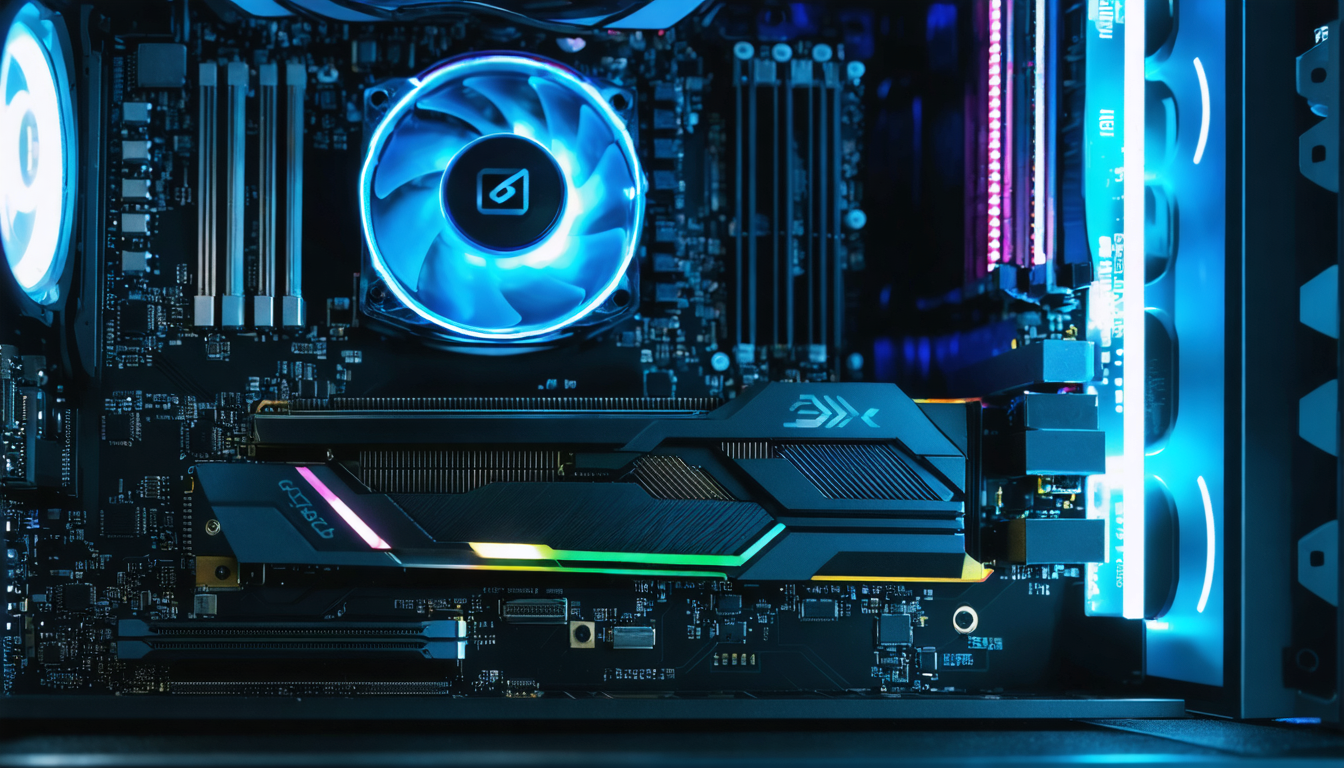
The longevity of your graphics card greatly depends on the frequency and quality of hardware maintenance. Beyond the simple cleaning mentioned earlier, several regular actions allow anticipating graphics card overheating:
- Regularly check dust and clean it to maintain optimal ventilation.
- Verify the proper fastening of fans and the general condition of cables to avoid any obstruction or malfunction.
- Replace thermal paste approximately every two years, a frequently overlooked but essential action to ensure good heat transfer.
- Update GPU drivers, since some software optimizes programmed energy and thermal management (automatic fan control, temperature limits).
- Test system stability with benchmark software to detect abnormal temperature rises that could indicate imminent failure.
By following these good practices, you avoid excessive heat and, above all, give your graphics card every chance to operate optimally for years, even in 2025 when the demands of games and software remain high. Preventive maintenance is therefore also a good financial investment, as it delays wear and avoids costly repairs.
Intelligent fan control for mastered graphics card temperature
One of the simplest and most effective ways to optimize graphics card temperature is fine-tuning PC ventilation dedicated to the GPU. Thanks to contemporary software tools like MSI Afterburner, it is possible to customize the fan curve according to GPU temperature.
For example, you can program a gradual increase in fan rotation speed as soon as the GPU exceeds 60°C, with a maximum intensity at 85°C. This type of automatic management allows coexistence of efficient cooling and noise reduction during less demanding phases.
This setup is based on a simple principle: adapt cooling to the real demand of the graphics card, which limits both graphics card heat and fan wear. Moreover, some modern cases have sensors and intelligent ventilation systems automatically synchronized with internal hardware, providing autonomous thermal regulation.
This intelligent control is a real plus daily, especially for gamers or heavy users who want to push their hardware to the limit without fearing GPU overheating or unbearable noise. Thus, cooling optimization also involves dynamic and customized management of airflow.
Extreme temperatures: when should you really worry about component protection?
It is common to read that graphics cards support rather high temperatures, but the crucial question is when to alarm for component protection. The first signs of abnormal graphics card heat are:
- Frequent slowdowns or crashes during games or heavy applications.
- A rapid and repeated rise above 85°C, even after cleaning and airflow optimization.
- Unusual increase in fan noise, indicating they are running at full speed for extended periods.
- Graphical artifacts on the screen, often resulting from instability linked to overheating.
Faced with these symptoms, you should intervene promptly, as persistent overheating can irreparably damage the graphics card. Consequences range from simple slowdowns to complete failure, which can be costly to repair or replace.
In 2025, some high-end graphics cards integrate automatic protection mechanisms, such as thermal shutdown or automatic frequency reduction (throttling), to limit damage in case of overheating. However, you should not rely solely on these passive safeguards: prevention is always preferable.
Advanced cooling optimization: techniques and innovations to keep your GPU cool
Cooling technologies constantly evolve to cope with the ever-increasing graphics card heat linked to growing demands of games and heavy software. Here are some of the most effective innovations and techniques currently in 2025:
- Vapor chamber cooling: This technique improves heat evacuation on key components thanks to a liquid that evaporates inside the heat sink.
- Use of phase change materials: Materials capable of storing and releasing heat gradually, thus stabilizing temperature.
- High static pressure fans: Specially designed to push air into dense radiators of liquid or air cooling systems.
- Hybrid cooling: Combination of air + liquid solutions for an optimal balance between safety and performance.
- Intelligent software optimization: AI algorithms integrated into drivers that dynamically adapt GPU frequency and fan management based on real-time temperature.
These innovations offer much more effective GPU overheating prevention and also allow some users to consider overclocking safely. What was once reserved for experienced enthusiasts becomes accessible to more gamers and professionals eager to exploit the full thermal and graphic potential of their machine.
Final tips for prolonged component protection of your graphics card
To preserve the health of your graphics card in the long term, some cooling tips are essential. It’s not just about waiting for the graphics card temperature to rise but adopting a proactive approach:
- Regularly monitor GPU temperature with suitable tools to detect early signs of thermal runaway.
- Do not neglect regular maintenance by cleaning dust and replacing thermal paste periodically.
- Improve PC ventilation by using appropriate fans and good layout for optimal airflow.
- Consider liquid cooling if you run your card under heavy load for extended periods, especially when overclocking.
- Avoid abrupt thermal changes, notably limiting rapid temperature rises after long idle periods or avoiding thermal shocks.
In short, protecting your components means mastering graphics card heat precisely and consistently, combining good knowledge, vigilance, and suitable technical solutions. A controlled temperature guarantees reliable, high-performance hardware ready to tackle the most demanding graphic challenges in 2025 and beyond.