You are about to enjoy an intense gaming session on your Nintendo Switch, but it stubbornly refuses to turn on. This scenario, although perplexing, is more common than you think and does not necessarily mean the end of your console. Between power failures, technical faults, or software issues, the reasons for a console that won’t start anymore are numerous. However, with the right reflexes and a suitable method, it is often possible to quickly diagnose the problem and even proceed with a repair at home. This comprehensive guide will accompany you step by step, through practical advice, proven tips, as well as professional recommendations to get your Nintendo Switch back up and running without stress or unnecessary expenses.
As the world of video gaming continues to evolve with increasingly powerful consoles, it is essential to master the basics of troubleshooting to optimize the longevity of your device. Detecting whether the problem comes from the battery, the charger, the software, or even a hardware component becomes a crucial skill for any tech-savvy player. This careful analysis will also help you avoid common mistakes, such as prematurely replacing a still-functioning part or sending the console for repair when a simple reset is enough. In this guide, you will also discover how to use certain accessories like the TV dock to diagnose the screen’s condition, as well as the steps to take when the failure seems more serious.
- 1 Understanding the main causes of a Nintendo Switch that won’t turn on: decoding common breakdowns
- 2 How to perform an accurate diagnosis: simple checks before panicking
- 3 Forced restart and other software solutions for troubleshooting a Nintendo Switch that won’t turn on
- 4 Identifying major symptoms depending on the failure: how to interpret your console’s signals
- 5 Dealing with hardware problems: when and how to consider professional repair
- 6 Preventing breakdowns: good practices to extend the life of your Nintendo Switch
- 7 Alternatives to play even when your Nintendo Switch won’t turn on
Understanding the main causes of a Nintendo Switch that won’t turn on: decoding common breakdowns
The failure of a console as popular as the Nintendo Switch can occur for a thousand reasons. Understanding the source of the problem represents the first essential step to consider an effective repair. Among all possible causes, power problems are by far the most common. A completely discharged or damaged battery sometimes prevents the console from starting, even if you plug in the charger. Moreover, a defective or unofficial charger can compromise the charging and, consequently, the startup. Wear of the USB-C cable, a damaged charging port, or even an internal problem with the battery itself should also not be overlooked.
Besides these power issues, bugs related to system updates have often been reported by the community. These incidents usually occur when the console suddenly shuts down during an update, causing a software lock that prevents normal startup. In this case, the solution can be more delicate and may require a full restoration or even the intervention of a professional.
Furthermore, hardware failure remains a dreaded cause. Components such as the USB-C port, the power button, or the motherboard can be damaged due to shocks, moisture exposure, or simply prolonged wear. Symptoms like a black screen with no response, strange indicator lights, or a blinking console often indicate a hardware-related failure. In 2025, the Nintendo Switch, although iconic, continues to generate some electronic issues, which leads knowledgeable users to adopt a methodical diagnosis.
By way of comparison, this process can be likened to an investigation where each symptom constitutes a clue. Identifying whether the origin is electrical, software, or mechanical is essential to avoid wasting time and money on inappropriate repairs.
How to perform an accurate diagnosis: simple checks before panicking
Before giving in to frustration and considering an expensive repair, it is crucial to examine some basic elements that could be the cause of the failure. The process always begins by checking the power supply. Make sure your charger is plugged into a working outlet by testing this outlet with another device. Then, test your USB-C charger with another compatible device to ensure it actually delivers power. It is often noticed that unofficial or damaged chargers cause charging interruptions that prevent the Nintendo Switch from turning on.
Next, use the power button located directly on the console rather than a Joy-Con or an external controller to try to turn on the Switch. This eliminates possible wireless connectivity issues that can sometimes cause confusion.
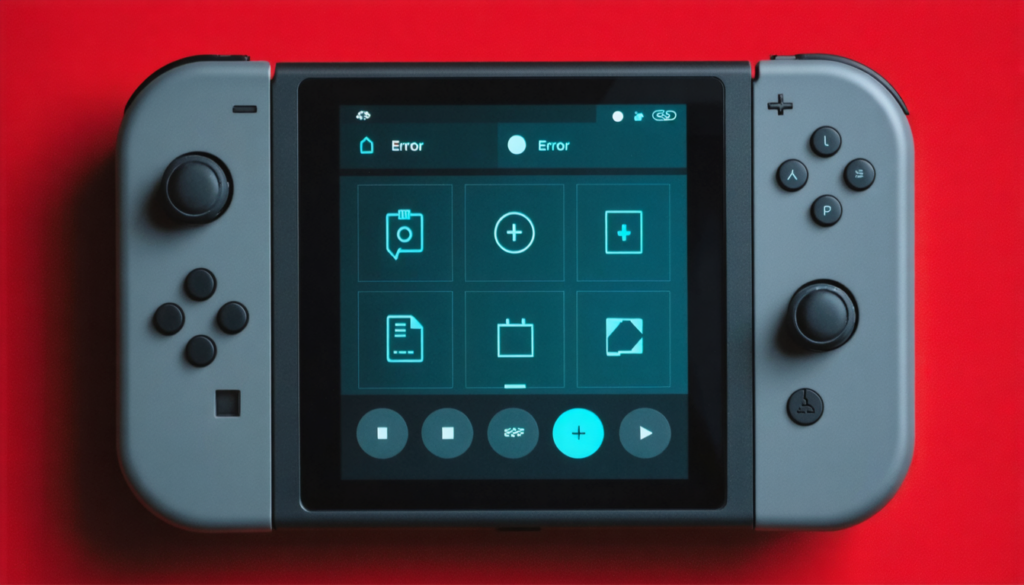
To diagnose a possible display issue, here is a valuable tip: place your console on the dock to try to display the content on a TV. If the image appears correctly on the TV but not on the Switch screen, there is a high chance that your touchscreen is faulty. If you get no image on both screens and no indicator light, the failure is probably deeper.
In some cases, a black screen may be caused by a dirty or damaged USB-C port. You can gently clean this port with compressed air, without using any metallic objects, to remove dust or debris.
Here is a summary list of the first diagnostics to carry out:
- Test the wall socket with another device
- Examine the USB-C charger: functionality and cable
- Try to turn on the console via the built-in button, not the controller
- Use the TV dock to verify the display on a large screen
- Inspect and gently clean the USB-C port
These simple actions will often save you unnecessary time loss and help determine if moving toward more advanced repairs is needed.
Forced restart and other software solutions for troubleshooting a Nintendo Switch that won’t turn on
When your Nintendo Switch no longer responds, a forced restart is an essential step. This method consists of holding down the power button for 12 to 20 seconds to force a complete shutdown of the console, then releasing it and pressing again to attempt a normal startup. This simple procedure often eliminates temporary system-related bugs and, according to feedback from experienced users, solves about 70% of startup issues.
If your console remains inactive despite this maneuver, unplug the charger from both the electrical outlet and the console. Wait at least 30 seconds to drain any residual charge, then plug it back in. This technique may seem trivial, but it sometimes helps reset the power element and restart the console.
For more complex cases related to software blockages, performing a full reset is recommended. Simultaneously hold down the volume (+) and (-) buttons as well as the power button for about ten seconds. This combination provides access to a recovery menu in which you can attempt to reset the console if necessary.
However, keep in mind that this operation deletes unsaved data, including games and user profiles not synced to the cloud, which is a crucial point to consider before proceeding.
Finally, a poorly managed battery problem can also prevent the console from turning on normally. If the charging indicator blinks, it means the battery is too depleted. In this case, leave the Switch plugged into the power supply for at least 30 minutes, or even several hours in extreme cases. Optimal charging in 2025 generally occurs at 15 volts and 1.2 amperes. A damaged, swollen, or deformed battery must be replaced by a professional to avoid any risk.
Identifying major symptoms depending on the failure: how to interpret your console’s signals
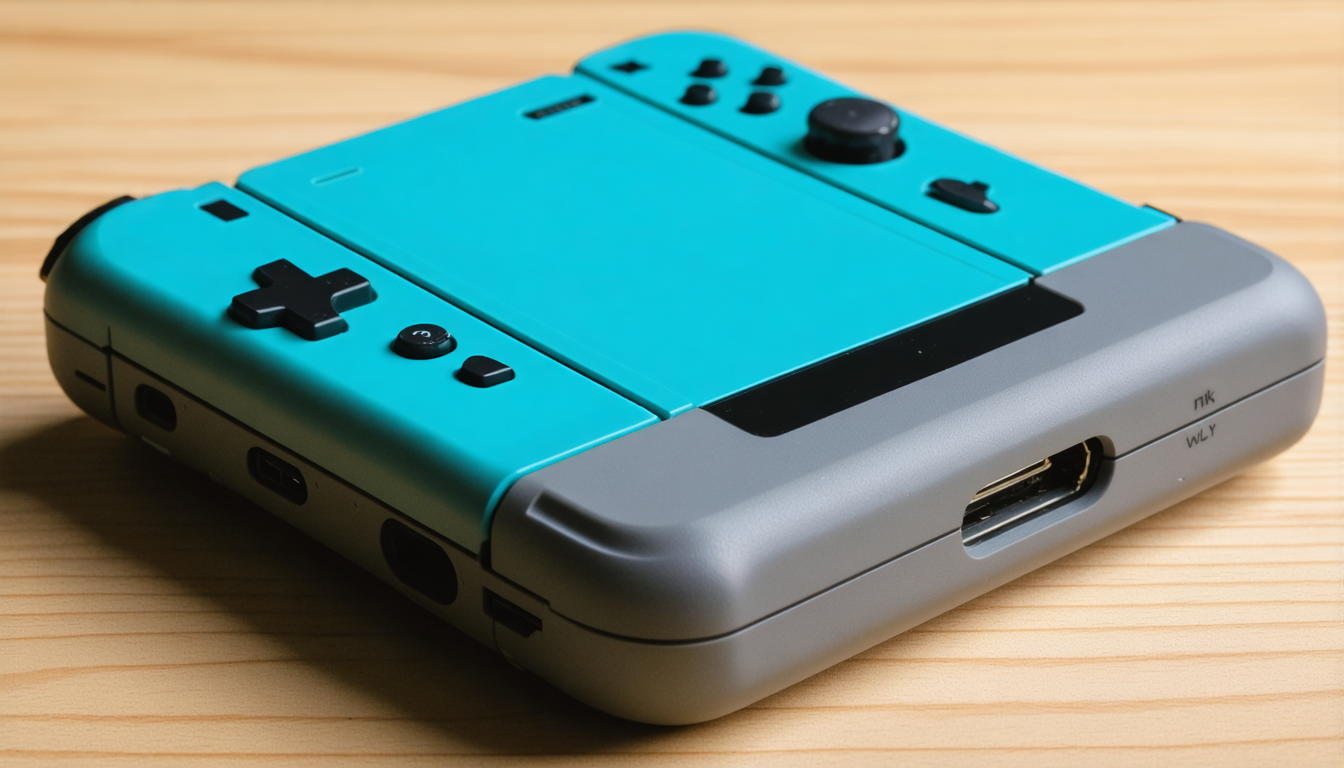
Clearly identifying failure symptoms can guide you more quickly toward the appropriate solution. Some signs are frequent and indicative of a specific problem. For example, a blinking charging indicator often means the battery is sometimes completely flat; in this case, simple patience accompanied by prolonged charging may be enough to restart the console.
Another important indicator is a black screen with sound playing on the television when the Switch is connected to the dock. This setup generally means that the console’s touchscreen is faulty and often requires replacement.
Green blinking lights can reveal a failure at the motherboard level, which is more serious and often requires the intervention of a specialized technician. When the console becomes completely unresponsive, without any indicator lights or reaction, a thorough check is necessary to detect a problem related to the USB-C port or internal power supply.
The table below summarizes the main symptoms with their probable causes and recommended solutions:
| Symptom | Probable Cause | Recommended Solution |
|---|---|---|
| Blinking charging indicator | Battery too discharged | Prolonged charging for at least 30 minutes |
| Black screen, sound on TV | Touchscreen problem | Screen replacement by a professional |
| Console blinks green | Motherboard failure | Specialized professional repair |
| No reaction when turning on | Defective USB-C port or power supply | Cleaning then thorough diagnosis in workshop |
Recognizing these signs can prevent wasting time looking for inappropriate solutions. Ultimately, it effectively guides your action toward targeted repair.
Dealing with hardware problems: when and how to consider professional repair
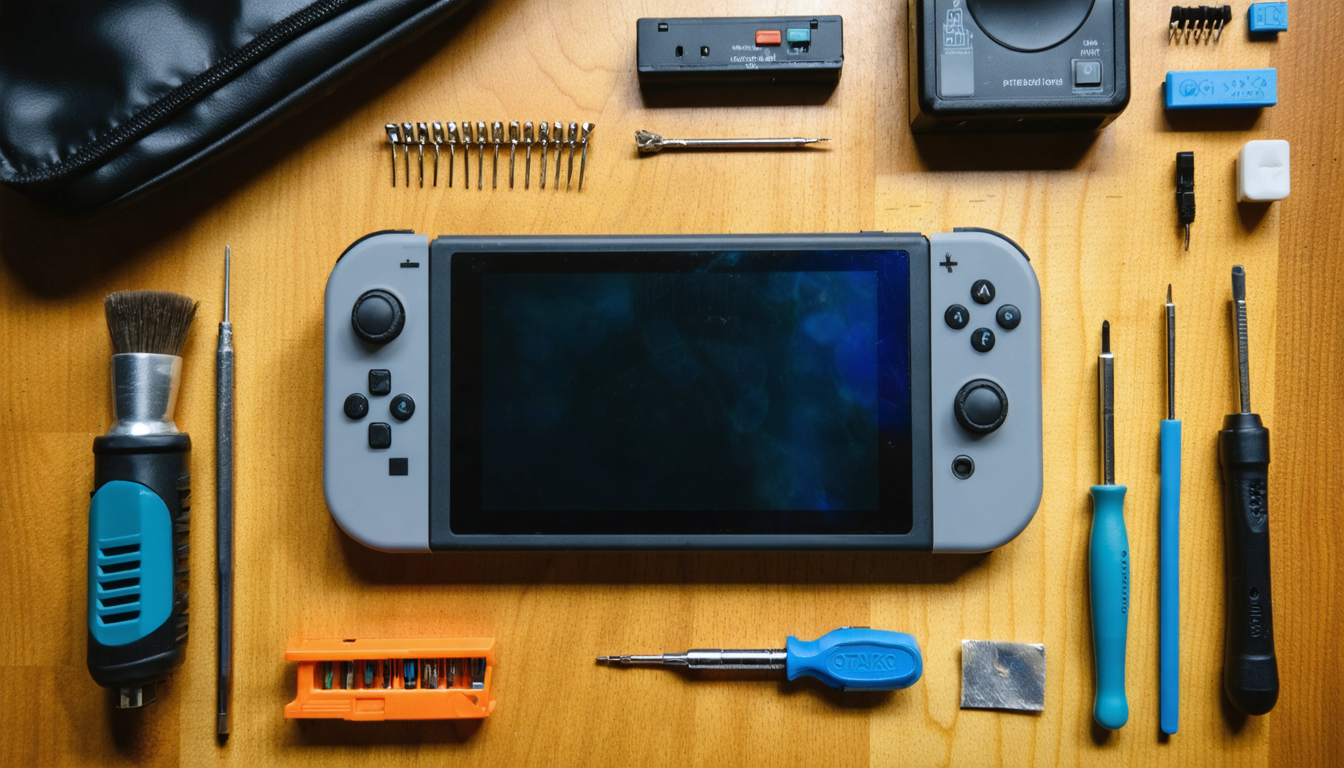
When all traditional troubleshooting attempts fail, you enter a technical realm that often exceeds the skills of an average player. Serious problems concern internal elements such as the USB-C port or the motherboard, which require delicate disassembly and micro-soldering. In 2025, specialized workshops offer precise interventions for this type of failure, as these components are directly soldered on the console’s circuit board.
Before entrusting your Nintendo Switch to a repairer, it is crucial to perform some preliminary steps: carefully clean the USB-C port with compressed air to remove dust, avoid any contact with metallic tools that could worsen the failure. Explain to the professional the symptoms observed and the solutions already tried to speed up the diagnosis.
To illustrate, once faced with a console whose screen remains black and indicator lights blink, a technician can test each component in-depth to identify whether it is the motherboard that is defective or just a poorly soldered connector. Some “micro-soldering” interventions make it possible to repair these defects without replacing the entire board, thus avoiding an expensive cost.
If you are a passionate player also active on other platforms, creating an account on Steam or another service can help you pass the time during the repair, by continuing to play elsewhere. Keep in mind, however, that respecting official Nintendo warranties often requires referring to an authorized center for any technical handling.
Preventing breakdowns: good practices to extend the life of your Nintendo Switch
Prevention is often the best solution to avoid your Nintendo Switch not turning on one day. Several simple daily actions guarantee the proper functioning and longevity of your hybrid console.
First of all, always prioritize using an official or Nintendo-certified charger. Third-party adapters can deliver unstable or insufficient voltage that damages the battery in the long term. Also, avoid leaving your console plugged in continuously once the full charge is reached, which preserves battery health.
Regularly check the condition of the USB-C port and clean it carefully to prevent dust and debris accumulation. Avoid exposing the console to extreme temperatures or humid environments. In 2025, protective accessories like reinforced cases or semi-rigid covers are easy to find and represent a wise investment.
Finally, during system updates, make sure the battery is sufficiently charged before starting the process and avoid interrupting the console during this crucial phase. This will greatly reduce the risk of software lock-ups to fear.
Here is a reminder in list form of good practices:
- Use only Nintendo-certified chargers
- Unplug the console after full charge
- Regularly clean the USB-C port
- Protect the console with a suitable case
- Avoid humid environments and extreme temperatures
- Complete the battery before any system update
Alternatives to play even when your Nintendo Switch won’t turn on
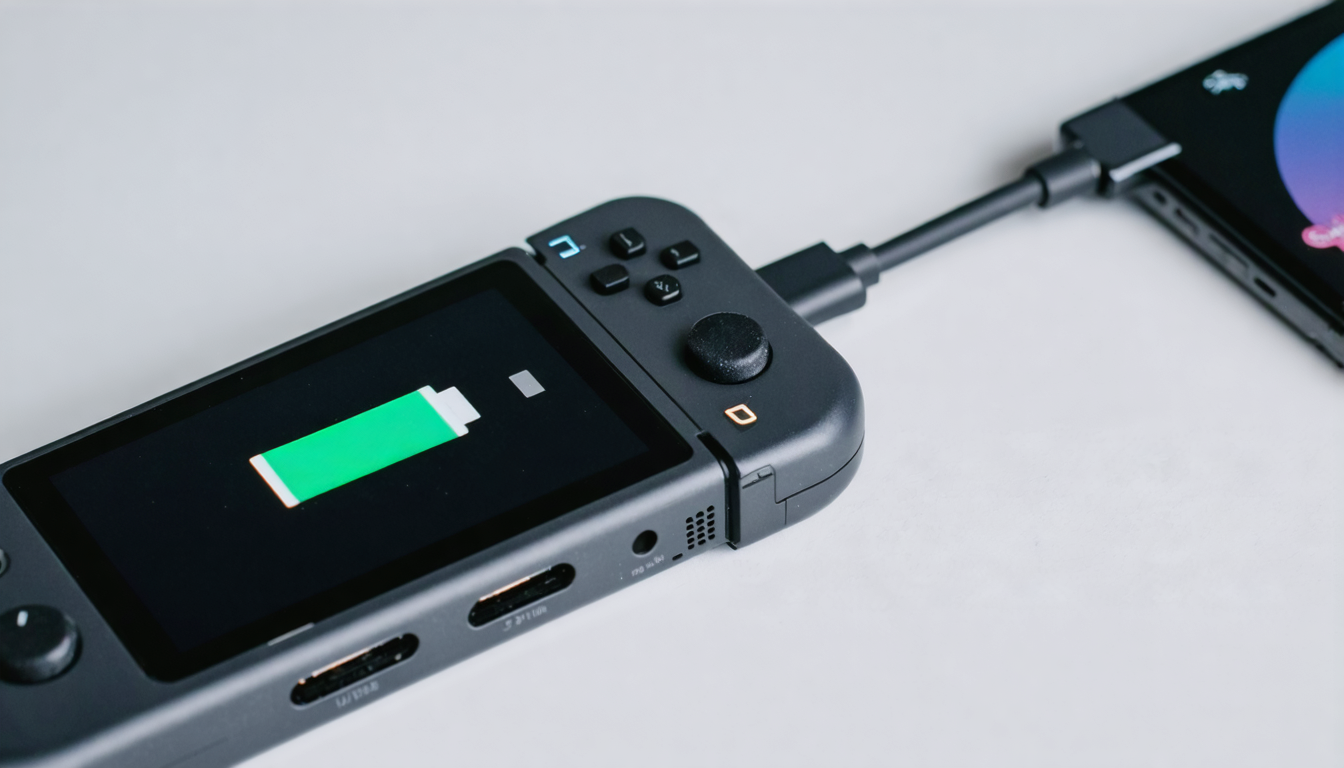
Losing immediate use of your Nintendo Switch can be frustrating, but it does not mean the end of your gaming sessions or videogame experiences. Several alternatives allow you to continue playing or entertaining yourself during the unavailability period of your console.
For Nintendo fans especially, cloud gaming services, like those offered by some platforms in 2025, provide the possibility of playing multiple titles via the internet on various devices. These solutions, however, require a stable and fast connection, which is not always accessible in all areas.
Furthermore, if you own a complementary console (PS4, PS5, Xbox, or a gaming PC), you can keep your gaming pace thanks to cross-platform titles or indie games that appeal due to their quality and accessibility. Creating and using a Steam account is also an interesting solution for those who want to diversify their gaming experiences.
Finally, using legal emulators or well-known mobile games can temporarily fill the gap caused by your Nintendo Switch’s absence. These options not only allow you to stay connected with your passion for gaming but also to explore new worlds while waiting for your console to be repaired.