In the world of video games, smooth rendering has become an essential criterion for an immersive and competitive experience. In 2026, as open-world titles and ultra-realistic graphics reach impressive levels, the need to optimize graphical settings to maximize framerate has never been more important. Yet, faced with the multitude of options offered in menus, it is easy to get lost in adjustments that promise miracles without really improving performance.
Many players, when faced with a drop in FPS, switch to survival mode and blindly start lowering texture quality, disabling certain effects, or reducing draw distance without a precise method. The result? A game that is indeed a bit smoother, but visually less appealing and sometimes very close to simply a degraded image without significant fluidity gains.
This article aims to untangle this complexity by clearly distinguishing graphical settings that have a real impact on performance from those that mainly involve aesthetic improvement. The key is to understand how the GPU, CPU work and how their respective limits influence framerate according to scenes and configurations. Through a progressive and methodical approach, you can then boost your FPS effectively and sustainably, without unnecessarily sacrificing image quality.
- 1 Understanding the essential links between GPU, CPU, and resolution to better manage your FPS
- 2 Graphical settings that actually affect FPS: prioritize the essentials
- 3 Graphical effects often cosmetic: improve your visibility without limiting fluidity
- 4 Adopting a pragmatic method: how to test and adjust your graphical options without false promises
- 5 Pushing framerate limits thanks to optimized updates and drivers
- 6 Crucial importance of a high-performance graphics card in FPS optimization
- 7 Advanced techniques for an FPS boost without sacrificing image quality
- 8 Concrete examples of successful graphical optimization: 2026 case studies
Understanding the essential links between GPU, CPU, and resolution to better manage your FPS
Before modifying any graphic parameter, it is crucial to grasp the fundamentals of in-game performance. The framerate – expressed in FPS (frames per second) – is mainly influenced by the processing of two key components: the graphics card (GPU) and the central processor (CPU). In 2026, with increasingly demanding games, often in 4K or at high refresh rates, their role becomes critical.
The first step is to identify what is bottlenecking your system. For example, if you reduce the display resolution and notice a marked increase in FPS, then your GPU is the bottleneck. The higher the resolution, the more the GPU has to calculate a large number of pixels per frame. Going from 1080p to 1440p or 2160p (4K) multiplies the graphics load several times, which can halve performance or worse.
On the other hand, if lowering the resolution has almost no effect on the framerate, it is often the CPU limiting smoothness. This frequently occurs in scenes loaded with many characters (NPCs), complex animations, or in multiplayer games with advanced simulation. The processor must here manage the object density, artificial intelligence, and the rendering of the overall scene. In this context, some settings related to draw distance, crowd density, or the number of dynamic elements play a predominant role.
It is also important to note that RAM and storage affect loading times more than FPS directly, although VRAM saturation can cause stuttering. In summary, to optimize your graphic settings, you must first do a simple diagnosis: limit yourself to identifying whether your CPU or GPU is the main source of performance drops, then act accordingly.
Graphical settings that actually affect FPS: prioritize the essentials
Not every option in a video game’s graphics menus carries the same value or weight on your framerate. To effectively boost your FPS, focus on settings that are “performance vacuum cleaners.” At the top of the list are high-quality shadows, which require complex calculations by the GPU. These realistic shadows, especially at ultra quality, can cause fairly unpleasant micro-stutters, notably in dense scenes or with strong lighting.
Advanced lighting, with techniques like global illumination, as well as ray tracing, are also heavy to handle for your graphics card. While indirect lighting and reflections bring an impressive visual dimension, they must be balanced with fluidity if you want to fully enjoy responsive gameplay.
From the CPU perspective, certain options such as draw distance and active object density (for example, crowds in an open city) are often responsible for sharp FPS drops. This is even more visible in open worlds where hundreds of characters and many objects interact simultaneously. Lowering the distance at which elements are displayed, or reducing population density helps limit the load on the processor.
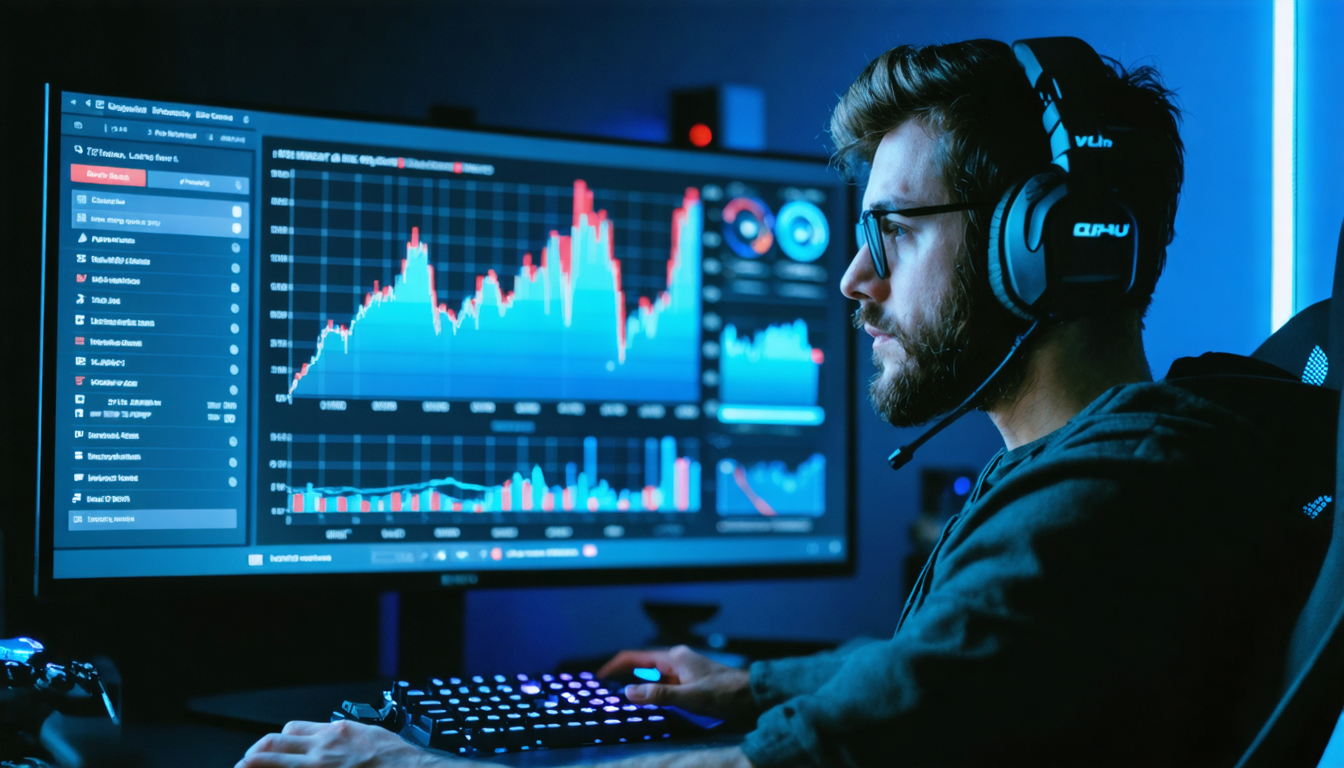
To optimize hassle-free, it is recommended to change only one option at a time, run identical tests in a complex game area, then measure the difference in FPS. This process allows you to distinguish what really efficiently influences performance, without unnecessarily sacrificing image quality.
- Resolution and render scale: lowering resolution is effective but can degrade the image.
- Ray tracing and advanced reflections: very demanding, to disable or reduce for more FPS.
- Quality and distance of shadows: massive impact on GPU.
- Draw distance and object density: mainly impacts the CPU.
- Ambient occlusion and advanced illumination: optimize according to your hardware.
- Volumetric effects: fog, heavy clouds, particles, to modulate.
Graphical effects often cosmetic: improve your visibility without limiting fluidity
Besides heavy settings, some settings mainly affect aesthetics, with little impact on performance. This category includes textures: as long as your VRAM is sufficient, their quality weighs little on fluidity. It is only when video memory is lacking that saturation causes texture streaming in-game, causing annoying pauses.
Filters like motion blur, grain, chromatic aberration, or depth of field are not very resource-intensive. Their role is rather to refine the visual atmosphere. Disabling these effects can unlock a small FPS gain, sometimes almost negligible, but often improves readability, a crucial asset in competitive contexts.
Anti-aliasing, which smooths pixels to avoid the “jagged edges” effect, deserves specific attention. Some anti-aliasing methods are demanding, such as MSAA, while others, more modern like temporal AA, offer a good compromise between image quality and performance. The result also depends on the game engine and developer optimizations.
Overall, these cosmetic options should be adjusted once the essential settings are stabilized. This allows you to combine a pleasant visual level with a stable framerate and the best possible smoothness.
Adopting a pragmatic method: how to test and adjust your graphical options without false promises
Optimizing your FPS without falling into the trap of visual illusions relies on a simple but demanding method. The worst mistake is to modify several parameters simultaneously, then attribute an improvement – or loss – to a setting without having done a precise test. In 2026, benchmarking or monitoring tools integrated into games greatly facilitate this approach.
To start, set a clear goal: for example, stabilize at 60 FPS, or aim for 120 FPS depending on your screen’s refresh rate. Then choose a heavy spot in the game, such as a dense city or an intense combat scene, where the load is maximum. This is the only way to measure the real impact of each change.
Always proceed by changing one option at a time, then return to your heavy scene and note any progress. Focus first on the heavy settings listed earlier, then optimize the more aesthetic options afterwards.
For example, start by reducing shadow quality to quickly free up resources, then lower draw distance, next adjust volumetrics, and finally refine anti-aliasing. This progression ensures you do not unnecessarily degrade quality while ensuring a noticeable framerate improvement.
Quick routine to optimize without degrading the experience
- Set an FPS target based on your screen.
- Always test in the same intensive area.
- First lower shadows, reflections, and volumetric effects.
- Then adjust draw distance and object density.
- Finally, modify anti-aliasing and render scale.
- Check stability; don’t rely solely on the average.
Pushing framerate limits thanks to optimized updates and drivers
Beyond the internal game settings, graphical performance also depends on GPU drivers and updates. In 2026, manufacturers like Nvidia, AMD, and Intel continue to offer various optimizations through recent versions, including improvements for DirectX 12 Ultimate, ray tracing, and other advanced technologies.
The latest drivers include specific performance profiles for popular games, allowing maximization of FPS without major visual compromise. Additionally, temporarily disabling certain system protections, like HVCI (Hypervisor-protected Code Integrity) on Windows, can allow a notable temporary boost, especially on older configurations.
It is recommended to regularly check and update your drivers as well as your games, as patches often bring performance fixes and targeted optimizations, particularly in demanding AAA titles. In parallel, using third-party monitoring and optimization tools can help clearly display the real sources of FPS losses.
Comparative table of important GPU driver versions and their FPS impacts
| Driver Version | Date | Key Optimizations | Estimated FPS Impact | Network Compatibility |
|---|---|---|---|---|
| GeForce 528.15 | January 2026 | DirectX 12 Ultimate optimization, improved Ray Tracing | +10-15% on ray tracing titles | Full |
| Radeon Adrenalin 23.2 | February 2026 | Better VRAM management & FSR 3.0 upscaling | +5-12% overall | Full |
| Intel Arc 3.1.1 | April 2026 | AI performance & hardware rendering optimization | +8-10% in recent games | Good |
Crucial importance of a high-performance graphics card in FPS optimization
While settings are essential to adjust performance, hardware remains the unbeatable foundation. In 2026, recent graphics cards offering an excellent performance/price ratio allow maintaining high framerates even in the most demanding games. Models equipped with fast memory, advanced GPU architecture, and hardware support for recent technologies like ray tracing and AI contribute to optimal rendering.
Some players also choose to boost their GPU via controlled overclocking. With dedicated tools, it is possible to increase the card’s frequency to improve FPS, at the cost of increased power consumption and temperature. However, this maneuver requires good knowledge and adequate cooling to avoid any hardware risk.
At the same time, the overall PC balance is paramount. An overly powerful card in a system with a limited CPU or RAM can cause imbalance and bottlenecks. It is therefore recommended to build a homogeneous and optimized configuration or update components accordingly.
Advanced techniques for an FPS boost without sacrificing image quality
Beyond classic settings, recent technologies such as Nvidia’s DLSS (Deep Learning Super Sampling) or AMD’s FSR (FidelityFX Super Resolution) now offer a powerful way to increase smoothness without sacrificing visual definition. These super-sampling solutions rely on artificial intelligence and sophisticated algorithms to reconstruct a sharp image from a reduced render resolution.
Combined with adapted graphical settings, this allows reaching higher FPS while maintaining excellent image quality. Depending on the title and configuration, gains can reach 30 to 50% increase in fluidity, which is particularly beneficial on machines struggling to display native 4K.
Similarly, some game engines include adaptive rendering options, dynamically adjusting graphical quality according to real-time load to maintain a target framerate. This flexibility is a nice advance towards smooth gaming without excessive compromise.
Concrete examples of successful graphical optimization: 2026 case studies
To better understand the impact of graphic settings on performance, let’s analyze some recent cases documented by the community.
In the famous open world RPG “Eldoria: Reborn,” a scene in the city center with dozens of NPCs and many light effects drops FPS to 38 in 4K ultra. By reducing the crowd draw distance and changing shadows to medium quality, the player managed to reach an average of 58 FPS, with a noticeable fluidity gain without excessively degrading visual quality.
Another example in the competitive FPS “Arena Strike” shows that disabling motion blur and reducing anti-aliasing from MSAA to TAA increased fluidity by 15%, while improving readability in fights, a significant strategic advantage.
Finally, a recent configuration combining DLSS and optimized graphical settings on “Galactic Conquest” allowed enjoying a smooth experience at over 100 FPS in 4K, stable even during large-scale battles, with a visual rendering very close to native ultra.
These examples illustrate well that optimization relies on a balance between performance and quality, as well as a personalized methodical approach.