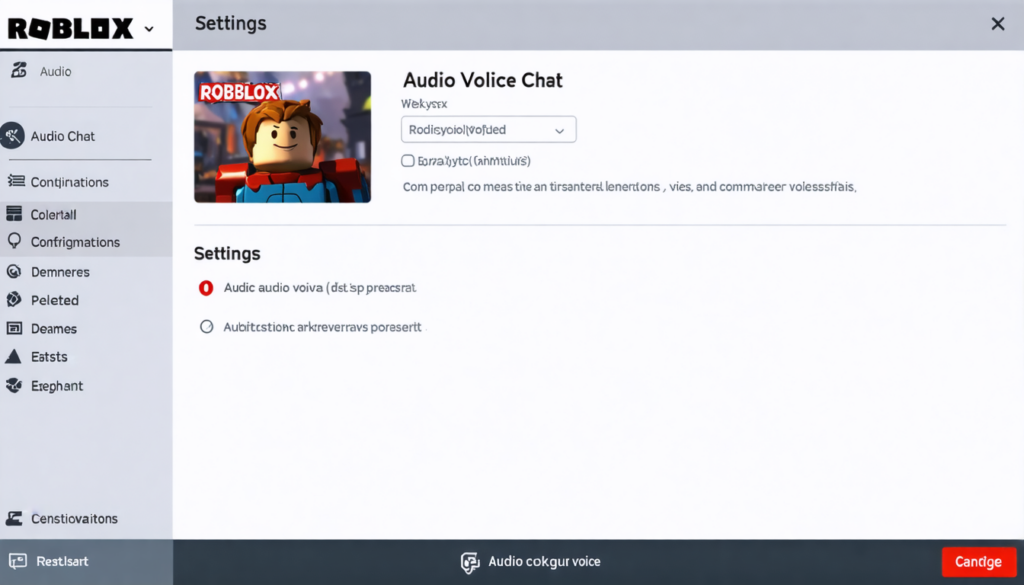
In the bustling world of online games, real-time communication has become a central element for creating immersive and collaborative experiences. Roblox, the essential platform for players of all ages, has taken a new step by integrating voice chat. This feature revolutionizes the way players interact, making each game more dynamic, smoother, and much more friendly. No longer needing to resort to third-party applications like Discord to coordinate actions: simply activate your microphone directly in Roblox to talk with friends or teammates live.
Yet, behind this apparent simplicity lie essential steps and precise settings to master. Between age requirements, security checks, hardware choices, and audio parameter configuration, the path to optimal communication is not always obvious. Especially since sound quality and resolving technical issues are crucial to avoid spoiling the gaming experience.
This practical guide takes you to the heart of the methods to activate and optimize your microphone on Roblox. It details the different configurations according to devices, tips to avoid common technical pitfalls, and advice to respect community rules while fully enjoying this new interactive experience. Whether you are a casual player or a seasoned virtual world explorer, this dossier guides you step by step in mastering voice chat, a cornerstone of your upcoming gaming session.
- 1 Essential conditions to activate voice chat on Roblox: checks and security above all
- 2 Activating the microphone on Roblox: complete guide according to your device
- 3 Basic rules to optimize your microphone and improve sound quality during voice chat on Roblox
- 4 Roblox games compatible with voice chat: where to fully enjoy in-game communication
- 5 Troubleshooting common issues to activate and optimize the microphone on Roblox
- 6 Audio settings and advanced tips for optimal in-game communication on Roblox
- 7 Respecting the Roblox community when using voice chat: tips and best practices
Essential conditions to activate voice chat on Roblox: checks and security above all
Roblox has established strict criteria to secure and regulate access to voice chat, designed to preserve the integrity of its community. The first essential condition is age: you must be at least 13 years old to use the microphone and enjoy voice communication. This threshold is legally regulated to ensure the protection of minors and prevent abuse. To validate this age, Roblox requires a rigorous identity verification involving the submission of an official document bearing a photo accompanied by a selfie. This double proof strengthens the reliability of the user profile and reduces the risk of false identities.
But age alone is not enough: your account must also be fully configured and secured. This includes confirming your email address and your phone number. These elements facilitate recovery procedures and improve protection against hacking attempts. Additionally, activating two-factor authentication is highly recommended to add an extra layer of security.
Some regional restrictions also limit the use of voice chat, which is notably available in France, Canada, and the United States, but not systematically in all countries where Roblox is accessible. Regarding hardware, you need a working microphone compatible with the platform, whether it’s a computer (PC or Mac), a smartphone running Android or iOS, or an Xbox console. PlayStation users must wait, as this feature is not yet offered on that console, which can create some frustration within the player community.
The table below summarizes the main requirements to use voice chat on Roblox:
| Criteria | Required Condition |
|---|---|
| Minimum Age | 13 years and above |
| Verification | Official identity document + selfie |
| Account Configuration | Confirmed email and phone + two-factor authentication |
| Compatible Devices | PC, Mac, Android, iOS, Xbox |
| Available Regions | France, Canada, USA, etc. |
Respecting these prerequisites is essential not only to activate the feature but also to guarantee secure and moderated communication, compliant with standards applicable in the Roblox universe.
Activating the microphone on Roblox: complete guide according to your device
Once the legal and account conditions are validated, the next step is to activate the microphone in Roblox. This operation varies depending on whether you play on mobile, PC, Mac, or Xbox, but generally follows the same logic of navigating through the settings.
On mobile (iOS or Android), start by opening the Roblox app. Then, go to the More tab, then select Settings. In this menu, choose the section Privacy and Content Maturity to reach the Communication section. Here, activate the option titled Use microphone to chat with voice. In most cases, a window will pop up asking you to confirm access to your device’s microphone: accept, otherwise the microphone will remain inactive. When the button turns green, it means voice chat is ready to use.
For PC or when playing via browser, the process is just as intuitive. Click on the gear icon located at the top right of the screen to open settings. You will find the section Privacy and Content Maturity then the Communication tab. You will need to check the box Use microphone to chat with voice. Windows will likely display a pop-up asking for permission to use your microphone on Roblox. This authorization is crucial and must be accepted to avoid any blockage.
To optimize sound quality, it is also recommended to check your system’s audio settings. On Windows, go to the sound settings by clicking the speaker icon at the bottom right. Under the Input section, make sure the selected microphone is the one you want to use. Speak to see if the volume meter reacts: this confirms sound detection. Finally, verify that Roblox is allowed to access the microphone in the Privacy and Security section, under Microphone.
On Mac, the process is similar, starting by opening System Preferences, then Sound and selecting the Input tab to choose your mic. Then, go to Security and Privacy to grant microphone access to Roblox.
For players on Xbox, the procedure is a bit more complex. You must ensure that your headset or microphone is properly plugged into the controller. Often, voice chat activation is done through a mobile app or the Roblox website, since on console, the direct option is sometimes absent or hidden in system menus. This limitation reflects the still-growing need to harmonize the cross-platform experience.
Activation settings are a required step, mastering them guarantees immediate and smooth use of voice chat. Small details, like software permissions or verifying the correct audio device, make all the difference during your online sessions.
Basic rules to optimize your microphone and improve sound quality during voice chat on Roblox
Once the microphone is activated, the quality of your communication closely depends on the configuration and the environment in which you play. Having a functional mic is not enough; you must optimize this link to avoid background noise, crackling, or unexpected cut-offs.
Start by choosing a high-quality microphone, preferably a headset microphone with noise cancellation. This type of device greatly limits sound interferences and focuses vocal capture on your voice only. The small built-in microphones in laptops or smartphones often offer lower quality and pick up all ambient sounds, which harms communication fluidity.
Also, consider positioning your microphone correctly: avoid placing it directly at your mouth, as it often causes harsh and saturated breath sounds. Ideally, leave a few centimeters of space while maintaining a stable position to avoid picking up handling noises. For example, some streamers place their microphones on adjustable articulated arms, ensuring an optimal position without hindering mobility.
On the software side, adjust the input volume in your system’s audio settings to prevent saturation. Too high a volume causes distortion, whereas too low a volume makes it difficult for others to understand you. Don’t hesitate to test your mic before joining a game, using apps like Zoom, Discord, or even Roblox’s integrated test tool.
Here are some practical tips to maximize the sound quality of your voice chat:
- Use a noise-isolating headset microphone to limit external noises.
- Test and adjust the input volume in the audio settings before playing.
- Position your microphone at a steady distance of about 5 cm from your mouth.
- Avoid noisy environments to prevent communication disruption.
- Restart Roblox after each change to validate the settings.
- Use software noise filters if your mic or headset supports them.
By applying these good practices, you guarantee not only a better experience for yourself but also optimal listening comfort for your interlocutors. This promotes clear communication and a more relaxed atmosphere during your multiplayer sessions.
Roblox games compatible with voice chat: where to fully enjoy in-game communication
Any player wanting to quickly use their microphone must keep in mind that voice chat is not present in all Roblox experiences. Its implementation depends on developers, who choose whether or not to integrate this feature according to their vision and the nature of the game.
Before starting a game, it is important to check on the game’s description page for the mention “Voice Chat Enabled” or “Chat vocal activé”. This indication signals that voice communication is supported and that you will be able to use your microphone.
Once in-game, a small microphone icon appears next to your username, reflecting voice status: when it is white or colored, chat is functioning normally. If it is crossed out, it means your mic is muted or the feature is disabled. On PC, you can toggle mute and active by pressing the V key, while on mobile, simply tap the microphone icon displayed on the screen.
Roblox has developed a spatial audio proximity voice chat system. This system adjusts the volume of voices according to the distance between players: the farther you move away, the quieter voices become, until they completely disappear beyond a certain radius. This approach is very effective for recreating a realistic atmosphere in role-playing games, but can limit communication in strategy games requiring long-distance instructions.
Here is a non-exhaustive list of popular Roblox experiences offering integrated voice chat:
- Roblox Community Space: a social space where players gather freely to chat.
- Mic Up: a game based on voice communication with interactive mechanics.
- Natural Disaster Survival: dynamic survival with team coordination via voice chat.
- Flee the Facility: an escape game requiring effective vocal strategies.
- Outlaster: competition with alliances established through live dialogue.
- Voice Chat Hangout: a social hangout space where voice is central to interactions.
If you cannot hear your teammates, it is often due to a lack of support for voice chat on the server or in the current game. In this case, traditional text chat remains the only way to communicate, though less spontaneous.
Troubleshooting common issues to activate and optimize the microphone on Roblox
Despite a clear procedure, users often encounter difficulties activating their microphone on Roblox or maintaining acceptable sound quality. The main recurring problem: the voice chat option does not appear in settings. This case is generally due to a fault in age verification or regional incompatibility.
The first step is therefore to check your birth date in the account settings. If you are under 13 or if the identity procedure has not been validated, the option remains invisible. Relaunch the official identity verification, preferably using your smartphone to scan the document and take a clear selfie, to avoid refusals caused by a blurry image.
Another common issue concerns microphone access permissions. On Windows, open Settings > Privacy and Security > Microphone and make sure Roblox is authorized. On smartphones, check in the app settings that the microphone is enabled. Any modification must be followed by a complete closure and restart of the game for changes to take effect.
If sound quality is poor, try changing the microphone or using a specialized headset mic. A faulty or low-quality device may introduce background noise, echo, or cut-offs. Testing the microphone on other applications will help determine whether the problem comes from Roblox or your hardware.
Finally, be aware that Roblox is subject to active moderation. Respecting community rules is essential: avoid sharing personal information, making insults, or harassing other users. The game offers reporting and blocking tools, as well as the option for parents to disable voice chat on children’s accounts for enhanced control.
Audio settings and advanced tips for optimal in-game communication on Roblox
Beyond the basic activation settings, there are advanced options that players can use to perfect their in-game communication. Roblox allows adjusting certain features related to sound proximity and voice management in compatible experiences.
In some games, it is possible to enable the UseAudioApi option, which gives developers more precise control over how sound is delivered, offering, for example, enhanced spatialization effects or dynamic volume adjustment. This setup can be activated via the experience interface or in Roblox Studio settings for creators.
For the end user, the essential thing is to check that you have selected suitable options in your personal settings for your audio equipment and gaming environment. For example:
- Enable background noise suppression if your mic supports it.
- Limit microphone sensitivity to avoid unintended triggers.
- Use an external software equalizer to improve vocal clarity.
- Configure output volume to clearly hear close or team members without being disturbed by ambient noise.
A player shares their experience: “By properly configuring my mic and using noise suppression, I was finally able to chat without being drowned in constant background noise. This unprecedented feature in 2026 on Roblox marks a real plus in how we play together, especially in competitive games!”
The success of voice chat also depends on good ergonomic usage. Muting your mic when not speaking avoids background noise. Setting up a quick mute key, such as the V key on PC, makes this management easier.
Clear and fluid communication is a key success factor, especially in team games where cooperation is paramount. Optimizing these audio settings is also an investment in the quality of your entertainment and the conviviality of the game.
Respecting the Roblox community when using voice chat: tips and best practices
Using voice chat is a fantastic opportunity, but it also implies engaging in a dynamic of respect and kindness. The Roblox platform has millions of users, often young, and moderation around voice conversations is essential to maintain a healthy environment.
Never share personal information – identities, addresses, phone numbers – is a fundamental rule to strictly observe. Such disclosure may compromise your security. Caution remains vital during voice exchanges, especially as conversations are recorded to allow effective moderation. Roblox applies swift sanctions in cases of abusive use, such as harassment or discriminatory remarks.
As a player, it is important to adopt a correct and courteous tone, even in tense moments. Staying calm improves the overall atmosphere and enables more effective collaboration with your teammates. The mute function allows cutting off a disturbing mic or one causing noise nuisances. Reporting should be used in case of inappropriate behavior to protect the community.
Parents also have a key role by configuring the child account to disable voice chat if needed, thus offering a secure framework for the youngest. Education on respect and responsibility online should accompany this technology.
Ultimately, the success of voice chat on Roblox depends as much on technical mastery as on the human quality of interactions. This mix ensures a rich and lasting experience.