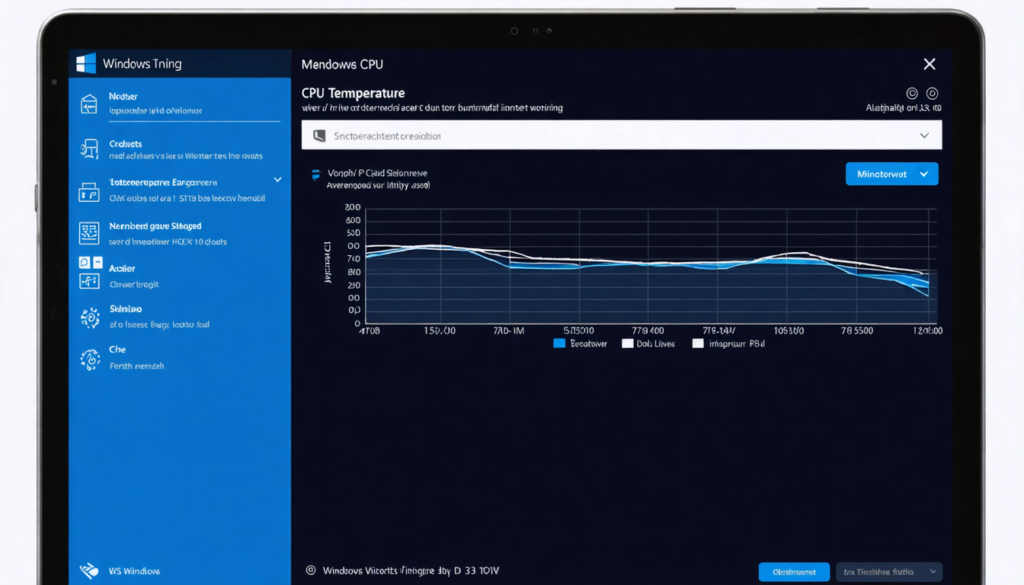
You have probably noticed that your Windows 10 computer can seriously heat up during some intensive uses, such as launching a demanding game or video editing. This rise in temperature, especially at the processor level, can affect its performance and the lifespan of your machine. For a PC that remains efficient and reliable, it is therefore essential to control the CPU temperature using appropriate tools. This practical guide will accompany you step by step in the CPU monitoring under Windows 10, with simple methods, reliable software, and advice to ensure computer safety while optimizing processor performance.
Most users are actually unaware that Microsoft does not natively offer a detailed function for thermal monitoring. This requires resorting to third-party solutions specialized in hardware diagnostics. In this context, we will look at the best applications to use in 2025 to monitor temperatures in real time, anticipate overheating risks, and maintain a stable PC. You will also discover how to combine these readings with effective cooling management and preventive maintenance, in order to preserve your IT investment. Finally, we will not overlook expanding the scope beyond the CPU to take into account all components whose temperature affects system reliability, such as the GPU, hard drives, and motherboard, thus combining global thermal monitoring and optimal performance.
- 1 The best free tools for effective thermal monitoring under Windows 10
- 2 Ideal processor temperature and risk zones to optimize computer safety
- 3 Best practices to avoid overheating and preserve your PC under Windows 10
- 4 Monitoring other components for a complete hardware diagnosis
- 5 Thermal monitoring in gaming and video creation: a crucial issue
- 6 Understanding and interpreting CPU temperature data for reliable diagnostics
- 7 Advanced tips for enhanced processor temperature optimization under Windows 10
The best free tools for effective thermal monitoring under Windows 10
Windows 10 does not offer an integrated tool allowing precise reading of the processor’s temperature, making the installation of efficient and reliable third-party tools essential. Among these solutions, some have become essential references for performing precise and real-time CPU monitoring.
Core Temp is considered a true star in this field. It displays the temperature of each processor core live, and its lightness allows it to run in the background without affecting performance. Its discreet display in the taskbar allows immediate visualization without having to open the program. Installation is easy, performed in a few clicks from the official site with a portable version available, ideal for avoiding unnecessary installations. Core Temp remains the perfect tool for users who want a simple, direct, and reliable reading of processor temperatures.
If you want a more complete view of your machine’s overall temperature, other software such as HWMonitor or Speccy offer extended monitoring beyond the CPU. HWMonitor breaks down the temperature by components: CPU, GPU, drives, motherboard. It also provides voltages and fan speeds, essential for a complete hardware diagnostic. Speccy adds an ergonomic display and very visual summaries, facilitating understanding for those new to thermal monitoring.
For a more advanced approach, “HWiNFO” is praised in 2025 for its ability to provide extremely detailed hardware data in a live table updated several times per second. Its use is favored by hardware professionals and demanding gamers who want to know everything about processor temperature and other key elements.
Install and easily launch Core Temp:
- Log in to Core Temp’s official website.
- Download the latest stable version (portable version if preferred).
- Run the installation file and follow the instructions.
- Launch Core Temp; the taskbar displays the temperature of each core.
- Set up custom alerts in case of overheating via the options.
In summary, mastering thermal monitoring under Windows 10 starts with choosing monitoring software suited to your expectations, from the simplicity of Core Temp to the richness of information of HWiNFO or HWMonitor.
Ideal processor temperature and risk zones to optimize computer safety
Understanding which temperatures are normal or risky for your processor is crucial to avoid costly failures. A processor that heats too much loses efficiency and reliability. Here are clear benchmarks that apply in 2025 to common CPU models under Windows 10:
| Processor state | Normal temperature (°C) | Threshold to monitor (°C) | Danger zone (°C) |
|---|---|---|---|
| Idle (office work, inactivity) | 30 – 50 | 55 | >60 |
| Medium load (browsing, videos, multitasking) | 45 – 65 | 70 | 75 – 80 |
| High load (video games, rendering, intense computing) | 60 – 80 | 80 | >85 |
A CPU that remains steadily above 80°C during intensive phases is threatened by accelerated degradation, which can lead to system errors, drastic drops in processor performance, or even an automatic PC shutdown to prevent overheating. The goal is thus to maintain a stable and reasonable temperature depending on usage.
For example, during a gaming session on Windows 10, many players notice their processor exceeds 75°C: this remains acceptable but it is advisable to check the quality of the cooling system. If the temperature flirts with or exceeds 85°C, an intervention becomes urgent, otherwise the hardware may suffer irreversible damage in the medium term.
It is also important to note that each CPU model has its specificities. Latest-generation processors often include internal protection mechanisms that automatically lower their frequency to reduce the temperature, which however impacts performance in games or work. Good monitoring is therefore the key to combining power and computer safety.
Best practices to avoid overheating and preserve your PC under Windows 10
Checking the processor temperature regularly is not enough if no corrective measures are implemented. Many causes can cause annoying overheating, and prevention involves simple actions to adopt in the daily use of your computer.
Cleaning and maintenance: the silent ally
Dust is the sworn enemy of electronic components, especially fans and heat sinks. This fine and invisible layer accumulates inside the case and drastically reduces air circulation efficiency. Result: heat rises quickly and accumulates around the processor. Regular cleaning with a compressed air can, a soft brush, or even periodic disassembly for thorough dusting is an essential maintenance gesture.
Optimize ventilation and air circulation
A PC placed in a confined space, against a wall or on a fabric such as a bed, can see its temperature rise very quickly. You need to ensure to place the tower on a clear desk, without obstructing the air vents. Moreover, internal fans must be well positioned to create an efficient airflow in/out. In 2025, PC cases have evolved towards designs with more grills and sometimes even liquid cooling systems accessible to all users. These equipments significantly improve thermal management but do not replace good space organization.
Thermal paste, an underestimated but crucial element
Between the processor and its heat sink is the thermal paste, a conductive paste that facilitates heat transfer. Over time, it can dry out or lose its effectiveness. Replacing the thermal paste every 2 to 3 years, or at the slightest sign of excessive heat, is a crucial step. This operation requires some caution but is largely accessible to knowledgeable users and allows lowering the CPU temperature by several degrees.
Here is a summary of measures to adopt:
- Regularly clean the interior of the PC to remove dust
- Position the computer in a ventilated and clear space
- Check the fans and their operation
- Renew the thermal paste during repeated high heat
Adopting these simple measures helps avoid many failures and ensures optimal thermal monitoring, guaranteeing smooth operation under Windows 10.

Monitoring other components for a complete hardware diagnosis
When monitoring the CPU temperature, you must not neglect other hot spots in the PC that also affect its performance and reliability. An expanded vigilance to the GPU temperature, hard drives, and even the motherboard gives you in 2025 a global vision of your machine’s internal environment.
The graphics card (GPU), often the most stressed
Gamers and imaging professionals know this component well, which transforms data into pixels. The GPU generates as much or even more heat than the processor according to the intensity of graphic calculations. MSI Afterburner is a very popular free utility that not only allows temperature monitoring but also adjusts fan speed and manages energy consumption for a perfect balance.
SSD and hard drives: often neglected heat
While SSD and HDD drives heat less than CPU and GPU, excessive temperature can sabotage their longevity and slow transfers. Software like HWMonitor, Speccy and more display these valuable data which serve to anticipate replacement before failure, avoiding data loss.
Motherboard under watch
The temperature of components on the motherboard may seem a detail, but it reveals good internal circulation. A motherboard that heats abnormally often indicates a ventilation defect or faulty components. Regular monitoring is essential in the context of a global hardware diagnosis.
Adopting this global approach guarantees a healthy and durable PC, relying on multi-use tools for complete thermal monitoring, essential to avoid hidden problems that would spoil your Windows 10 experience.
Thermal monitoring in gaming and video creation: a crucial issue
In the current context where gaming and multimedia creation demand maximum performance, knowing the processor temperature in real time has become essential. During an intense session on modern titles or a 4K rendering with multiple layers, thermal overload is a sneaky enemy. Not only does processor performance drop, but overall system stability can be compromised.
Gamers frequently use Core Temp, HWiNFO, or MSI Afterburner to keep an eye on their machine. These tools also provide customizable alerts that warn before reaching critical thresholds, allowing a quick reaction: reduce the load, adjust cooling, or temporarily stop the session.
Content creators benefit from the same technical vigilance, especially during long and demanding video exports. Thermal monitoring integrates into their workflow to avoid crashes and optimize hardware lifespan. These methods are a real mandatory step in 2025 for any quality digital production under Windows 10.
An anecdote illustrates this perfectly: a professional streamer had to stop a live broadcast after 3 hours of gaming, following a too-high temperature alert indicated by Core Temp. Thanks to this alert, he avoided a total crash that could have compromised his reputation. This simple tool saved his audience’s trust.
Understanding and interpreting CPU temperature data for reliable diagnostics
Raw temperature reading is only part of hardware diagnostics. Learning to interpret these figures is essential to understand the real state of your system under Windows 10. Several factors come into play:
- Natural variation: temperatures can fluctuate rapidly depending on processor activity. A temporary rise during a computing peak is normal.
- Multiple sensors: each core has its own sensor, hence several sometimes different readings. The average value is often the most indicative.
- Specific thresholds: some processors have internal safety thresholds, which can automatically cool the processor.
- Recurring spikes: these often indicate a cooling problem or an overly demanding task to manage.
By understanding these mechanisms, you will be able to act effectively on your PC temperature tool to prevent risks and optimize processor performance. This growing expertise saves you costly interventions or unnecessary downtime.

Advanced tips for enhanced processor temperature optimization under Windows 10
For advanced users, optimizing processor temperature can go beyond simple visual control. By exploiting BIOS/UEFI settings, it is possible to adjust CPU operation and the cooling system.
For example, reducing the operating frequency during moderate load decreases heat production without sacrificing the computer’s responsiveness. Some technical tips include:
- Undervolting: a technique that consists of lowering the processor’s electrical voltage to reduce heat generated.
- Manual fan control: setting their speed according to real needs for optimal acoustic comfort while keeping the temperature low.
- Regular BIOS updates: sometimes, manufacturers fix problems related to thermal management or optimize ventilation.
- Using a liquid cooling system: a new standard in 2025 for high-performance PCs, offering an excellent balance between silence and efficiency.
These actions require good technical knowledge and some caution, but they allow you to fully exploit your processor’s potential under Windows 10 while minimizing heat-related risks.