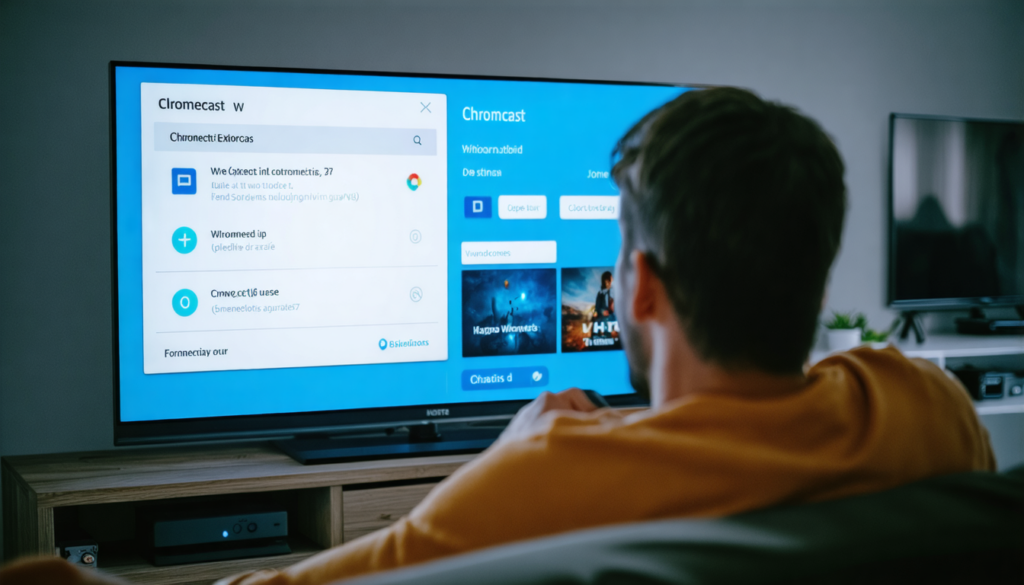
In a world where streaming is becoming the standard for our daily entertainment, Chromecast stands out as an essential companion to transform a traditional television into a window to countless digital contents. But like any technological device, it can encounter setbacks: random disconnections, choppy display, or frustrating slowdowns. In this context, the reset of Chromecast often appears as the saving solution to restore optimal display and a smooth experience on your television. This practical guide accompanies you step-by-step through the process, from understanding the usefulness of Chromecast to effective methods to bring your device back to new condition, with troubleshooting and optimization advice tailored for 2025 usages.
The constant evolution of connected devices, notably Chromecast with Google TV, has integrated advanced features while maintaining ease of use. Yet, faced with challenges of Wi-Fi connection and regular updates, users sometimes encounter malfunctions. Knowing how to reset your Chromecast thus becomes an essential skill to maximize performance and avoid frustration linked to degraded display or compromised interactivity. We will also see the key steps post-factory reset to ensure your setup starts fresh and fully exploits available settings and new features.
- 1 Understanding Chromecast: operation and benefits for optimal display on television
- 2 Main reasons to perform a reset of your Chromecast
- 3 Step-by-step method to reset your Chromecast via the Google Home app
- 4 Physical reset: instructions to restore your Chromecast to factory settings
- 5 What to do after a Chromecast reset for optimal display on the television?
- 6 Advanced tips for effective Chromecast troubleshooting after reset
- 7 Comparison of Chromecast reset methods: Advantages and disadvantages
- 8 Common mistakes to avoid to preserve optimal display of your Chromecast
Understanding Chromecast: operation and benefits for optimal display on television
Chromecast is a multimedia streaming device designed by Google that connects to your television via an HDMI port. Its main role is to receive data from a smartphone, tablet, or computer, and then stream it directly to the screen. In 2025, it remains a popular solution thanks to its simplicity, affordable price, and full integration with the Google ecosystem. This device transforms a traditional television into a modern platform capable of managing apps, movies, music, and even games.
The operating principle relies on synchronization via the home Wi-Fi network. When you launch a video or content from a connected device, Chromecast receives this information and displays it in real time, with rendering adapted to your television’s resolution. The display quality therefore closely depends on the stability of the Wi-Fi connection and the device’s performance. That is why a well-configured Chromecast plays a crucial role in your daily viewing experience.
Beyond streaming, Chromecast with Google TV stands out by offering an interactive interface where the user can navigate directly between different apps, access personalized recommendations, and manage settings without having to use another device. This evolution is a true asset for having an optimal display, as it allows installing updates, adjusting image quality, or modifying network configurations easily.
Moreover, Google has continuously improved security and data management, making Chromecast reliable for both family and professional use. Automatic update capabilities ensure your device continuously benefits from the latest improvements. However, despite these advances, technical problems can sometimes arise: conflicts with complex Wi-Fi networks, streaming errors, or slowdowns affecting image quality. In these cases, the reset becomes an essential troubleshooting step.
For example, imagine a family using Chromecast to watch 4K content. If the home Wi-Fi network experiences disruptions, Chromecast may display interruptions or reduced quality. By reverting to factory settings, the device removes corrupted or conflicting configurations, allowing it to start from a healthy base and an optimal display. This reset is thus a strategic step to ensure an immediate and lasting experience.
Main reasons to perform a reset of your Chromecast
The decision to proceed with a reset of your Chromecast generally stems from difficulties observed in its operation, but not only. Here is a detailed overview of the situations that justify this procedure:
- Recurring Wi-Fi connection issues: An unstable connection, frequent signal interruptions, or difficulty detecting the network can prevent Chromecast from functioning properly.
- Repeated streaming errors: Whether image cutouts, faulty synchronizations, or app crashes, these symptoms often indicate an internal anomaly requiring restoration.
- Slowed performance or display lag: A Chromecast that lags or displays a frozen screen may signal a system clogged with outdated data or incorrect configuration.
- Preparation for sale or donation: Before handing over your Chromecast, it is wise to delete all your personal data by performing a factory reset.
- Issues related to updates: Sometimes, after an update, certain functions may malfunction; resetting eliminates these temporary glitches.
At the core of these reasons, resetting aims to return to a stable state, free from any malfunction or conflicting configuration. It may seem technical, but it is an operation accessible to most users, safe when done properly. In many cases, this quick intervention is enough to revive a Chromecast considered problematic.
To better grasp this issue, consider a professional who uses their Chromecast in a conference room. If the system displays Wi-Fi connection errors during a presentation, a reset could solve the problem and ensure smooth streaming. Another example is a private user experiencing freezes during late-night streaming sessions: a factory reset will often allow smooth navigation again.
In summary, knowing the causes that prevent an optimal display encourages adopting Chromecast reset as an essential skill, both for personal and professional use. This approach prevents many frustrations and optimizes continued use of your multimedia equipment.
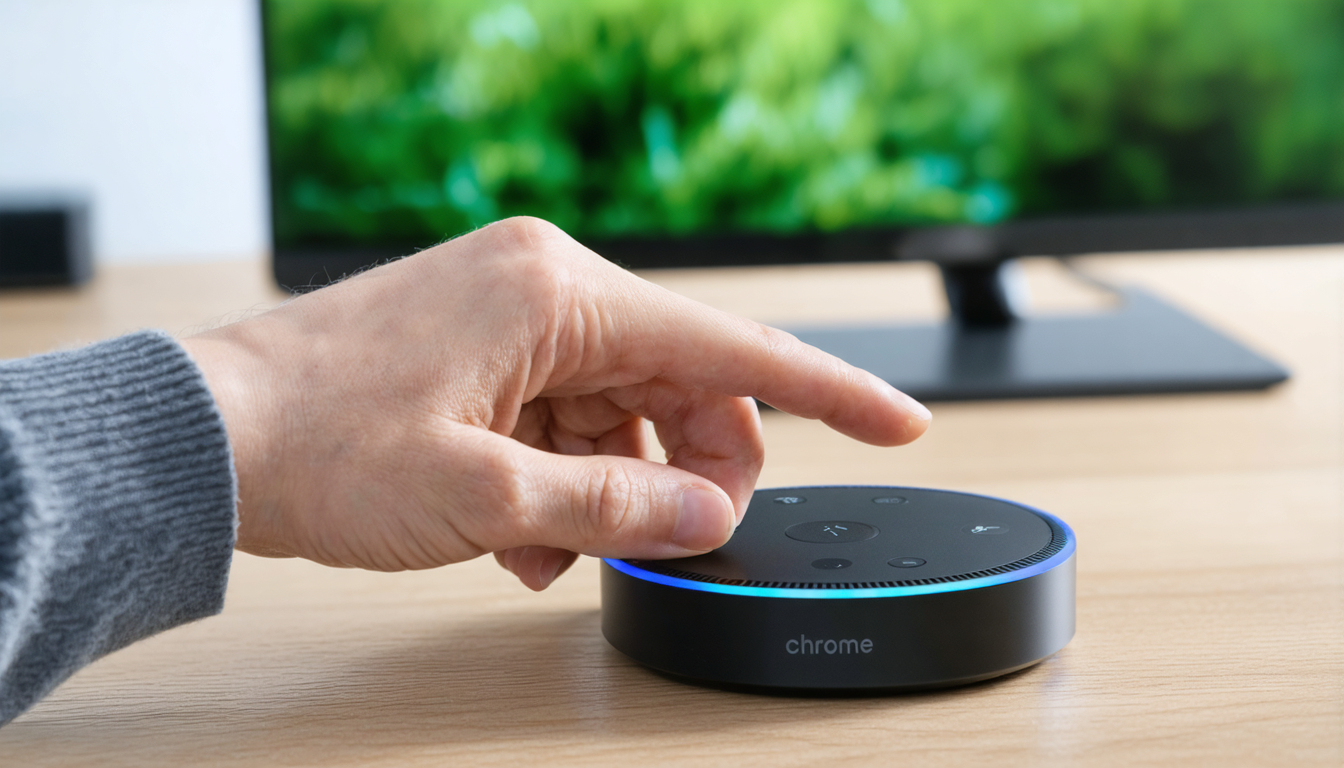
Step-by-step method to reset your Chromecast via the Google Home app
For users seeking the simplest and most effective way, using the Google Home app is ideal. This method does not require any particular physical access to the device and is done directly from your smartphone, offering intuitive and secure control.
Here is a detailed process to guide you through:
- Open the Google Home app: Make sure your smartphone is connected to the same Wi-Fi network as your Chromecast.
- Select your Chromecast: In the list of devices, find the one you want to reset.
- Access settings: Tap on the gear icon or on “Settings.”
- Choose the reset option: Navigate to “More settings,” then select “Factory reset.”
- Confirm the reset: A message will ask you to validate the data deletion. Confirm to start the operation.
This procedure restores your device to original settings, erasing previous customizations and configurations. It is compatible with all Chromecast models, including Chromecast with Google TV. This advantage is especially valuable in 2025, where versions multiply and modernize.
An important point is the necessity of a good Wi-Fi connection during the operation to avoid any process interruption. If the connection is unstable, the reset might not complete properly, causing additional errors.
Finally, after the reset via Google Home, the device restarts automatically and enters setup mode, ready to be configured again. A phase we will detail later, as it is crucial to regain an optimal display and smooth navigation.
Physical reset: instructions to restore your Chromecast to factory settings
Resetting via the app is not always possible, especially if Chromecast no longer responds or if access to the smartphone is limited. In this case, direct manipulation on the device becomes essential. Like pressing a “reset” button in video games, this method forces a quick factory reset.
For this, here are the precise steps to follow:
- Identify the physical button: Usually located at the back or on the side of Chromecast, this button is discreet but indispensable.
- Press and hold the button: For about 20 seconds, or until the LED on Chromecast changes color.
- Watch the indicator light: When the LED blinks orange then turns white, it means the reset is in progress.
- Release the button: Chromecast will automatically restart and revert to its factory settings.
This method is effective for all models, and particularly crucial when the device is frozen or unresponsive. It offers an indispensable alternative to software troubleshooting.
Owners of a Chromecast with Google TV also have an additional option. Via the remote control, they can access Settings > System > Factory reset to start a reset without touching the dongle itself. This provides appreciated flexibility depending on the encountered situation.
In all cases, it is important not to interrupt the procedure once started, as it could damage the internal system and render the device unusable. Patience and precision are key to successfully completing this process without issues.
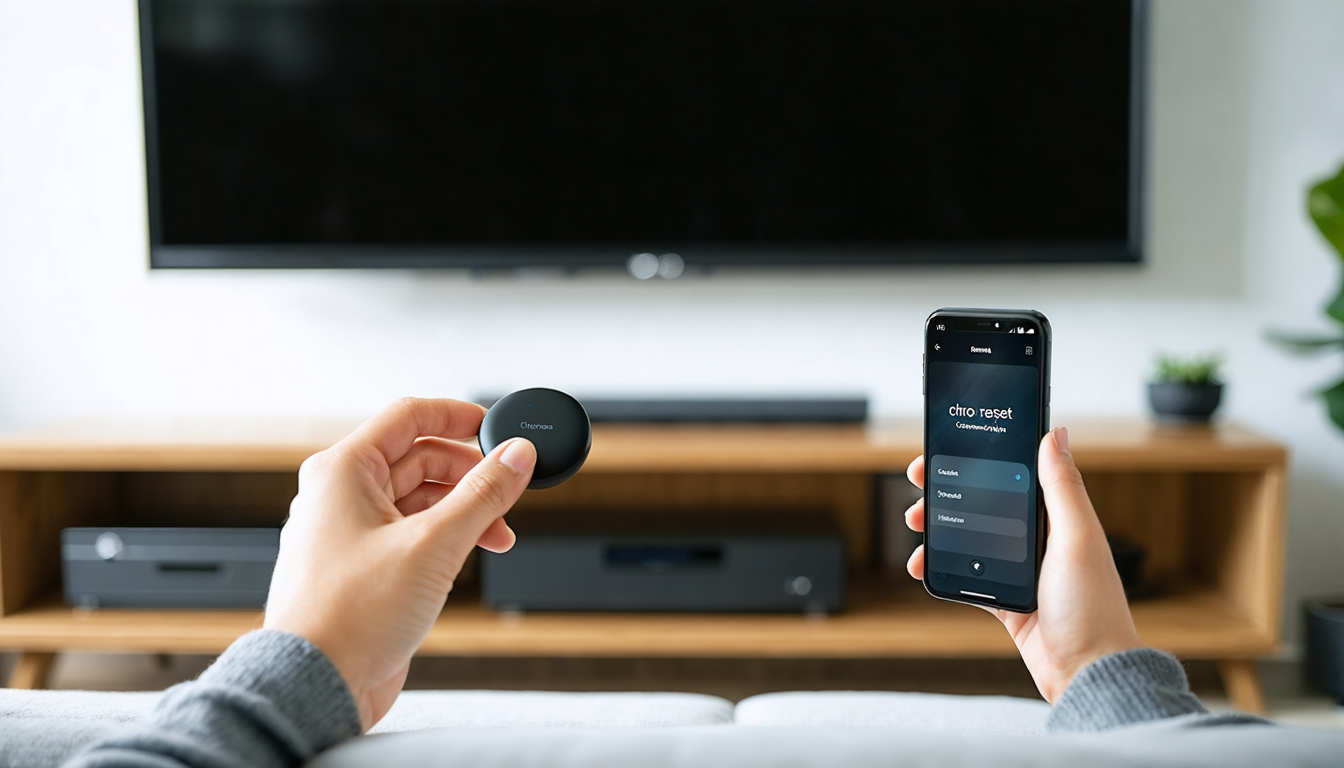
What to do after a Chromecast reset for optimal display on the television?
Once your Chromecast has been reset, it’s kind of like having a brand-new device in your hands. You just need to configure it to fully enjoy its capabilities on your television. Post-factory reset manipulations are as important as the reset itself.
Here are the recommended steps to ensure optimal display and smooth operation:
- Initial reconfiguration: Launch the setup process from the Google Home app, select your Wi-Fi network, and follow the on-screen instructions.
- Enter Wi-Fi credentials: Make sure you have your network password handy, essential for the connection.
- Software update: Once connected, check if updates are available and install them to benefit from the latest features and security fixes.
- Reinstall apps: On Chromecast with Google TV, remember to reinstall your preferred streaming apps to regain quick access to your content.
- Playback testing: Play some videos or music to verify streaming stability and display quality on your television.
This phase might seem long but is essential to optimize the user experience and avoid future problems. It’s not just about restoring a simple signal, but rather configuring a coherent set between networks, applications, and display settings.
To make this tangible, imagine a user who resets their Chromecast before a movie night at home. By carefully following these steps, they maximize their chances of enjoying a clear display, without lag or interruption, and a smooth interface to choose their favorite program.
Advanced tips for effective Chromecast troubleshooting after reset
Resetting is a powerful step, but it does not always guarantee immediate resolution of all issues. For those who want to go further in troubleshooting and ensure optimal durability, here are some expert tips:
- Check the quality of the Wi-Fi connection: Streaming performance greatly depends on a stable and fast network. Prefer a 5 GHz frequency band to avoid interference.
- Position Chromecast properly: Avoid physical obstacles between the router and the device. An open placement improves signal reception.
- Restart your network equipment regularly: Router and modem benefit from periodic restarts to maintain optimal performance.
- Limit devices connected simultaneously: Too many devices on the same network can saturate bandwidth and affect streaming quality.
- Use a powerline adapter or Wi-Fi extender: If your television is far from the router, these devices can improve coverage and stabilize the connection.
It is also wise to monitor firmware updates of your Chromecast. Google regularly releases patches aimed at fixing bugs and enhancing security. Good software management contributes to optimal display and prolongs the lifespan of your device.
To illustrate, some users in rural areas or with complex setups have noticed a clear improvement by changing their network configuration after a reset. This shows that sometimes the problem is not only the device but the whole system to optimize.
Comparison of Chromecast reset methods: Advantages and disadvantages
Differentiating reset solutions allows adopting the method best suited to your situation. Here is a summary table to better understand:
| Method | Description | Advantages | Disadvantages |
|---|---|---|---|
| Via Google Home app | Remote reset via smartphone or tablet, using the official app | Simple, fast, no physical access needed | Requires functional network access and stable Wi-Fi connection |
| Physical reset on Chromecast | Holding the built-in button on the device until LED blinks | Usable without smartphone, works even if Chromecast is frozen | More technical, requires direct manipulation |
| Via remote control (Chromecast with Google TV) | Option accessible in System settings via remote control | Convenient and integrated, no app needed | Only available on Chromecast with Google TV |
This table helps choose the optimal solution according to context, whether it is a minor software problem or a major malfunction. Each method plays a key role in effectively managing your Chromecast to ensure an impeccable user experience.
Common mistakes to avoid to preserve optimal display of your Chromecast
Even after following the advice from this practical guide to reset and optimize your Chromecast, some frequent mistakes can compromise quality of use. Knowing these pitfalls helps to better anticipate and revive your system if needed:
- Ignoring updates: Not installing regular updates can lead to incompatibilities and security vulnerabilities.
- Configuring an unstable Wi-Fi network: Using public or poorly secured networks can cause frequent interruptions.
- Unplugging Chromecast abruptly: Cutting power without turning off the device can cause data corruption.
- Using uncertified accessories: Non-compatible adapters or cables can affect HDMI signal or power supply.
- Omitting reset before resale: This risks exposing your personal data to a third party.
In practice, these mistakes slow down or degrade display on the television. They can also complicate troubleshooting by masking the origin of malfunctions. Highlighting these essential points is a way to guarantee optimal longevity and maximum satisfaction when using your Chromecast. Taking care of your equipment is the first step to fully enjoy your connected universe.