Valorant has captivated millions of players since its launch thanks to its dynamic gameplay and unique agents. However, sometimes one may want to uninstall this game, either to free up space on their computer or to move on to something else. In 2026, with the constant evolution of operating systems and gaming, it has become easier than ever to remove software like Valorant hassle-free. This comprehensive guide offers you an accessible, clear, and optimized uninstallation tutorial for an efficient removal on your PC.
We not only explain how to cleanly uninstall Valorant but also how to get rid of Riot Vanguard, this strict anti-cheat, often a source of questions during uninstallation. You will also find tips for thorough cleaning of residual files and for optimizing your system after removing the game.
Whether it’s a quick uninstall or a more complete procedure, this step-by-step guide was designed to make uninstalling Valorant on PC child’s play. It includes various methods, practical advice, and recommended tools, all presented simply and accessibly, even for those less familiar with the IT world.
- 1 Essential preparation before uninstalling Valorant on PC
- 2 Proven methods to uninstall Valorant quickly and cleanly
- 3 Eliminate residual files and clean the registry after uninstalling Valorant
- 4 Optimize your PC after uninstalling Valorant and Riot Vanguard
- 5 Keep your Valorant progress intact and secure thanks to the cloud
- 6 Common mistakes to avoid when uninstalling Valorant
- 7 Alternatives to uninstalling: what to do if you want to take a break without deleting Valorant?
- 8 What impacts can uninstalling Valorant have on your computer?
Essential preparation before uninstalling Valorant on PC
Uninstalling Valorant is not just about clicking a “delete” button. Proper preparation eases the operation and avoids technical issues. First of all, make sure Valorant and the Riot Games client are not running in the background. To do this, open the Task Manager (Ctrl + Shift + Esc) and locate the processes related to Valorant and Riot. End them carefully.
An often overlooked element is Riot Vanguard, the anti-cheat used by Valorant. This software runs constantly in the taskbar and must also be disabled before any uninstallation attempt. To disable Vanguard, look for its icon in the system tray, right-click, then choose to quit the program. This avoids conflicts and errors during removal.
This preparation phase is comparable to setting up a strategy before a match: it ensures everything is under control before launching the removal process. Additionally, having a stable internet connection is useful for downloading possible graphics driver updates after removal, which will promote better post-uninstallation performance.
Here is a clear checklist to effectively prepare your PC:
- Close Valorant and the Riot Games client via the Task Manager.
- Disable Riot Vanguard in the taskbar.
- Backup your game data if necessary, although Valorant keeps your stats in the cloud.
- Check the stability of your internet connection for post-uninstallation steps.
Proven methods to uninstall Valorant quickly and cleanly
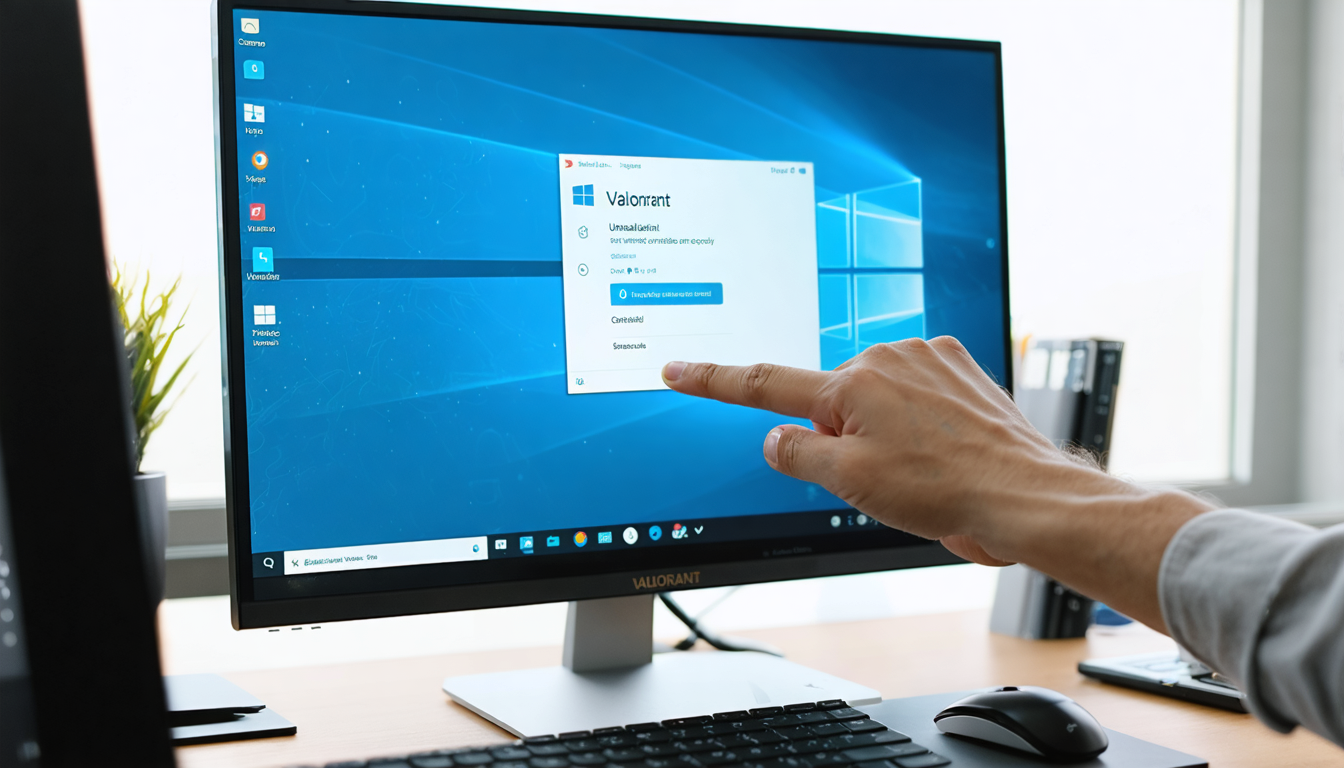
The key step in uninstallation is choosing the method best suited to your setup and needs. The most traditional way is through the Windows Control Panel. Open it, click on “Programs and Features,” find Valorant in the list of installed programs, then click “Uninstall.” This effective and integrated approach remains the favorite of many users.
Windows 10 and 11 also offer a modern alternative: go through “Settings” then “Apps.” In this interface, follow the same steps to locate Valorant then confirm the removal. This method is often more intuitive and accessible on the latest systems.
A crucial point not to forget is the separate uninstallation of Riot Vanguard. Even removed from Valorant, the anti-cheat software can keep running if it is not explicitly deleted. Use the same method in the Control Panel or Settings to remove it as well, thus avoiding any future conflict.
For more advanced users or those who want thorough cleaning from the root, third-party software like IObit Uninstaller proves very useful. These tools guide you through a complete removal, locating files often forgotten by the native Windows method. This type of program guarantees a deep uninstallation that protects your system from unnecessary traces.
| Method | Advantages | Disadvantages |
|---|---|---|
| Control Panel | Simple, integrated in Windows, accessible without software | May leave residual files |
| Windows 10/11 Settings | More modern interface, smooth navigation | Limited to recent Windows versions |
| Third-party software (e.g. IObit Uninstaller) | Complete uninstallation, residue cleaning | Requires installation of an additional program |
These methods represent the main routes to uninstall Valorant on PC. The key to a successful uninstallation lies in attention to each step, especially complete removal of Riot Vanguard which tends to be forgotten.
Eliminate residual files and clean the registry after uninstalling Valorant
Once Valorant and Vanguard have been uninstalled via classic methods or through specialized software, residual files often remain on your hard drive. These files can be found in different directories, notably in the typical installation folder C:Riot GamesValorant. They unnecessarily take up space and can sometimes cause conflicts or slow down your system.
To identify these orphaned items, manually navigate to the folder C:Riot Games and delete the one named Valorant if still present. Also, check hidden folders like AppData (located at the path C:Users[YourName]AppDataLocal or Roaming), where caches or configurations may remain stored after removal.
A very useful additional step is to clean the Windows registry. The registry holds information about installed programs, including references to Valorant and Vanguard. Using a reputable tool like CCleaner allows you to erase these invalid entries and improve system stability. However, this action is double-edged: a wrong manipulation could affect your PC’s configuration, so proceed with caution and backup the registry before any modification.
In summary, post-uninstallation cleaning revolves around the following points:
- Manually delete residual installation folders, especially those in C:Riot GamesValorant.
- Search for and clear caches in the AppData folders.
- Use registry cleaning software to erase outdated keys related to Valorant and Riot Vanguard.
- Restart your computer to apply all changes.
These steps, although more technical, allow for a proper uninstallation, freeing up valuable space and preserving your PC’s performance for other uses.
Optimize your PC after uninstalling Valorant and Riot Vanguard
Removing a demanding game like Valorant can free not only disk space but also system resources that can be better used elsewhere. Once uninstallation and cleaning are done, it’s the perfect time to optimize your hardware and prevent any future slowdown.
Updating graphics drivers is a crucial step. Indeed, up-to-date drivers ensure better compatibility and improved performance on other games or software you use. Brands like NVIDIA, AMD, or Intel regularly offer updates to download directly from their official sites or via dedicated applications.
Besides drivers, it’s wise to monitor programs that run automatically on Windows startup. Some software, even if harmless, can slow boot time or unnecessarily consume resources. Access the Task Manager, “Startup” tab, and disable non-essential applications.
Finally, take advantage of the freed disk space to reorganize your files, backup important data, and consider defragmentation if you use a traditional hard drive (HDD). All these actions improve overall responsiveness and ensure a stable environment for your future games or work on PC.
- Update graphics drivers to take advantage of recent optimizations.
- Control and manage startup applications to speed up boot time.
- Defragment your disk if you have an HDD, or check SSD health.
- Organize and backup important files to avoid any future loss.
These good practices ensure your PC remains efficient and ready to host new games smoothly.
Keep your Valorant progress intact and secure thanks to the cloud
For many users, deleting a game sometimes means fearing the loss of all their progress. Fortunately, Valorant uses a robust cloud backup that records your stats, rewards, and rank securely on Riot Games servers. Thus, even after uninstalling Valorant, your progress remains preserved, and you will find everything intact during a future reinstall.
This technology allows players to switch PCs without stress or simply free up space temporarily. Authentication via your Riot account guarantees that saved data is linked only to your personal profile.
However, it is important always to verify that your internet connection is active before closing the game so that all data synchronizes. In case of no network or interruption during the last session, some stats may not be transmitted immediately but will be updated later.
For players who want to keep a local copy, for example screenshots or other personal elements, it is recommended to manually back them up before deletion.
In summary:
- Your Valorant progress is automatically saved in the Riot Games cloud.
- Reinstallation does not cause any loss of profile or ranking data.
- Check synchronization before uninstalling to ensure the latest stats are updated.
This cloud system facilitates managing your Valorant journey while offering great flexibility in handling your game library.
Common mistakes to avoid when uninstalling Valorant
Uninstalling a game may seem obvious but several common pitfalls often trap players. The first frequent mistake is forgetting to fully close all processes related to Valorant and the Riot client before starting uninstallation. Such negligence can cause error messages or prevent complete file deletion.
The second classic trap is leaving Riot Vanguard active without uninstalling it separately. This module runs even when Valorant is closed and can interfere with the proper functioning of other software or slow down the system.
Another often noted slip is the lack of post-uninstallation cleaning of residual files or the registry. This omission leads to accumulated unnecessary files and risks potential conflicts during later installations.
Finally, do not abruptly interrupt the uninstall process or restart the computer before it finishes, which could leave partially deleted components.
Here is a concise list of errors to avoid:
- Don’t fail to close Valorant and Riot Games before uninstalling.
- Don’t forget to uninstall Riot Vanguard separately.
- Don’t neglect post-uninstallation cleaning of files and registries.
- Don’t interrupt the uninstall process too early.
By following these guidelines, you will avoid the majority of recurring issues and perform a fast and efficient uninstallation.
Alternatives to uninstalling: what to do if you want to take a break without deleting Valorant?
It is not always necessary to fully uninstall Valorant to take a break. Several solutions allow you to temporarily free system resources without deleting the game. For example, you can simply disable Riot Vanguard, which prevents Valorant from running without deleting files. This is especially useful if you plan to reinstall soon or want to limit the anti-cheat’s effects on performance.
Additionally, Windows offers the hibernation function or background app management, allowing you to suspend Valorant’s activity without total removal. These options keep your data intact and facilitate a quick game restart.
Finally, some players opt to temporarily disable Riot Games auto-launch at startup, thus preventing the client from starting involuntarily without uninstalling the game.
These alternatives are convenient for smoothly managing your gaming experience without the radical effect of an uninstallation.
- Disable Riot Vanguard to suspend the anti-cheat without uninstalling.
- Use sleep mode or suspend Valorant-related processes.
- Prevent auto-launch of the Riot client at PC startup.
- Keep your data and configuration for easy resumption.
What impacts can uninstalling Valorant have on your computer?
Removing a popular game like Valorant has effects beyond simple disk space gain. First, by deleting Valorant and Riot Vanguard, you free precious system resources such as RAM and CPU power previously dedicated to these programs, which can translate into better overall PC responsiveness.
On the other hand, some anti-cheat monitoring features will disappear, which might influence the behavior of other games you interact with. Riot Vanguard, although sometimes criticized for its constant presence, is also a security guarantee ensuring a fair gaming environment.
Moreover, uninstallation offers the opportunity to start fresh in case of persistent technical problems or bugs related to Valorant. This can resolve software conflicts, improve overall stability, and reduce loading times.
Finally, it’s possible that removing Valorant changes certain network settings, especially if you had configured specific rules for this game in your firewall or router. Checking these settings is therefore recommended to avoid interruptions in other applications.
Here is a summary table of the main impacts:
| Effect | Consequence | Remark |
|---|---|---|
| Disk space freed | More storage available for other applications | Generally positive |
| System resources freed | Smoother overall PC performance | Notable on modest setups |
| Removal of Riot Vanguard | Loss of anti-cheat monitoring | May affect security in some games |
| Possible changes in network settings | Need to check firewall and router | Rare but not to be neglected |
Through these aspects, it is understood that uninstalling Valorant is a decision that requires preparation but can also give your PC a fresh start for other uses or games.